 Skip to content
Building a table in WP Table Builder is quick. Editing one used to be the slow part.
Not anymore. The new AI Assistant lets you edit your table by just saying what you want. Ask for a new column, a dark header row, or star ratings instead of plain numbers, and it makes the change in seconds.
No clicking through panels. No hunting for the right setting. You describe it, the Assistant does it.
Introducing the WP Table Builder AI Assistant
The AI Assistant is a chat panel built directly into the table builder. You type what you want, and it edits your table on the spot.
Need a new column? Ask for it. Want the header row dark blue, the prices right-aligned, or the second row highlighted? Type the request, and the change shows up in your table within seconds. No hunting through settings, no guessing which control does what.
One thing to be clear about from the start: today the AI Assistant edits tables you have already started. Building a complete table from a single prompt is something we are working on, and it is on the way. For now, the quickest path is to drop in your data, then shape and style it by asking.
What You Can Do With the AI Assistant
Here is what that looks like in practice. Every one of these is a real request you can type today.
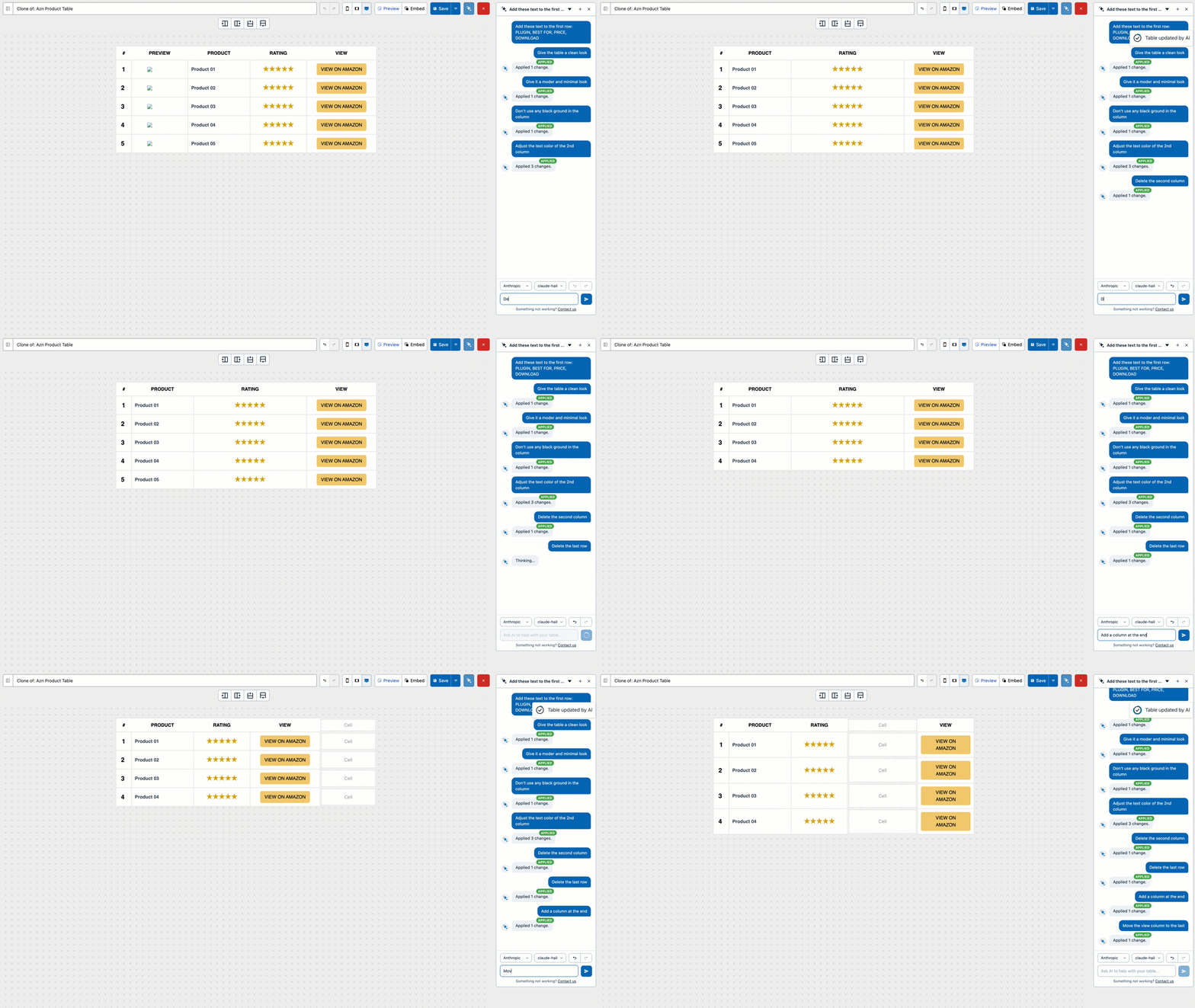
Restructure your table. Add, delete, duplicate, move, or merge rows and columns. Say “add a column at the end,” “delete the last row,” or “move the price column to the front,” and the structure updates around it.
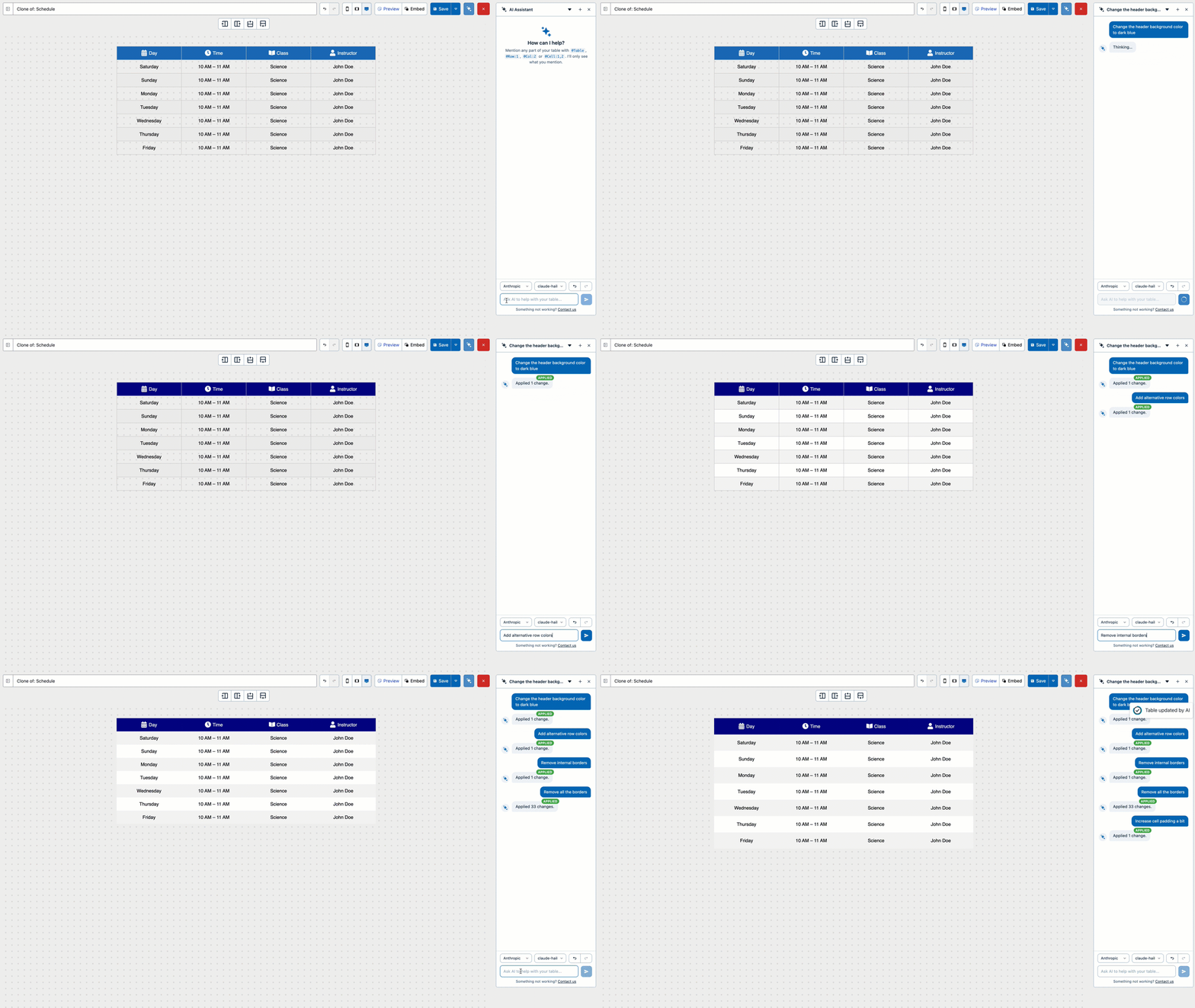
Restyle it in seconds. Change background and text colors, borders, padding, and alignment. Ask for alternating row colors, a dark blue header, or a pale green price column, and it applies the styling for you.
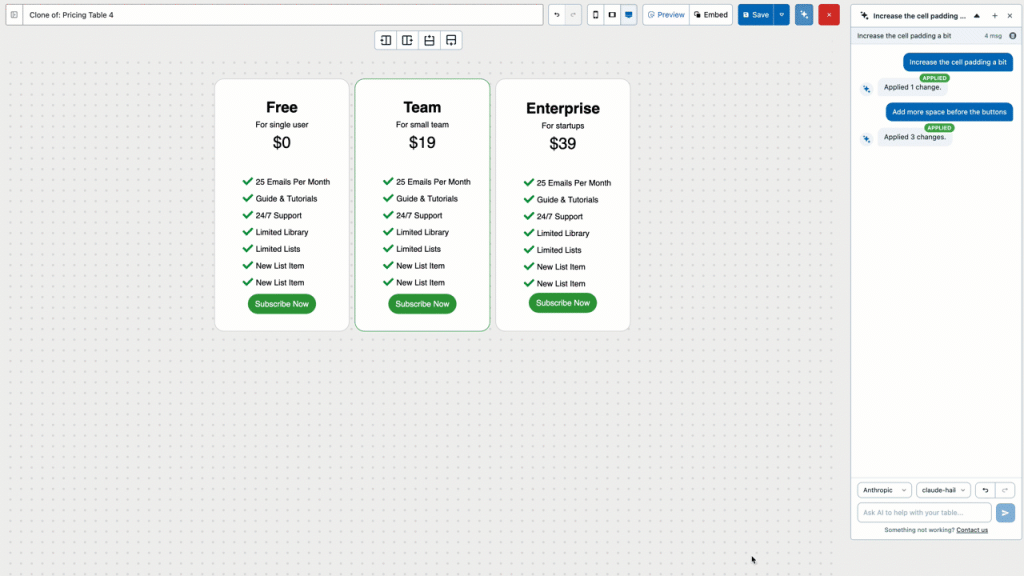
Apply a whole new look from a single line. Try “switch the table to a dark theme” or “apply a clean, modern style.” Instead of flipping one setting, the Assistant coordinates every change across the table to match what you asked for.
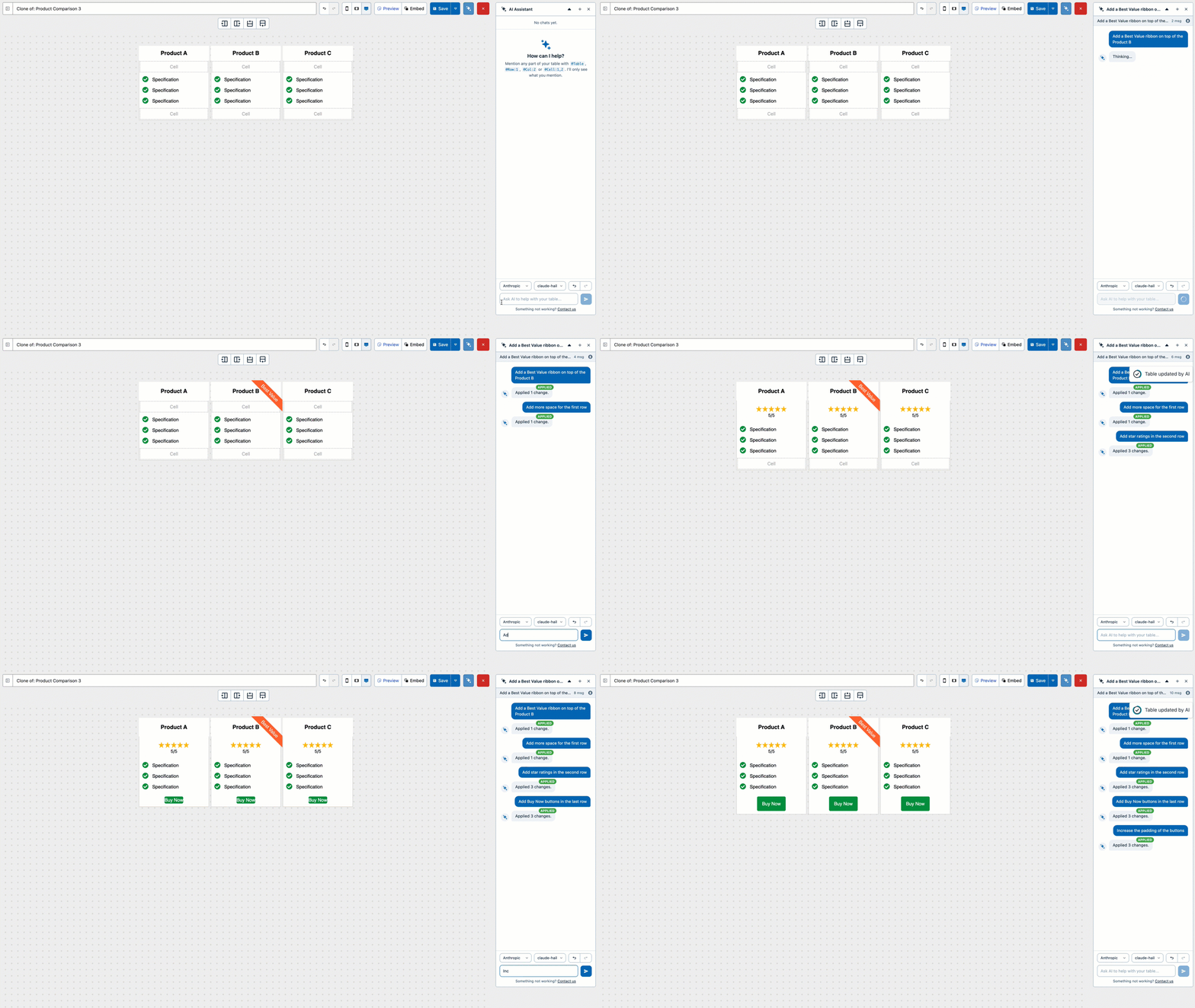
Add elements just by asking. Star ratings, Buy Now buttons, ribbons, checkmarks, and images, dropped into the cells you name. Ask for “a Best Value ribbon on the top plan” or “a Buy Now button in the last column,” and it appears in place.
What This Looks Like in Practice
Picture a pricing comparison table you need to refresh before a launch. The manual way means opening one panel for the colors, another for the column order, and another for the ratings, one at a time.
With the AI Assistant, you type a handful of requests instead. Move the price column, recolor the header, add a ribbon to your best plan, switch to a dark theme. A minute later the table is ready, and you never left the builder to do it.
Who It’s For
The AI Assistant is for anyone who would rather describe a change than go looking for the setting that makes it.
- Bloggers and affiliate marketers who live in comparison and review tables.
- Small teams without a designer on hand to fuss over styling.
- Anyone new to WP Table Builder who does not yet know where every control lives.
If you have ever thought “I know exactly how I want this table to look, I just don’t want to click through ten panels to get there,” this was built for you.
How to Use the AI Assistant
The AI Assistant is available in WP Table Builder Pro, and it runs on your own API key from OpenAI or Anthropic. Here is how to get started.
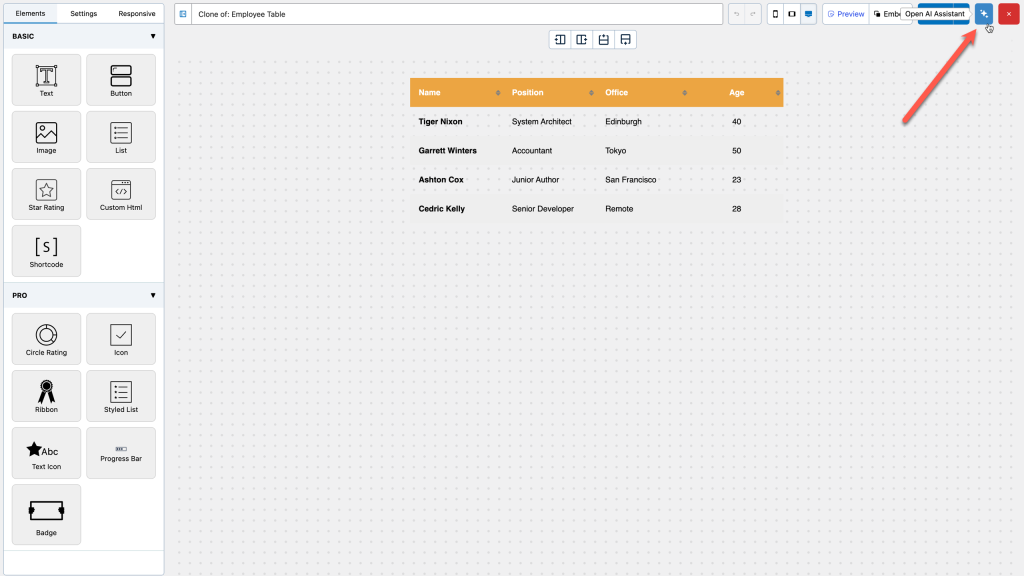
Step 1. Open the table you want to work on in the WP Table Builder editor, then open the AI Assistant panel from the toolbar.
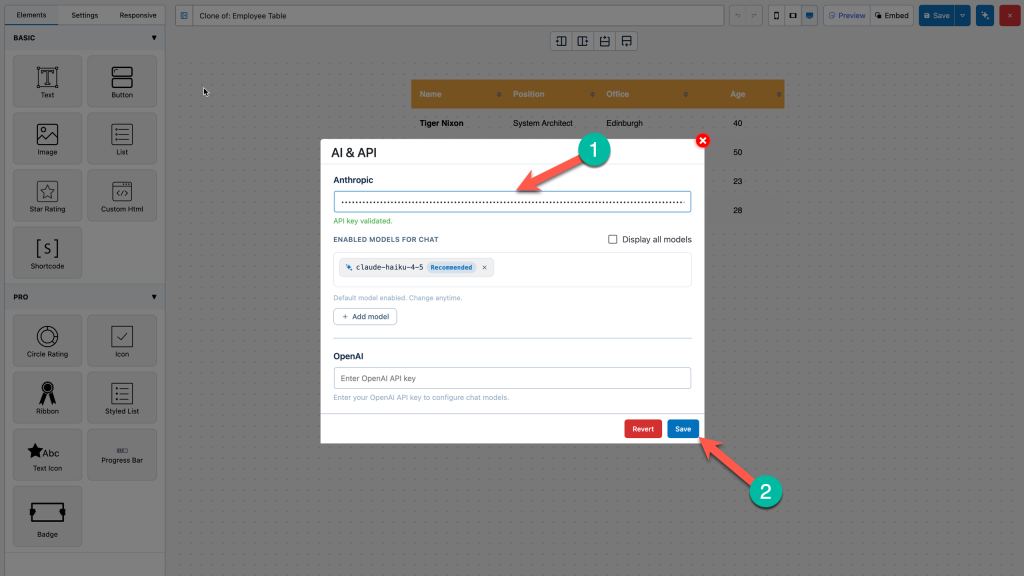
Step 2. Choose your provider, OpenAI or Anthropic, and add your API key. Because you bring your own key, you stay in control of your usage and cost.
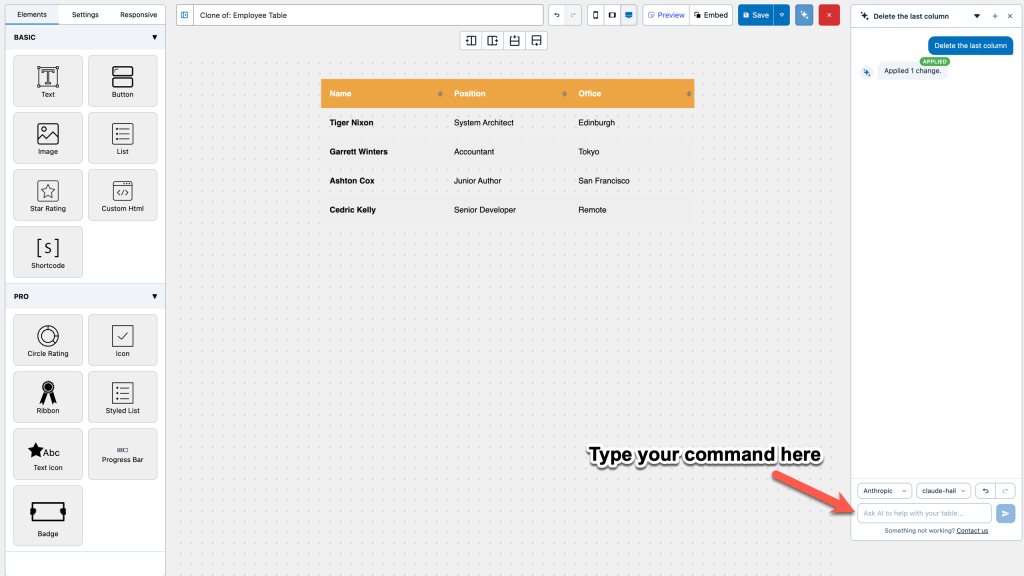
Step 3. Type your request in the message box and send it. Start with something simple, like “add a column at the end” or “make the header row dark blue,” and watch it apply.
Why Edit Tables This Way
Speed is the obvious win. Changes that used to take several clicks across multiple panels now take a single sentence.
The quieter win is the learning curve. You do not need to know where every control is tucked away to get a polished table. You describe the result, and the Assistant handles the how. That keeps you focused on your content instead of the interface.
What’s Next
This is the first step. Editing your tables by asking is live in Pro today, and building tables from scratch with AI is on the way. We would love to know which commands you reach for most, because that is exactly what shapes where we take this next.
Try It Today
Make sure you are on the latest version of WP Table Builder Pro, open a table, and have your OpenAI or Anthropic API key ready. Then open the AI Assistant and just ask.
Leave a Reply
You must be logged in to post a comment.