

WP Table Builder and Ninja Tables are two popular ways to add tables to a WordPress site. Both are free to start, both have a drag and drop builder, and both can create pricing, comparison and product tables. So which one should you use?
We make WP Table Builder, so we have tried hard to keep this comparison fair. Every Ninja Tables detail below comes from its official WordPress.org listing, and we point out where Ninja Tables is the better choice. By the end, you will know which plugin fits the tables you actually need to build.
Quick Verdict
- Choose WP Table Builder if you want good-looking comparison, pricing and product tables built in one visual editor, with images, buttons and star ratings available in the free version.
- Choose Ninja Tables if you work with large data sets, need charts, or want tables filled from live sources such as Google Sheets, WooCommerce or form entries.
WP Table Builder vs Ninja Tables: Side by Side
Here is how the two plugins compare on the features most people care about. Details for Ninja Tables come from its WordPress.org page.
Feature | WP Table Builder | Ninja Tables |
How you build | One visual drag and drop builder | Two modes: Advanced (data) and Simple (drag and drop) |
Free elements | Text, Image, List, Button, Star Rating, Custom HTML, Shortcode | Text, Button, Icon, Rating, List, HTML, Shortcode |
Image element | Free | Pro (in drag and drop mode) |
Extra Pro elements | Badge, Ribbon, Icon, Progress Bar, Circle Rating, Styled List, Text Icon | Image, Styled List, Ribbon, Progress Bar, Text Icon |
Merge and split cells | Yes, free | Free in drag and drop mode |
Mobile layout | Separate desktop, tablet and mobile settings with cell stacking | Six breakpoints and column hiding, stackable tables in Pro |
Import | CSV, XML and TablePress | CSV, Excel and JSON |
Export | CSV and XML | CSV, Excel and JSON |
Live data sources | Not built in | Fluent Forms and FluentCart, plus Google Sheets, WooCommerce and more in Pro |
Very large tables | Best for small and medium tables | DataTables engine for thousands of rows |
Charts | No | Yes |
Embed options | Block or shortcode | Shortcode |
Best for | Comparison, pricing and product tables | Data tables and synced data |
This table was built with WP Table Builder.
How Each Plugin Builds Tables
WP Table Builder: One Visual Builder
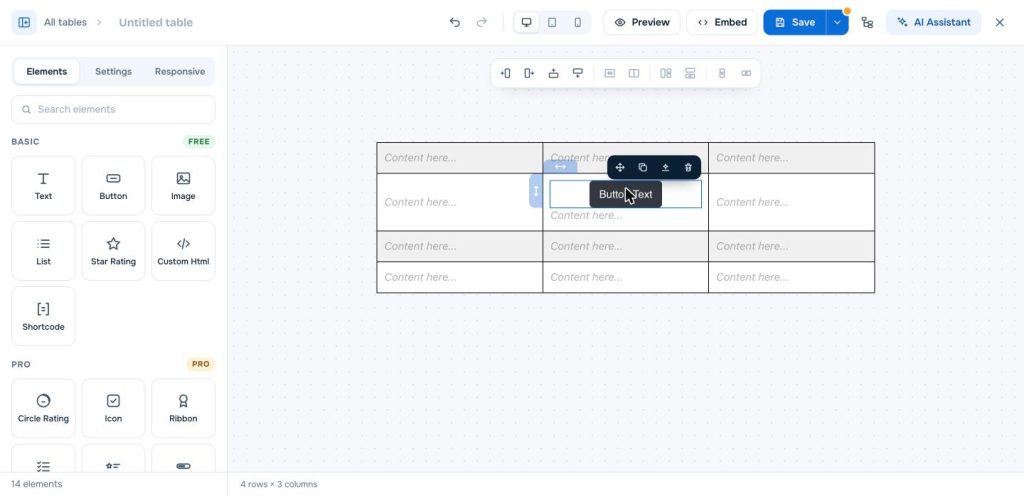
WP Table Builder has a single builder. You choose a template or set the number of rows and columns, then drag elements from the left panel into any cell. What you see on the canvas is what your visitors see. There is no separate data mode to learn, which makes it easy for beginners and quick for design-focused tables.
Ninja Tables: Two Table Modes
Ninja Tables offers two modes. The Advanced mode works like a database: you define columns and data types (text, numbers, dates, images and more), then add rows. The Simple mode is a drag and drop builder with elements such as text, buttons, icons and ratings. It also lists 11 ways to create a table, including imports and connections to other tools.
This flexibility is a real strength for data-heavy sites. The trade-off is that you need to pick the right mode first, and the two modes offer different features.
Elements and Design Options
Elements are the building blocks you drop into cells. This is where the two plugins differ most for pricing and comparison tables.
- WP Table Builder free: Text, Image, List, Button, Star Rating, Custom HTML and Shortcode.
- WP Table Builder Pro: adds Badge, Ribbon, Icon, Progress Bar, Circle Rating, Styled List and Text Icon.
- Ninja Tables Simple mode, free: Text, Button, Icon, Rating, List, HTML and Shortcode.
- Ninja Tables Simple mode, Pro: adds Image, Styled List, Ribbon, Progress Bar and Text Icon.
The biggest practical difference is the Image element. Product and review tables almost always need images, and WP Table Builder includes it for free. Ninja Tables, on the other hand, offers more ready-made table styles (it lists 100+ styles and support for CSS libraries like Bootstrap), which is helpful if you want a styled data table without designing it yourself.
Both plugins let you merge and split cells. In Ninja Tables this is free in the drag and drop mode, while in WP Table Builder it is part of the free cell management tools.
Data Sources and Imports
If your table data lives somewhere else, Ninja Tables has the edge. It can pull data from Fluent Forms and FluentCart in the free version, and from Google Sheets, WooCommerce products, WordPress posts, external CSV files and custom SQL queries in Pro. It also offers a DataTables engine that loads rows page by page, so tables with thousands of rows stay fast.
WP Table Builder focuses on tables you design yourself. You can import tables from CSV and XML files (including several files at once in a ZIP) and directly from TablePress, and export to CSV or XML. XML is the better choice for moving tables between sites because it keeps your table settings. Our guide on how to import a CSV file into a WordPress table shows the steps.
WP Table Builder does not sync with Google Sheets or build tables from WooCommerce products automatically. If you need either of those, Ninja Tables Pro is the better fit. For live content inside a cell, WP Table Builder’s Shortcode element can display output from other plugins.
Responsive and Mobile Tables
Both plugins take mobile seriously, in different ways.
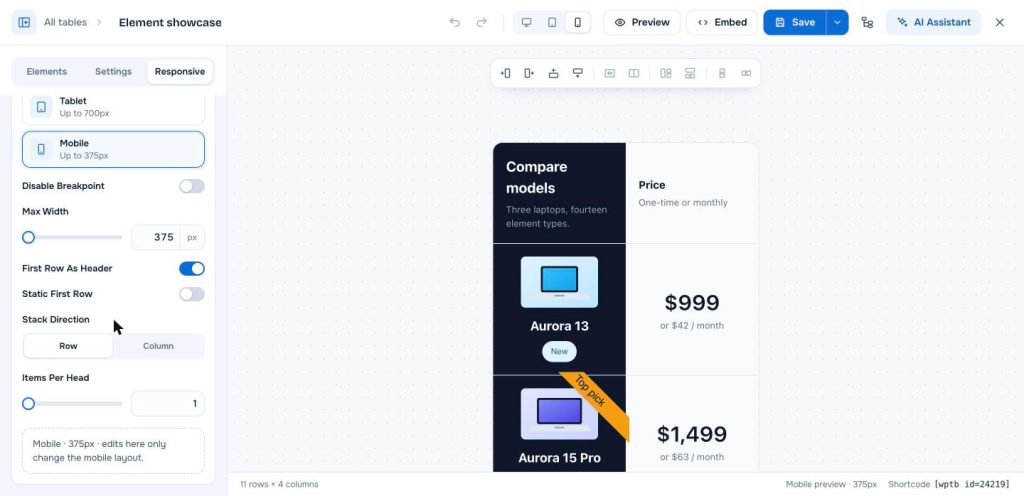
In WP Table Builder, the Responsive tab lets you set separate options for desktop, tablet and mobile. You can stack cells in rows or columns, use the first row as a header on small screens, and preview each breakpoint before saving. This is ideal for wide comparison tables that would otherwise force visitors to scroll sideways.
Ninja Tables lists six breakpoints and lets you hide or show columns on each one. Its stackable table option, which splits rows into separate mini tables on small screens, is a Pro feature.
Free vs Pro: What You Get
Both plugins have a capable free version on WordPress.org and a paid Pro version. Here is the short version:
- WP Table Builder free covers the full builder, seven elements, templates, cell merging, responsive settings, sorting, and import and export. Pro adds advanced elements like badges, ribbons and circle ratings, plus an AI assistant that can edit tables from a text prompt.
- Ninja Tables free covers unlimited tables, both modes, templates, import and export, sorting, search and charts. Pro adds live data sources, conditional formatting, front-end editing, extra data types and custom filters.
Check each plugin’s pricing page for current plans. You can compare WP Table Builder plans on the pricing page.
Which One Should You Choose?
Choose WP Table Builder if you:
- Build product comparison, pricing or review tables for blog posts and affiliate content.
- Want images, buttons and star ratings in cells without paying.
- Prefer one simple builder over choosing between modes.
- Are moving away from TablePress and want a direct import.
Choose Ninja Tables if you:
- Display large data tables with hundreds or thousands of rows.
- Need tables synced from Google Sheets, WooCommerce or form entries.
- Want charts built from your table data.
- Use Fluent Forms or FluentCart already.
Still weighing other options? See our roundup of the best WordPress table plugins and our list of Ninja Tables alternatives.
How to Build a Comparison Table in WP Table Builder
Want to see how WP Table Builder works before you decide? Here is how to build a simple comparison table like the one above.
- Install the plugin. In your dashboard, go to Plugins > Add New, search for “WP Table Builder”, then click Install and Activate.
- Create a table. Go to Table Builder > Add New. Pick a comparison template from the template categories, or choose your number of columns and rows and click Generate.
- Add your content. Drag Text, Image, Button or Star Rating elements from the Elements panel into the cells, then click any element to edit it.
- Style the table. Open the table settings to set a header row background, borders and alignment. Use cell management to merge cells or add rows and columns.
- Check mobile. Open the Responsive tab, pick the tablet and mobile breakpoints, and choose how cells should stack.
- Save and embed. Click Save, then click Embed to copy the shortcode. You can also add the WP Table Builder block in the block editor and pick your table from the list.
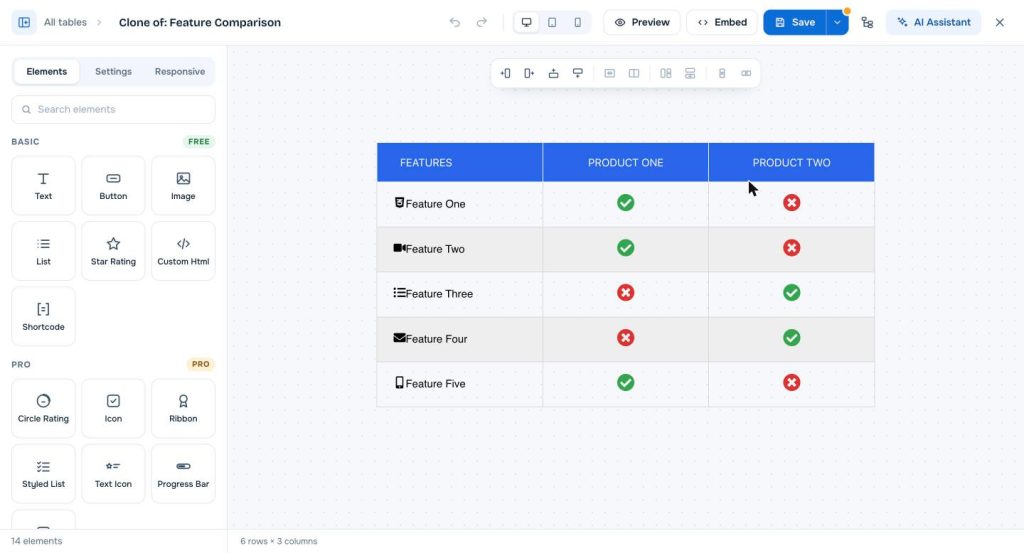
Tip: keep the first column for feature names and highlight the column you recommend. Our step by step guide to creating a feature comparison table covers layout ideas in more detail.
Frequently Asked Questions
Is WP Table Builder free?
Yes. WP Table Builder is free on WordPress.org and includes the drag and drop builder, seven elements (Text, Image, List, Button, Star Rating, Custom HTML and Shortcode), templates, responsive settings, and import and export. WP Table Builder Pro adds advanced elements such as badges, ribbons and circle ratings.
Which is better for pricing and comparison tables?
Both can build them. WP Table Builder is focused on visual, design-led tables and includes the Image element in its free version, which most product and comparison tables need. Ninja Tables offers more ready-made styles but puts its Image element in Pro for the drag and drop mode.
Which plugin is better for large data tables?
Ninja Tables. Its DataTables engine loads rows page by page from the server, so very large tables stay fast. WP Table Builder works best for small and medium tables that you design by hand.
Can I move my tables from Ninja Tables to WP Table Builder?
Yes, with a little work. Export your table from Ninja Tables as a CSV file, then import that CSV in WP Table Builder under Table Builder, Import. The data comes across, but you will need to redo the styling, buttons and images in the builder.
Does WP Table Builder connect to Google Sheets?
Not directly. WP Table Builder does not sync with Google Sheets. You can export a sheet as a CSV file and import it, but later changes in the sheet will not update the table automatically. If you need live syncing, Ninja Tables Pro offers it.
Conclusion
WP Table Builder and Ninja Tables are both solid table plugins with different strengths. WP Table Builder is the simpler choice for design-led tables like comparisons, pricing tables and product boxes, and its free version includes the Image element those tables need. Ninja Tables is the stronger choice for large data tables, charts and tables fed from Google Sheets, WooCommerce or forms.
Both are free to try, so the best test is to build one real table in each. If your table is mostly about presentation, start with WP Table Builder.
Leave a Reply
You must be logged in to post a comment.