

Reviews are one of the first things people look for before they buy, book or sign up. But when your reviews live on Google, Facebook and your own contact form, visitors only see a few of them, and usually not on the page where they are making a decision.
A customer reviews table fixes that. It puts the best feedback from your customers in one tidy place, with names, star ratings, short quotes and where each review came from. In this guide you will learn how to display customer reviews in a WordPress table, first with the core Table block and then with WP Table Builder, which adds real star ratings, row colors and a mobile layout without code.
What Is a Customer Reviews Table?
A customer reviews table is a regular table where each row is one review. The columns usually hold the customer name, the star rating, a short quote from the review and the source, such as Google or your website. Because every review follows the same layout, visitors can scan ten reviews in the time it takes to read one long testimonial.

It works well on product pages, service pages, landing pages and “Why choose us” sections. Restaurants, local shops, agencies, course creators and SaaS products all use this format.
Why Show Customer Reviews in a Table?
- Easy to scan: stars line up in one column, so the overall feeling is clear at a glance.
- More reviews in less space: a table fits five or ten short reviews where a slider shows only one at a time.
- Shows where reviews come from: a Source column (Google, Facebook, Trustpilot, your website) makes the feedback feel more trustworthy.
- Fits any page: you can embed the same table on several pages with one block or shortcode.
- Easy to update: add a new row when a great review comes in, and every page that uses the table updates.
If you want to learn more about why a dedicated plugin makes tables easier to manage, read why use a table plugin in WordPress.
What to Include in a Customer Reviews Table
Keep the table short and focused. These columns work for most sites:
- Customer: first name and last initial (for example Sarah K.), plus the month of the review. Ask permission before you use a full name or photo.
- Rating: a 1 to 5 star rating, ideally with the number next to it (4/5) for clarity.
- Review: one or two short sentences quoted from the original review. Do not change the meaning.
- Source: where the review was posted. Link to the original review page if you can.
- Optional: product or service name, a photo, or a “Verified buyer” label.
Short labels and short quotes keep the table clean on phones too. For more layout advice, see these common table design mistakes and how to fix them.
Option 1: Create a Reviews Table with the Core Table Block
WordPress has a built in Table block. It is fine for a quick, simple list of reviews.
- Open your post or page in the block editor.
- Click the + button, search for Table and add the block.
- Set 4 columns and as many rows as you need, then click Create Table.
- Type your headers in the first row: Customer, Rating, Review, Source. In the block settings, turn on Header section.
- Fill in each review. For the rating, type star characters (for example ★★★★☆) or a number like 4/5.
- Pick the Stripes style in the block settings so the rows alternate in color, then save.
The limits show up quickly. The core block has no real star rating element, no per row colors beyond the stripes style, no rounded corners, and on small screens the table simply gets squeezed or needs side scrolling. You also need to rebuild the table on every page where you want it. That is where a table plugin helps.
Option 2: Create a Customer Reviews Table with WP Table Builder
WP Table Builder is a drag and drop table builder for WordPress. The free version includes a Star Rating element, an Image element for customer photos, row background colors, rounded corners and responsive settings, which is everything a good reviews table needs.
Step 1: Install WP Table Builder and Create a New Table
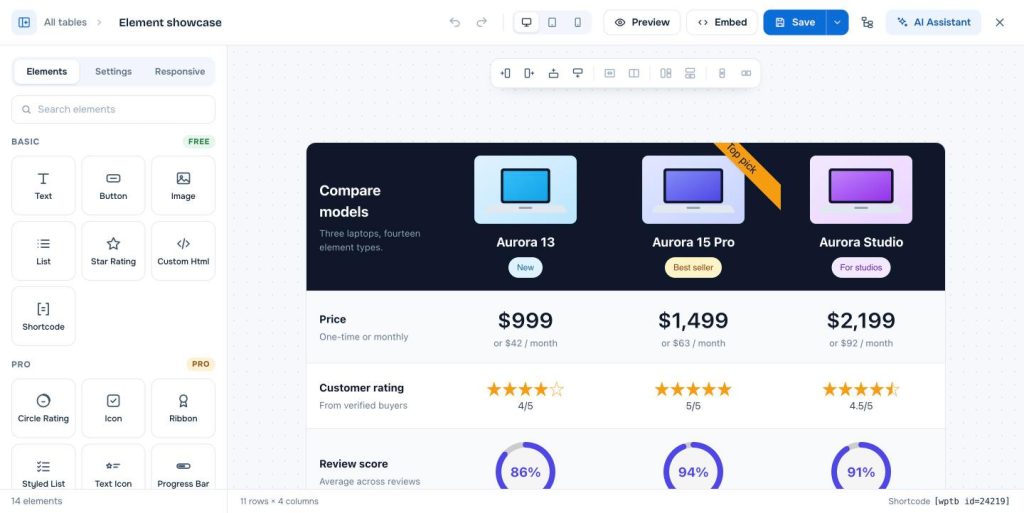
In your dashboard go to Plugins > Add New, search for WP Table Builder, then install and activate it. Next, open WP Table Builder > Add New. You can start from a template or create a blank table. For a reviews table, a blank table with 4 columns and 6 rows (one header row and five reviews) is a good start.
Step 2: Add the Header Row and Customer Names
Drag a Text element into each cell of the first row and type Customer, Rating, Review and Source. Then add a Text element to the first cell of each review row with the customer name. You can add the month of the review on a second line in the same Text element. Font color, font family and size are set in the Text settings.
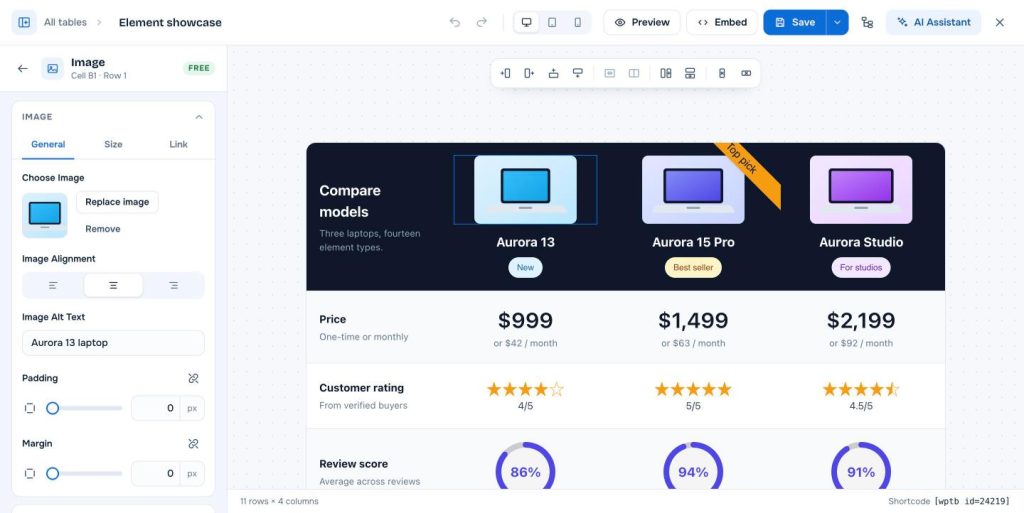
If you have permission to show customer photos, drag an Image element into the cell and add alt text, such as the customer first name.
Step 3: Add Star Ratings
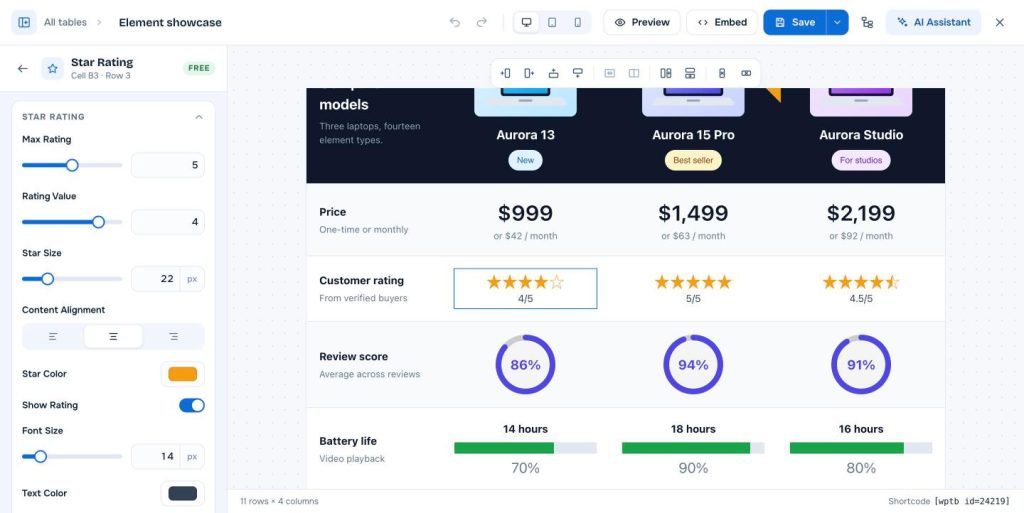
Drag the Star Rating element into each cell of the Rating column. In its settings you can set:
- Max Rating: usually 5.
- Rating Value: the score for that review. It moves in steps of 0.2, so 4.6 or 4.8 averages also work.
- Star Size and Star Color: a warm yellow or orange is easy to recognize.
- Show Rating: shows the number next to the stars (for example 4/5), which helps screen reader users and anyone who scans quickly.
Our guide on how to add star ratings in WordPress covers other ways to use stars on your site.
Step 4: Add the Review Text and Source
Use a Text element for the short review quote. Keep it to one or two sentences so rows stay even. In the Source column add another Text element with the site name. To link to the original review, select the text and add a link; WP Table Builder lets you open it in a new tab and mark it as nofollow.
Step 5: Style the Table
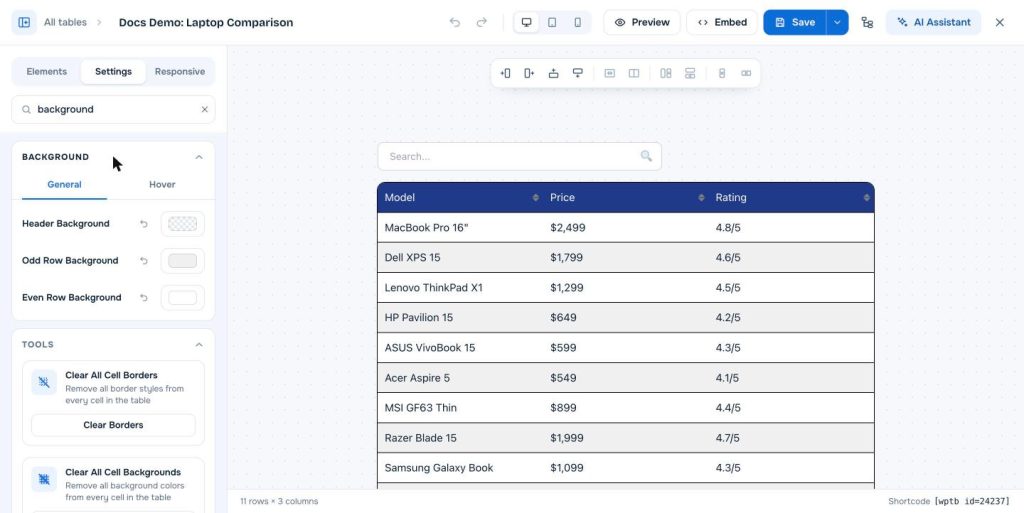
Open the table Settings panel. In the Background section set the Header Background (for example your brand color) and soft Odd Row and Even Row colors so the reviews are easy to follow.
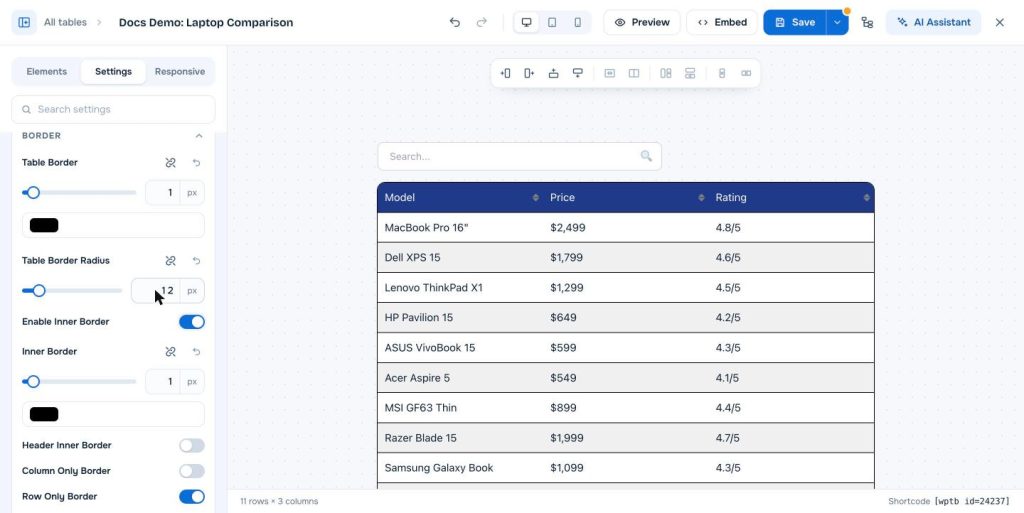
In the Border section, set a light outer border and a Table Border Radius such as 12px for rounded corners. Rounded corners make the table look like a modern card.
Step 6: Make the Table Mobile Friendly
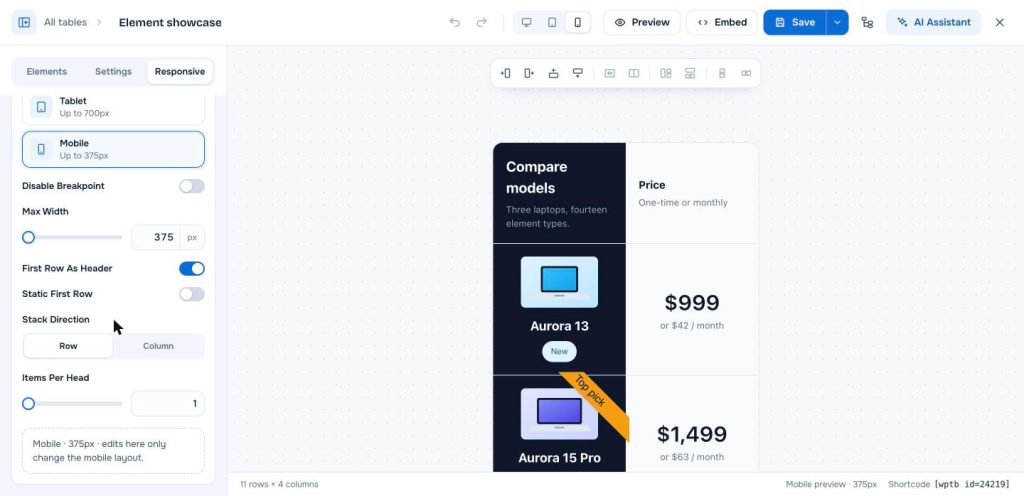
Open the Responsive tab and turn on Enable Responsive Table. For the Tablet and Mobile breakpoints you can stack the cells and keep First Row As Header on, so each review becomes a small card with its labels on a phone. You can also hide a less important column (such as Source) on mobile. Read the full guide on how to create responsive tables in WordPress for more options.
Step 7: Save and Add the Table to Your Page
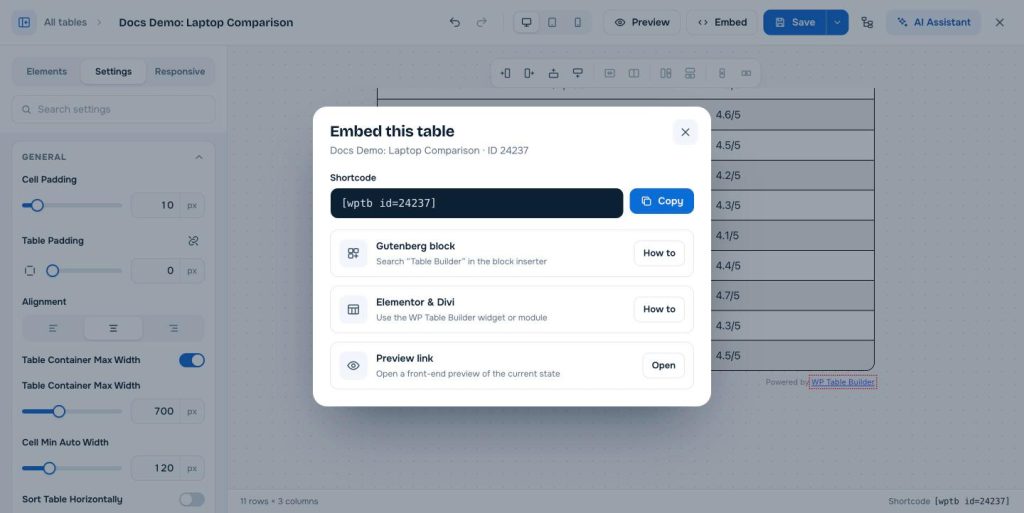
Click Save, then Embed to copy the shortcode (for example [wptb id="123" not found ]). In the block editor you can also add the WP Table Builder block and pick your table from the list. The same table can go on as many pages as you like.
The Finished Customer Reviews Table
Here is a finished example built with WP Table Builder, using sample reviews for a fictional bakery. It uses the free Star Rating element, header and row colors and a 12px border radius. Try it on your phone to see the responsive layout.
Customer | Rating | Review | Source |
Sarah K. | Fresh bread every morning and very friendly staff. | ||
Daniel R. | Great croissants. It gets busy on weekends. | Website | |
Amina T. | Ordered a birthday cake and it was perfect. | ||
Lucas M. | Best sourdough in town, worth the short wait. | ||
Priya S. | Lovely coffee, and they now offer oat milk. | Trustpilot |
Extra Options in WP Table Builder Pro
The free version covers a complete reviews table. If you want more, WP Table Builder Pro adds elements such as Badge and Ribbon (to tag a “Top review”), Circle Rating, Icons and Styled Lists, plus pagination and search for long lists of reviews and sticky header rows.
Can You Import Reviews Automatically?
WP Table Builder does not connect to Google, Facebook or Trustpilot, so reviews are not pulled in automatically. You add and update them yourself, which also gives you full control over which reviews appear.
If you have many reviews, a faster route is to collect them in a spreadsheet, save it as a CSV file and use WP Table Builder > Import to create the table. Then add the Star Rating elements and styling. If you need a live feed of new Google reviews instead, a dedicated review plugin is the better fit; see our list of the best Google reviews WordPress plugins.
Tips for a Trustworthy Reviews Table
- Use real reviews only. Copy the wording from the original review and do not edit the meaning.
- Ask permission before you show a customer full name or photo. First name and last initial is a safe default.
- Link to the source where you can, so visitors can check the review.
- Do not hide every lower rating. A few 4 star reviews make the table look more believable.
- Keep it fresh. Add new reviews every few months and include the month so visitors see recent feedback.
- Keep quotes short. One or two sentences per row keeps the table clean on all screens.
Want to compare products or plans next to your reviews? These comparison table best practices work well for that.
Frequently Asked Questions
Can I show Google reviews in a WordPress table?
Yes. Copy the reviews you want to feature (with the customer permission where needed) into a WP Table Builder table, add a Star Rating element for each score and link the Source text to the original review. WP Table Builder does not sync with Google automatically, so you update the table by hand.
Is the Star Rating element free in WP Table Builder?
Yes. The Star Rating element is part of the free WP Table Builder plugin. You can set the max rating, the rating value, the star size and color, and show the number next to the stars.
Will a reviews table show stars in Google search results?
Usually not. A WP Table Builder table does not add review schema on its own, and Google generally does not show review stars for reviews a business shows about itself on its own site. Treat the table as a way to build trust with visitors, not as an SEO trick.
How many reviews should I put in the table?
Five to ten short reviews is a good range for most pages. For a longer list, split reviews by product or service into separate tables, or use pagination and search in WP Table Builder Pro.
Will my reviews table look good on mobile?
Yes, if you turn on Enable Responsive Table in the Responsive tab. On tablets and phones the cells can stack so each review becomes a small card, and you can hide less important columns on mobile.
Conclusion
A customer reviews table is a simple way to put real feedback in front of visitors right where they decide. The core Table block works for a quick list, but WP Table Builder gives you real star ratings, customer photos, brand colors, rounded corners and a layout that works on phones, all in the free version.
Pick five of your best recent reviews, build the table once and add it to your key pages. When new reviews come in, update one table and every page stays current.
Leave a Reply
You must be logged in to post a comment.