

Colors do a lot of quiet work in a table. A strong header color tells readers where the labels are, soft row stripes keep their eyes on the right line, and one accent color can point to the plan or product you want people to notice. The default look of most WordPress tables is plain gray and white, so changing the colors is one of the quickest ways to make a table match your site.
In this guide you will learn which parts of a table you can color, how to change table colors in WordPress with the core Table block (Option 1), and how to control every color with WP Table Builder (Option 2). You will also find a color cheat sheet built as a live table, plus tips for picking colors that are easy to read.
Which Parts of a Table Can You Color?
A table is made of several layers, and each one can have its own color. Thinking about them separately makes it much easier to design a clean table, because you can change one layer without breaking the others.
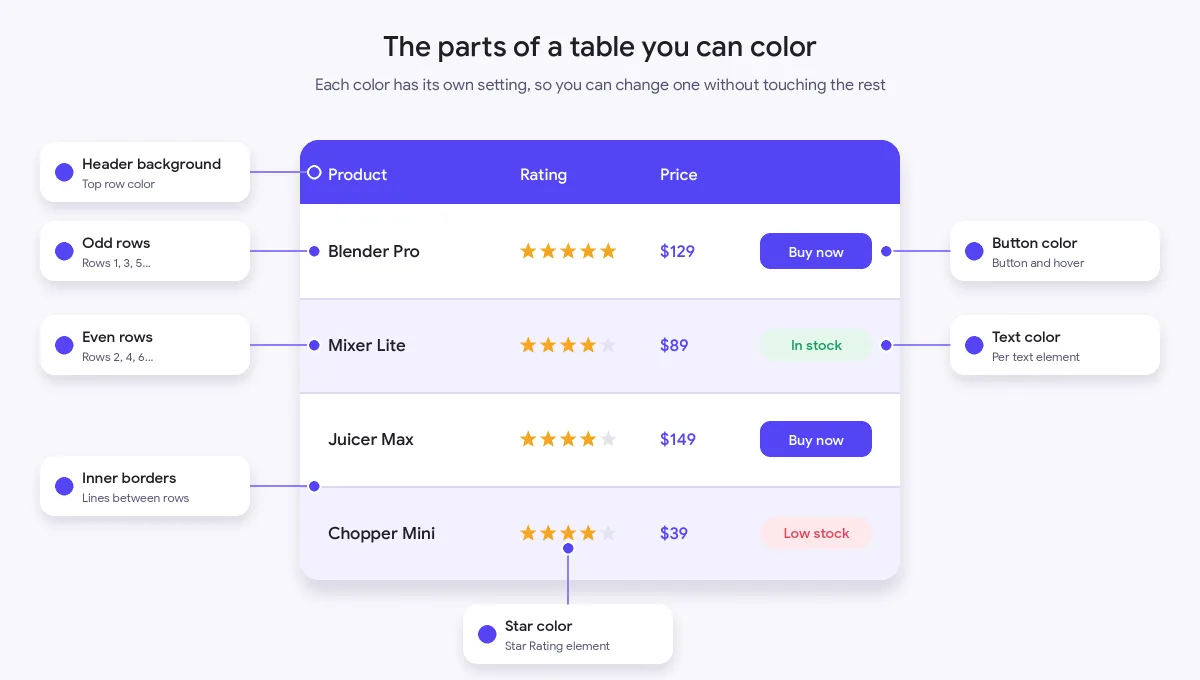
- Header row: the top row with the column labels. It usually gets the strongest color.
- Row stripes: odd and even rows in two light shades, so long rows are easy to follow.
- Borders: the outer edge of the table and the lines between rows or cells.
- Text: the color of labels, values and links.
- Elements: buttons, star ratings and other items inside the cells.
- Single cells or rows: one highlighted cell or row, for example a recommended plan.
Before You Start: Pick a Simple Color Plan
Good table colors start with a small plan. Before you open any settings, choose these four colors:
- One brand color for the header row and buttons. Take it from your logo or theme.
- Two light row colors, such as white and a very pale version of your brand color, for the stripes.
- One border color that is only a little darker than the light row color.
- Two text colors: a dark one for labels and a softer gray for the values.
Keep the plan the same on every table of your site. Readers learn your style fast, and your tables look like they belong together. If you want more design ideas, see our list of table design mistakes and how to fix them.
Option 1: Change Table Colors With the Core Table Block
WordPress comes with a Table block in the block editor. It has a few color options that work well for simple tables.
- Open your post or page and add a Table block. Choose the number of columns and rows, then click Create Table.
- With the block selected, open the Settings sidebar on the right and turn on Header section if you want a header row.
- Open the Styles tab and pick Stripes to add light gray stripes to every other row.
- Under Color, set the Text and Background colors. These apply to the whole table.
- Under Border, choose a border color, width and style.
- Click Update or Publish and check the table on the front end.
The exact options can look a little different depending on your theme, because themes decide which color and border controls the block shows.
Limits of the Core Table Block
- There is no separate color for the header row. The background color covers the whole table.
- The stripe color comes from your theme, and you cannot pick your own odd and even row colors.
- You cannot color a single cell or row, or add a hover color, without writing custom CSS.
- Cells hold text only, so there are no buttons or star ratings to color.
If you need more than one background color, you can add a CSS class to the block under Advanced and write your own CSS in the Site Editor or Customizer. That works, but it is slow to manage across many tables. A table plugin gives you the same control with simple settings.
Option 2: Change Table Colors With WP Table Builder
WP Table Builder is a drag and drop table builder for WordPress. Its free version has separate color settings for the header, odd rows, even rows, hover states, borders and every element inside the cells. Here is how to use them.
Step 1: Create or Open a Table
Install and activate WP Table Builder from the WordPress plugin directory. Go to WP Table Builder → Add New, then start from a blank table or a template. To change an existing table, open All Tables and click Edit.
Step 2: Set the Header and Row Colors
Click the Settings tab in the left panel and open the Background section. On the General tab you will find three color pickers:
- Header Background for the top row. Use your brand color here.
- Odd Row Background for rows 1, 3, 5 and so on.
- Even Row Background for rows 2, 4, 6 and so on.
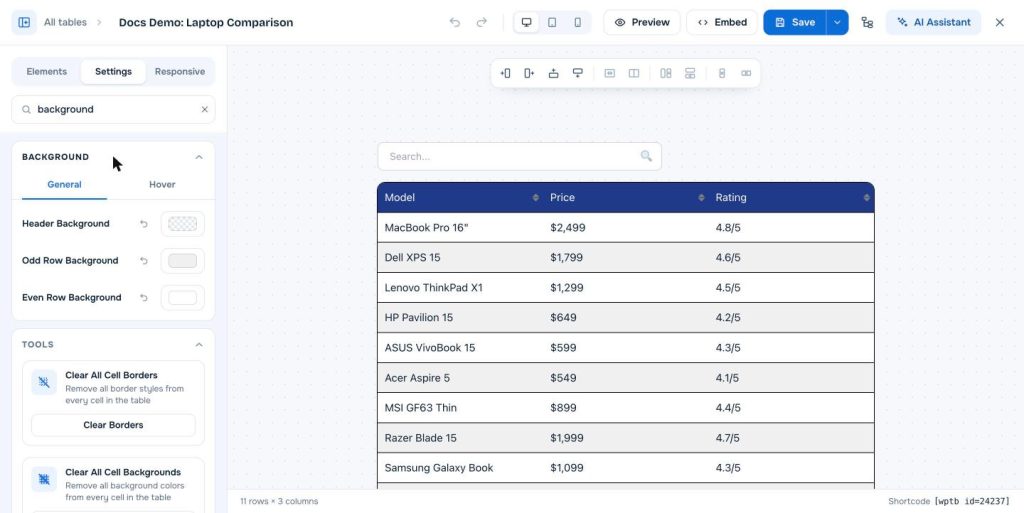
Pick a color with the picker or paste a hex code such as #5344F4. The canvas updates right away, so you can try a few shades before you decide.
Step 3: Add Hover Colors
In the same Background section, switch to the Hover tab. Here you can set the colors the header, odd rows and even rows take when a visitor moves the mouse over them. A slightly darker shade of the row color works best, because it helps people follow a row without being distracting.
Step 4: Style the Borders and Corners
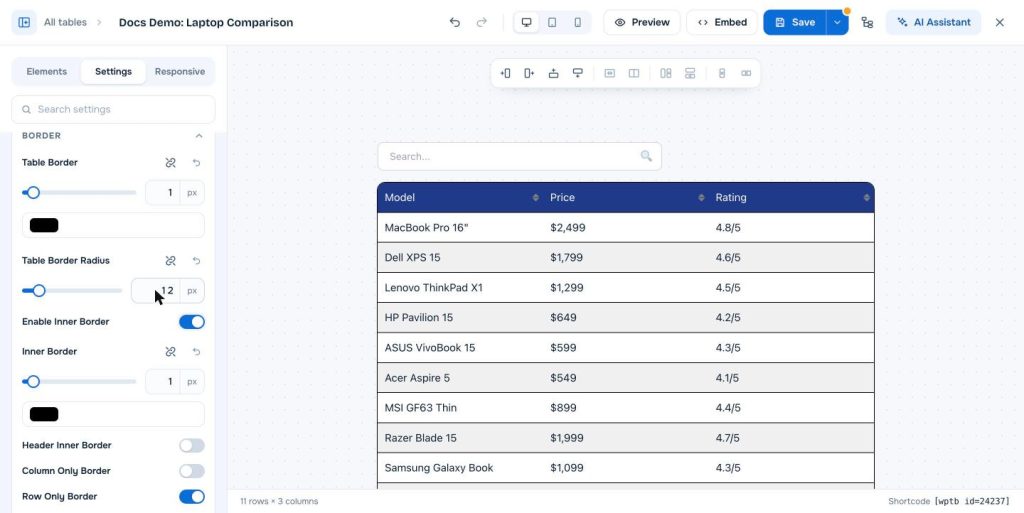
Open the Border section. Use Table Border to set the width and color of the outer edge, and Table Border Radius to round the corners. Turn on Enable Inner Border to add lines between the cells and pick their color. Light borders in a shade close to your row color look clean and modern.
Step 5: Change Text Colors
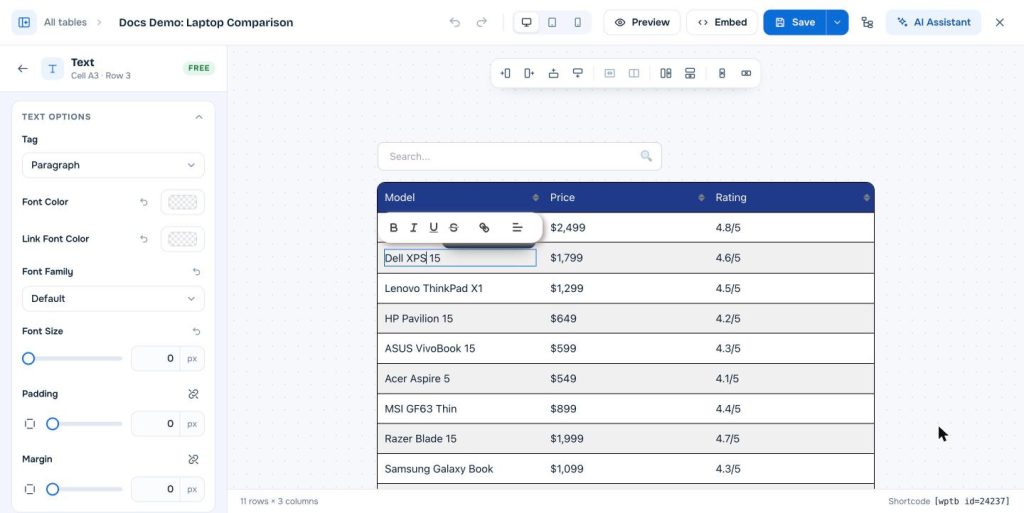
Click any Text element in the table to open its options. Use Font Color for the text and Link Font Color for links. Each Text element has its own color, so you can give prices, labels and notes different colors in the same table.
Step 6: Color Buttons and Star Ratings
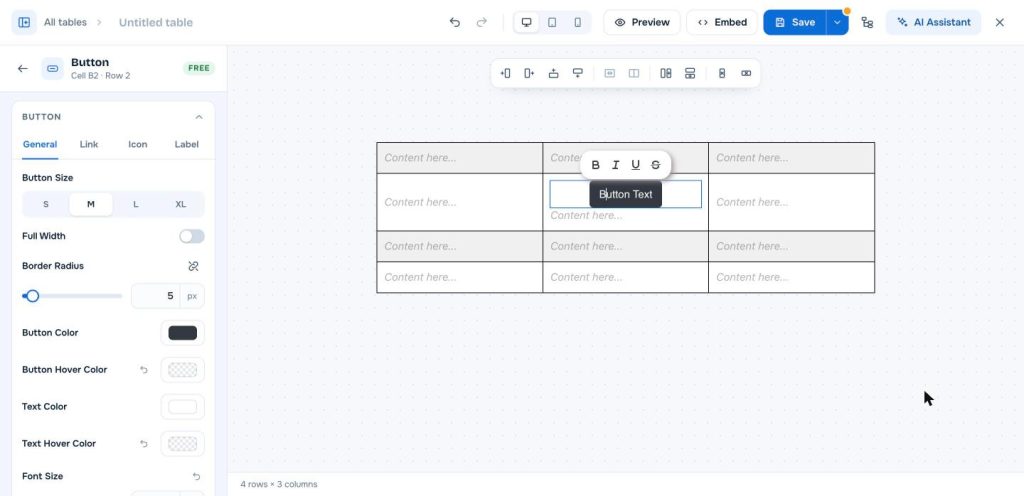
Elements inside the cells have their own color settings. Click a Button to set Button Color, Button Hover Color, Text Color and Text Hover Color. Click a Star Rating element to change the Star Color. Using your brand color for buttons ties the table to the rest of your site.
Step 7: Highlight One Cell or Row (Pro)
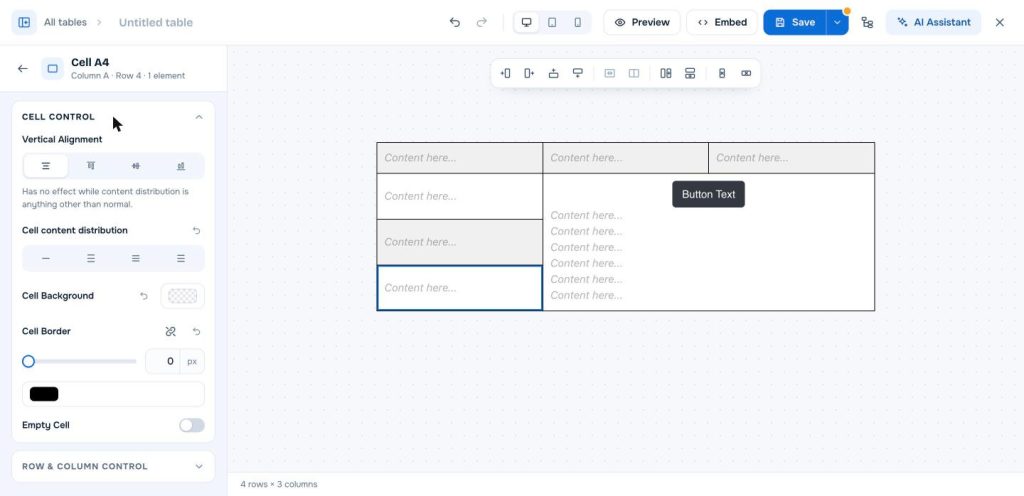
With WP Table Builder Pro you can go one step further. Select a cell to set its own Cell Background and Cell Border, or select a row to give it a Row Background. You can also turn on Highlight this row or Highlight this column to make a featured plan stand out. These options are Pro features. In the free version, you can still draw attention to a row with colored text, a colored button or a star rating.
Step 8: Save and Add the Table to Your Page
Click Save, then click Embed to copy the shortcode. In the block editor you can also add the WP Table Builder block and pick your table from the list. Preview the page on desktop and on a phone to make sure the colors look good on both. Our guide on responsive tables in WordPress shows how to set up the mobile view.

Table Color Cheat Sheet
Here is every color setting in WP Table Builder in one place, with where to find it and whether it is free. This cheat sheet is itself a WP Table Builder table that uses a purple header, white and pale purple row stripes, light inner borders and rounded corners.
Color setting | Where to find it | What it colors | Plan |
Header Background | Settings, Background | The top row | ✓ Free |
Odd Row Background | Settings, Background | Rows 1, 3, 5 and so on | ✓ Free |
Even Row Background | Settings, Background | Rows 2, 4, 6 and so on | ✓ Free |
Hover colors | Background, Hover tab | Rows under the mouse | ✓ Free |
Table Border | Settings, Border | The outer edge | ✓ Free |
Inner Border | Settings, Border | Lines between cells | ✓ Free |
Font Color | Text element | One text block | ✓ Free |
Button colors | Button element | Button, text and hover | ✓ Free |
Star Color | Star Rating element | Rating stars | ✓ Free |
Cell Background | Cell Control | A single cell | ★ PRO |
Row Background | Row Control | One full row | ★ PRO |
Table Font Color | Settings, Font Style | All text at once | ★ PRO |
Tips for Choosing Table Colors
- Check the contrast. Text must be easy to read on its background. White text on a strong header color and dark text on light rows is a safe pair. Free contrast checkers can confirm it meets the WCAG guidelines.
- Keep stripes soft. Row stripes should be barely visible. If they are too strong, they compete with the data.
- Use one accent color. Save your brightest color for the one thing you want readers to notice, such as a recommended plan or a buy button.
- Do not rely on color alone. Add a word or symbol next to colored values (for example “In stock” with a green dot), so the meaning is clear for color blind readers.
- Match your site. Reuse the colors of your theme so the table feels like part of the page. Our post on visualizing data in WordPress tables shows more ways to use color with purpose.
- Test on mobile. Stacked cards on a phone show the row colors differently, so take a quick look at the mobile preview.
Need a real example? See how colors set the mood in our holiday sale table guide and the restaurant menu table tutorial.
Frequently Asked Questions
How do I change the header color of a table in WordPress?
The core Table block has no separate header color, so you need custom CSS. In WP Table Builder, open the Settings tab, go to Background and pick a Header Background color. It is a free setting.
Can I make striped rows with my own colors?
Yes. In WP Table Builder, set the Odd Row Background and Even Row Background colors in the Background section. The core Table block only offers a Stripes style that uses your theme colors.
Can I color a single cell or row?
In WP Table Builder Pro you can set a Cell Background for one cell and a Row Background for one row, and highlight a row or column. In the free version you can use colored text, buttons and star ratings to make a row stand out.
Do table colors affect accessibility?
Yes. Low contrast between text and background makes a table hard to read. Use dark text on light rows, white text on a strong header color, and add words or symbols so the meaning never depends on color alone.
Will my table colors work on mobile?
Yes. WP Table Builder keeps your colors when a table stacks into cards on phones. Preview the mobile view in the Responsive tab to check that the stripes and header still look right.
Conclusion
Changing table colors is a small job with a big effect. The core Table block is fine for a simple table with one background color and theme stripes. When you want your own header color, custom row stripes, hover colors, colored borders and branded buttons, a table plugin makes it quick.
Pick a simple color plan, apply it with the settings shown above, and keep it the same on every table. To learn more about why a plugin is worth it, read why use a table plugin in WordPress, or get started with WP Table Builder today.
Leave a Reply
You must be logged in to post a comment.