

Running a sports club, a school tournament, a fantasy league or an esports ladder? Sooner or later you need a league table that shows who is on top. A clear points table keeps players and fans coming back to your site after every match day.
In this guide, you will learn what a league table needs, how points and goal difference work, and how to create a league table in WordPress step by step. We will start with the free Table block that comes with WordPress, then build a better looking, mobile friendly version with WP Table Builder.
What Is a League Table?
A league table (also called a points table or standings table) ranks every team in a competition. Each row is a team, and each column is a number such as matches played, wins, draws, losses and points. Teams are sorted by points, and a tie breaker like goal difference decides the order when points are equal.
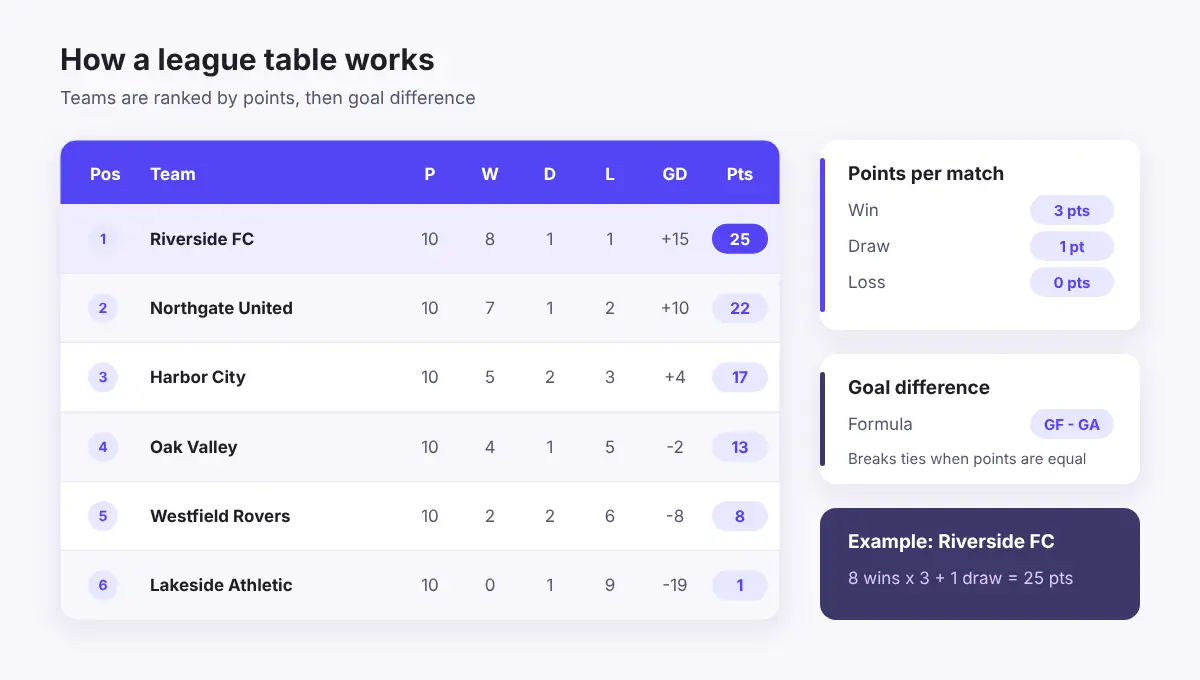
Most football (soccer) leagues give 3 points for a win, 1 point for a draw and 0 for a loss. Other sports use their own rules. Cricket leagues often give 2 points for a win and use net run rate as the tie breaker, and many basketball leagues rank teams by win percentage. Whatever the sport, the table works the same way: clear columns, one row per team and a fixed sort order.
What to Include in a League Table
Before you build anything, decide which columns your readers need. Keep it short. Every extra column makes the table harder to read on a phone.
- Pos: the current position of the team.
- Team: the team name, with an optional small logo.
- P (Played): matches played so far.
- W, D, L: wins, draws and losses.
- GF and GA: goals for and goals against (optional).
- GD (Goal difference): GF minus GA, used to break ties.
- Pts (Points): the main ranking number.
- Form: results of the last five matches (optional).
A quick check helps you avoid mistakes: in a closed league, total wins should always equal total losses, and goal difference across all teams should add up to zero.
Live Example: A League Table Built With WP Table Builder
Here is a sample points table made with WP Table Builder. It uses short column labels, a numbered badge for each position and a highlighted points column, so readers can scan it in seconds.
Team | P | W | D | L | GD | Pts |
1Riverside FC | 10 | 8 | 1 | 1 | +15 | 25 |
2Northgate United | 10 | 7 | 1 | 2 | +10 | 22 |
3Harbor City | 10 | 5 | 2 | 3 | +4 | 17 |
4Oak Valley | 10 | 4 | 1 | 5 | -2 | 13 |
5Westfield Rovers | 10 | 2 | 2 | 6 | -8 | 8 |
6Lakeside Athletic | 10 | 0 | 1 | 9 | -19 | 1 |
On tablets and phones, the table stacks into one card per team, with the column labels repeated, so nothing gets cut off.
Method 1: Create a League Table With the WordPress Table Block
If you only need a simple table and do not mind basic styling, the built in Table block is enough.
- Open a post or page in the block editor.
- Click the + button and add the Table block.
- Enter the number of columns (for example 8) and rows (your teams plus one header row), then click Create Table.
- Turn on Header section in the block settings and type your column labels.
- Fill in each team and its numbers.
- Choose the Stripes style for alternating row colors, then publish.
The Table block is quick, but it has limits for sports sites. You cannot add logos inside cells easily, there is no click to sort, and wide tables do not stack nicely on small screens. You also have to edit the table inside every post where you use it. For a deeper look at the options, see how to create a table in WordPress.
Method 2: Create a League Table With WP Table Builder
WP Table Builder is a drag and drop table plugin. You build the table once, then show it anywhere with a block or shortcode. When results change, you update one table and every page that shows it updates too.
Step 1: Install WP Table Builder
In your dashboard, go to Plugins > Add New, search for “WP Table Builder”, then install and activate it. The free version has everything you need for a league table.
Step 2: Create a New Table
Go to WP Table Builder > Add New. Give the table a name such as “Spring League 2026”, then start from a blank grid. Pick the number of columns (for example 7: Team, P, W, D, L, GD, Pts) and rows (one header row plus one row per team). You can also browse the Schedules & data templates if you prefer a starting layout. New to the builder? Our drag and drop builder guide walks through every panel.
Step 3: Add Team Names, Logos and Numbers
Drag a Text element into each cell and type the values. For team crests, drag an Image element into the team cell and keep logos small (around 24 to 32 px) so rows stay compact. Use short labels like P, W, D, L and GD in the header to save space.
Step 4: Style the Table
Open the Settings tab and use Header Background, Odd Row Background and Even Row Background to match your club colors. Add a soft Table Border Radius for rounded corners and set Cell Padding so numbers have room to breathe. Center the number columns and keep the team column left aligned.
Step 5: Let Visitors Sort the Table
In the table settings, turn on Sort Table Vertically. Small sort buttons appear in the header row, so visitors can click a column such as Pts or GD to reorder the teams. Numbers are sorted as numbers, so 10 comes after 9.
Step 6: Make It Mobile Friendly
Open the Responsive tab and turn on Enable Responsive Table. For tablet and mobile, choose a stack direction so each team becomes its own block, and keep First Row As Header on so the labels repeat. If you track extra columns like GF and GA, select that column and tick Hide this column on mobile. Learn more in our guide to responsive tables in WordPress.
Step 7: Save and Embed the Table
Click Save. Then open any post or page, add the WP Table Builder block and pick your table, or paste the shortcode, for example [wptb id="123" not found ]. Use the same table in a sidebar, on the home page and in match reports.
Optional Extras in WP Table Builder Pro
WP Table Builder Pro adds a few things that suit big leagues: Highlight this row and row backgrounds to mark the leader or a relegation zone, a sticky header row for long tables, pagination and search for leagues with many teams, plus icons and badges for form guides.
Tips for a Clear and Accurate League Table
- Update after every match day. Add a small “Last updated” line under the table so fans know the numbers are current.
- Explain your rules. Add a short note on points per result and tie breakers.
- Mark key positions. Use a legend for promotion, playoff or relegation places.
- Keep labels short. P, W, D, L, GD and Pts are widely understood.
- Double check totals. Wins should equal losses, and goal difference should add up to zero.
- Reuse one table. Embed the same table everywhere instead of copying it.
If you need fixtures, live scores or automatic standings from match results, a dedicated sports plugin can help. Compare options in our list of the best WordPress league table plugins and best WordPress sports plugins.
Frequently Asked Questions
Can I create a league table in WordPress for free?
Yes. You can use the built in Table block, or the free version of WP Table Builder, which includes text and image elements, row colors, rounded corners, sorting and responsive stacking.
Does WP Table Builder calculate points automatically?
No. WP Table Builder does not have formulas, so you type the points and goal difference yourself. It is quick for small leagues; for automatic standings from match results, use a dedicated sports plugin.
How do I update the league table after each match?
Open the table in WP Table Builder, change the numbers, reorder the rows if needed and save. Every page that shows the table updates at once.
Can I add team logos to a points table?
Yes. Drag an Image element into the team cell in WP Table Builder and keep the logo small so rows stay compact on mobile.
How do I make a league table readable on phones?
Turn on responsive mode so each team stacks into its own block, keep column labels short and hide less important columns like GF and GA on mobile.
Conclusion
A good league table is simple: the right columns, a clear sort order and a layout that works on every screen. The WordPress Table block is fine for a quick list, but WP Table Builder gives you logos, colors, sorting and mobile stacking without any code, and you only update one table when results change.
Ready to build yours? Get started with WP Table Builder and publish your first points table today.
Leave a Reply
You must be logged in to post a comment.