

Tables are one of the easiest ways to make a long page easier to scan. Prices, specs, schedules and feature lists all fit neatly into rows and columns. But a table can also help your search traffic, as long as search engines can actually read it.
In this guide, you will learn what makes a table SEO-friendly, why it matters, and how to create SEO-friendly tables in WordPress step by step. We will look at the built in Table block first, then build a better looking, mobile friendly version with WP Table Builder.
What Is an SEO-Friendly Table?
An SEO-friendly table is a table that search engines can read, understand and reuse. It is built with real HTML table code (not an image or a screenshot), it has a clear header row that labels each column, and it sits under a heading that says exactly what the table is about.
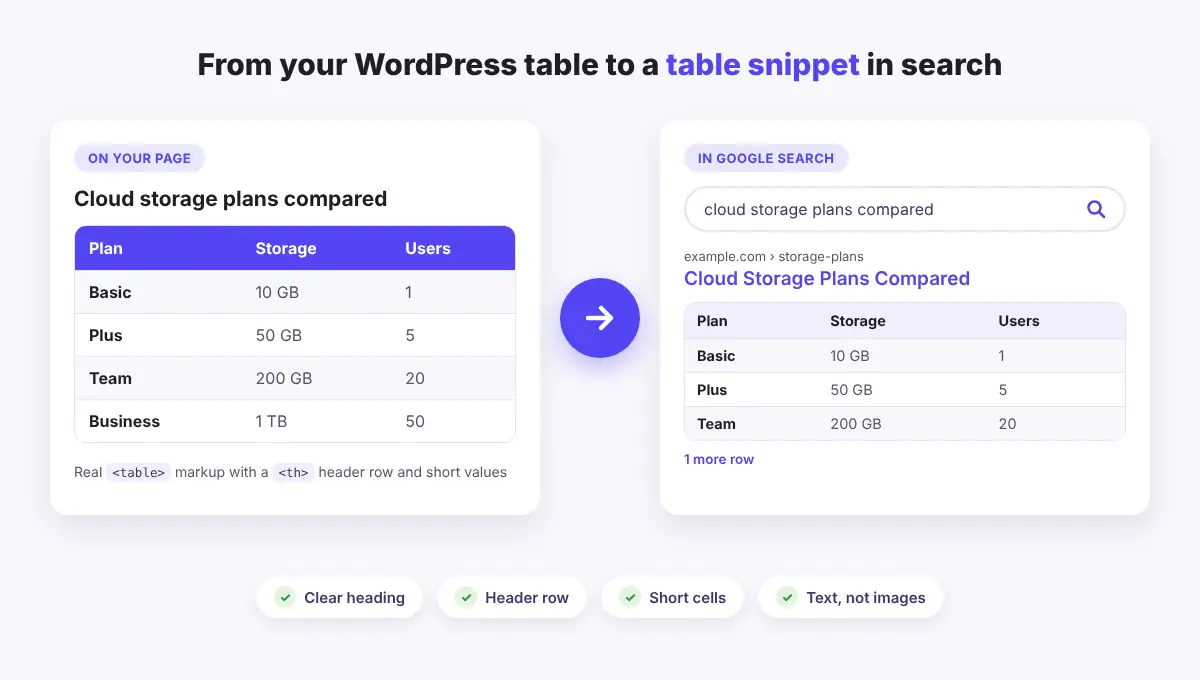
When a table is built this way, Google can understand that “Basic”, “Plus” and “Team” are plans, and that “10 GB” belongs to the Storage column. That is the kind of structure search engines need before they can show your data in a table snippet, or use it to answer a question.
Why Tables Matter for SEO
A table will not push a weak page to the top of Google on its own. Good content and helpful answers still come first. What a well built table does is make your content easier to understand, for people and for search engines.
1. Tables can appear as featured snippets
For searches like “plans compared”, “sizes chart” or “opening hours”, Google sometimes shows a featured snippet with a small table pulled straight from a web page. Google picks these automatically from regular HTML tables. There is no special code that guarantees one, but a clean, well labeled table gives your page a fair chance.
2. Search engines understand your data better
Rows and columns show how pieces of information connect. A header row tells search engines what each value means, which helps them match your page to specific questions and use your data in search features, including AI-powered answers.
3. Visitors find answers faster
People skim. A table lets them compare options in a few seconds instead of reading long paragraphs. A page that answers the question quickly is a better result for the searcher, which is exactly what search engines want to show. You can read more about this in our post on why to use a table plugin in WordPress.
What Makes a Table Easy for Search Engines to Read
Before you build anything, here are the things that matter most:
- Real HTML, not images. Search engines read text. A screenshot of a spreadsheet is just a picture to them.
- A header row. Short column labels such as “Plan”, “Storage” and “Users” explain what every value means. In HTML, header cells use the <th> tag.
- A clear heading above the table. Use an H2 or H3 that matches what people search, for example “Cloud Storage Plans Compared”.
- One idea per table. A table that compares plans should not also list your opening hours.
- Short, consistent cells. Use the same units in every row (GB, kg, minutes) and keep values short.
- A short summary. One or two sentences before or after the table that explain the main takeaway.
- A layout that works on phones. Google mainly uses the mobile version of your page, so the table must be readable on small screens.
How to Create SEO-Friendly Tables in WordPress
You can build a search friendly table with the default WordPress editor or with a table plugin. Here is how both options work.
Method 1: Use the WordPress Table block
The Table block comes with WordPress and outputs clean HTML. It is a good choice for small, simple tables.
- Open your post, click the + button and add a Table block.
- Set the number of columns and rows, then click Create Table.
- In the block settings on the right, turn on Header section. This turns the top row into proper header cells.
- Type short labels in the header row and fill in your data.
- Use the toolbar to add a caption that describes the table in a few words.
The Table block is simple, but it has limits. You cannot easily add images, buttons, star ratings or colors per row, and long tables can be hard to read on phones.
Method 2: Use WP Table Builder
WP Table Builder is a drag and drop table plugin for WordPress. It saves your table as real HTML, so search engines can read every cell, and it gives you design and mobile options that the Table block does not have. Here is how to build an SEO-friendly table with it.
- Install the plugin. Go to Plugins > Add New, search for “WP Table Builder”, then install and activate it.
- Create a new table. Go to WP Table Builder > Add New. Pick a template that fits your data, or start with a blank table and choose the number of columns and rows.
- Name the table. Give it a clear title, such as “Cloud storage plans”. This helps you find it later.
- Add your header row. Drag a Text element into each cell of the top row and type short column labels.
- Mark the header row. Open the table settings, go to General and turn on Use th for first row. Your first row is then marked up as header cells.
- Fill in the data as text. Use Text elements for values. Keep cells short and use the same units in every row. Use images only where they add something, like a product photo or logo.
- Make it mobile friendly. Open the Responsive tab and turn on Enable Responsive Table. Set how the table should stack on tablets and phones, or use Hide this column on mobile for columns that are not essential.
- Save and embed. Click Save. In your post, add the WP Table Builder block and select your table, or paste the shortcode, for example [wptb id="123" not found ].
- Add a heading and summary. Place an H2 or H3 that matches the search question right above the table, and add one or two sentences that sum up what the table shows.
If you are new to the builder, our beginner’s guide to the WP Table Builder drag and drop builder walks through every panel. For more on phone layouts, see how to create responsive tables in WordPress.
SEO-Friendly Table Checklist
Use this quick checklist before you publish. It was built with WP Table Builder and shows what each item does and where to find it in the plugin.
Check | Why it matters | In WP Table Builder |
1Real HTML table | Search engines read rows and columns as data | Built in |
2Header row | Labels tell search engines what each column means | Use th for first row |
3Clear heading | Matches the question people type into Google | Add an H2 or H3 above it |
4Short cells | Short values are easier to show in a snippet | Text element |
5Text, not images | A picture of a table cannot be read as data | Type values, skip screenshots |
6Mobile friendly | Google uses the mobile version of your page | Responsive tab |
7Easy to update | Fresh numbers keep the table trustworthy | Edit once, every embed updates |
On tablets and phones, the checklist stacks into easy to read cards, so nothing gets cut off.
Tips to Improve Your Chances of a Table Snippet
- Answer one question per table. Think about the exact search, such as “best time to visit Japan by month”, and build the table around it.
- Put the most useful columns first. Snippets often show only the first few columns and rows.
- Keep it a reasonable size. Very wide tables are hard to read and hard to show in search. Split a huge table into smaller ones if needed.
- Use text for key values. Icons and check marks look great, but add a word like “Yes” or “Included” where the value matters.
- Keep data fresh. Update prices, dates and specs when they change. With WP Table Builder you edit the table once and every page that shows it updates.
- Describe images. When you add an image from the Media Library, fill in its Alternative Text so search engines and screen readers know what it shows.
Want ideas for layout? Our guide to comparison table best practices covers column order, highlighting and labels in more detail.
Common Mistakes to Avoid
- Uploading a table as an image. It looks fine to people, but search engines cannot read the values.
- Using tables for page layout. Tables are for data. Use blocks and columns to arrange the rest of your page.
- Leaving the header row blank or vague. Labels like “Column 1” tell search engines nothing.
- Merging lots of cells. A few merged cells are fine, but heavy merging makes the structure harder to read.
- Ignoring mobile. A table that forces tiny text or breaks the layout on phones hurts the reading experience.
If you also want rich results such as review stars or FAQs, those come from structured data, not from the table itself. See our list of the best rich snippets plugins for WordPress for tools that add it.
Frequently Asked Questions
Do tables help SEO?
Yes, when they are built well. A clean HTML table with a header row helps search engines understand your data and can appear as a table snippet in search. A table will not make up for weak content, but it makes good content easier to read and reuse.
Is there schema markup for tables?
There is no special markup that turns a table into a featured snippet. Google pulls table snippets from regular HTML tables. If your table is a real dataset, Dataset structured data can help it show in Google Dataset Search, and product or review markup belongs to the page content, usually added with an SEO plugin.
Can search engines read WP Table Builder tables?
Yes. WP Table Builder saves tables as HTML table code, so every cell is readable text. Turn on Use th for first row in the General settings to mark the top row as header cells.
Should I use one big table or several small ones?
Several focused tables usually work better. Each one can sit under its own heading that matches a specific question, which is easier for readers and for search engines.
Conclusion
SEO-friendly tables are not complicated. Use real HTML instead of images, add a clear header row, place a matching heading above the table, keep cells short and make sure it works on phones. Do that, and your tables become easier to read for visitors and easier to understand for search engines.
The Table block is fine for quick, simple data. For tables with images, buttons, colors and proper mobile layouts, try WP Table Builder and build your first SEO-friendly table today. New to tables? Start with how to create a table in WordPress.
Leave a Reply
You must be logged in to post a comment.