

wpDataTables is a capable WordPress table plugin, especially for large datasets and charts. But it is not the right fit for every site. Some people find it heavier than they need, some want more control over how a table looks, and others just want a simpler editor for comparison or pricing tables.
If that sounds like you, this guide is for you. We look at seven wpDataTables alternatives, explain what each one does best, and help you pick the right one for your tables. We also show how to move an existing table into WP Table Builder with a CSV file.
What Is wpDataTables and Why Look for an Alternative?
wpDataTables is a table and chart plugin. It builds tables from Excel, CSV, XML, JSON and other data sources, adds search and sorting, and turns table data into charts. The free version (wpDataTables Lite) is on WordPress.org, and the premium version adds features such as database (MySQL) tables and WooCommerce product tables.
That power is great for data heavy sites. For many other tables, though, people look for something else. The most common reasons are:
- Design control: you want images, buttons, star ratings and badges inside cells, not only rows of data.
- A simpler editor: you build a few comparison, pricing or feature tables and do not need data source connections.
- Budget: the features you need are paid in wpDataTables but free in another plugin.
- Editor fit: you prefer building tables directly in the block editor.

The good news is that there are strong options for each of these needs, and most of them have a free version you can try first.
Quick Comparison of wpDataTables Alternatives
Here is a short overview before we look at each plugin in detail:
Plugin | Best for | Pricing |
1WP Table Builder | Designed comparison and pricing tables | Free + Pro |
2TablePress | Large data tables with search | Free + Premium |
3Ninja Tables | Data tables with filters | Free + Pro |
4Data Tables Generator | Formulas and product tables | Free + Pro |
5Visualizer | Charts next to your tables | Free + Pro |
6Tableberg | Tables inside the block editor | Free + Pro |
7WP Table Manager | Spreadsheet style editing | Paid |
1. WP Table Builder
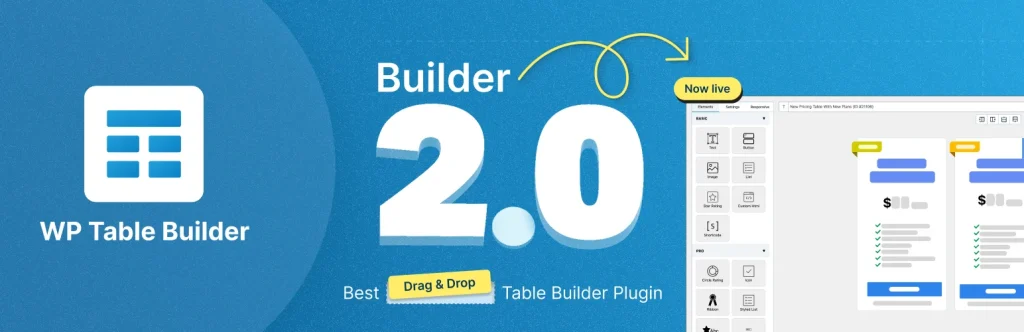
WP Table Builder is a drag and drop table builder. Instead of typing into a spreadsheet grid, you drag elements such as text, images, lists, buttons and star ratings into cells and style them visually. That makes it a strong wpDataTables alternative when the look of the table matters as much as the data, for example in comparison tables, pricing tables and product lists.
Tables are responsive, with separate settings for desktop, tablet and mobile. You can import data from CSV, XML or the TablePress plugin, export tables to CSV or XML, and embed a table with the WP Table Builder block or a shortcode. WP Table Builder Pro adds extra elements (such as icons, ribbons, badges, progress bars and circle ratings) plus sticky rows and columns, pagination and search.
Key features:
- Drag and drop builder with Text, Image, List, Button, Star Rating, Custom HTML and Shortcode elements
- Ready-made table templates, merge and split cells
- Responsive settings for tablet and mobile, plus horizontal scrolling
- CSV, XML and TablePress import, CSV and XML export
Best for: good looking comparison, pricing and product tables without code.
Pricing: Free version on WordPress.org. WP Table Builder Pro is a paid upgrade.
2. TablePress
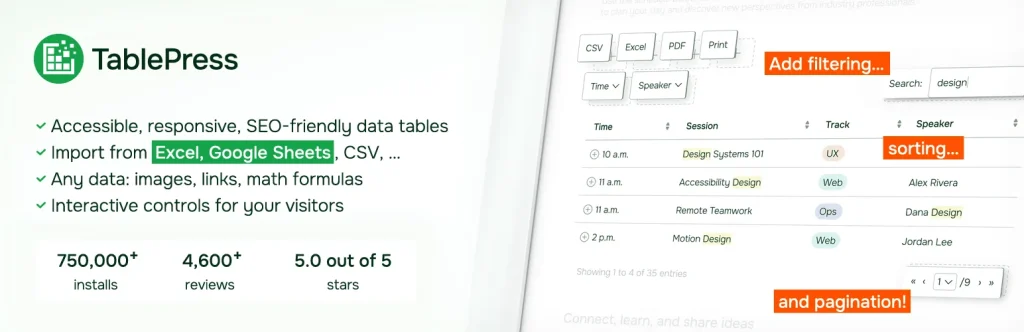
TablePress is the most popular WordPress table plugin on WordPress.org. You edit tables in a spreadsheet style editor, and visitors get live sorting, search and pagination. It handles large datasets well, which makes it the closest free match for the data side of wpDataTables.
You can import and export Excel, CSV, HTML and JSON files, including data from a URL such as a published Google Sheet. Cells can hold images, links and math formulas. Premium plans add extra modules and priority support. It does not build charts on its own, so if charts are a must, pair it with a chart plugin.
Key features:
- Spreadsheet style table editor
- Sorting, search and pagination for visitors
- Import from Excel, CSV, HTML, JSON or a URL
- Block, Elementor widget and shortcode embedding
Best for: large data tables, price lists and directories.
Pricing: Free on WordPress.org, with paid premium plans.
3. Ninja Tables

Ninja Tables builds responsive, sortable and searchable data tables, with both a classic table editor and a drag and drop mode. It comes with many table styles and templates and can import CSV, Excel or JSON files.
The Pro version adds custom filters, Google Sheets sync, WooCommerce product tables and WP Posts tables, which covers several of the data features people use in wpDataTables. If you are comparing it with WP Table Builder, read our WP Table Builder vs Ninja Tables comparison.
Key features:
- Responsive, sortable and searchable tables
- Drag and drop and classic editing modes
- CSV, Excel and JSON import
- Filters, Google Sheets sync and WooCommerce tables in Pro
Best for: data tables with filters and live data sources.
Pricing: Free version on WordPress.org, with a paid Pro version.
4. Data Tables Generator by Supsystic
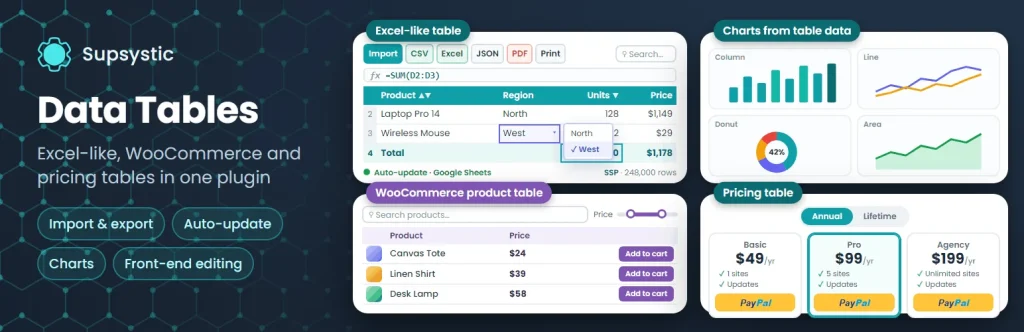
Data Tables Generator by Supsystic offers three table types in one plugin: spreadsheet style data tables with Excel style formulas, WooCommerce product tables and pricing tables. Visitors can sort, search and page through the data, and large tables can use server side processing.
If you liked the formula and spreadsheet feel of wpDataTables, this plugin feels familiar. Unlimited tables, rows and columns are free, and the Pro version unlocks more features such as extra import options.
Key features:
- Spreadsheet editor with formulas and merged cells
- Data, WooCommerce product and pricing table types
- Sorting, search and pagination
- Block, Elementor widget and shortcode
Best for: formula based tables and simple product tables.
Pricing: Free on WordPress.org, with a paid Pro version.
5. Visualizer

Charts are one of the main reasons people use wpDataTables, and Visualizer is a good replacement for that part. It creates responsive, interactive charts and tables using Google Charts, ChartJS and DataTables, and it includes a built in AI chart builder that creates a chart from a text description.
The free version lets you build charts and tables by hand. The Pro version adds data import from Excel, CSV, Google Sheets and other sources. You can also combine it with a table plugin: build the table in WP Table Builder or TablePress and show the matching chart with Visualizer. Our list of WordPress chart plugins has more options.
Key features:
- Many chart types plus data tables
- Built in AI chart builder
- Responsive and interactive charts
- Data imports in the Pro version
Best for: charts and graphs from table data.
Pricing: Free on WordPress.org, with a paid Pro version.
6. Tableberg

Tableberg adds a table block to the WordPress block editor. Each cell can hold sub-blocks such as paragraphs, lists, buttons and images, so you build the table right inside your post. It includes responsive controls, cell merging and color and border settings.
Tableberg Pro adds star ratings, styled lists, icons, ribbons and custom HTML. It is not built for big data imports, but it is a nice choice for content tables in Gutenberg. See more block based options in our list of Gutenberg table plugins.
Key features:
- Native table block with sub-blocks in cells
- Responsive controls and cell merging
- Header, footer and color customization
- Extra blocks in Pro
Best for: people who build everything in the block editor.
Pricing: Free on WordPress.org, with a paid Pro version.
7. WP Table Manager

WP Table Manager by JoomUnited is a premium table plugin with a spreadsheet style editor. You click a cell to edit it, style tables with themes and custom CSS, and use calculations inside the table. It can also turn table data into charts.
It is a good fit if you want an Excel-like experience in WordPress and do not mind a paid only plugin. There is no free version on WordPress.org.
Key features:
- Spreadsheet style editor with calculations
- Table themes and custom styling
- Charts from table data
- Import and export options
Best for: spreadsheet style editing with a premium license.
Pricing: Paid plugin. Check the official site for current plans.
How to Choose the Right wpDataTables Alternative
Start with what you build most often. These questions help:
- Do your tables need to look designed? If you build comparison, pricing or product tables with images and buttons, choose WP Table Builder or Tableberg.
- Do you show thousands of rows? Pick a data focused plugin such as TablePress, Ninja Tables or Data Tables Generator, which add search, sorting and pagination.
- Do you need charts? Use Visualizer or WP Table Manager, or keep a table plugin and add a chart plugin next to it.
- Does your data change often? Plugins with live sources (such as Google Sheets sync in Ninja Tables Pro) save you from re-importing files.
- Will most visitors use phones? Check how the table looks on mobile. Our guide to responsive tables in WordPress explains what to look for.
Most of these plugins have a free version, so you can install two or three, rebuild one real table and keep the one that feels easiest.
How to Move a Table From wpDataTables to WP Table Builder
If you decide to switch, you do not need to rebuild your data by hand. A CSV file carries the rows and columns over. Here is how:
- Get your data as a CSV file. If your wpDataTables table came from an Excel or Google Sheets file, open that file and save or download it as CSV. If you typed the table by hand, copy the cells into a spreadsheet and save it as CSV.
- Install WP Table Builder. In your dashboard, go to Plugins > Add New, search for WP Table Builder, then install and activate it.
- Import the CSV file. Go to Table Builder > Import, choose your CSV file and import it. A new table is created with your rows and columns. You can learn more in our guide on importing a CSV file as a table.
- Style the table. Open the table in the builder. Set a header row color, adjust padding and borders, and drag in images, buttons or star ratings where they help.
- Make it mobile friendly. Open the responsive settings, turn on Enable Responsive Table and check the tablet and mobile previews.
- Replace the old table. Edit the page, remove the old wpDataTables shortcode or block, and add the WP Table Builder block (or the [wptb id="0" not found ] shortcode) with your new table.
Charts and database connections do not move over with a CSV file. If you rely on those, keep them in a chart or data plugin and use WP Table Builder for the tables visitors read.
Frequently Asked Questions
What is the best free alternative to wpDataTables?
It depends on your tables. TablePress is the best free choice for large data tables with search and sorting. WP Table Builder is the best free choice for designed tables with images, buttons and star ratings.
Which wpDataTables alternative can create charts?
Visualizer creates charts and tables and has a free version. WP Table Manager also builds charts from table data. Most table builders, including WP Table Builder and TablePress, focus on tables, so you can pair them with a chart plugin.
Can I import my wpDataTables data into another plugin?
Yes. Save your data as a CSV file, then import it. WP Table Builder, TablePress, Ninja Tables and Data Tables Generator can all import CSV files.
Is WP Table Builder good for large tables?
WP Table Builder works best for tables people read and compare, such as pricing, product and feature tables. For very large datasets, a data focused plugin like TablePress is usually a better fit. Pagination and search are available in WP Table Builder Pro.
Conclusion
wpDataTables is a solid plugin, but you have good alternatives. Choose TablePress, Ninja Tables or Data Tables Generator for data heavy tables, Visualizer for charts, Tableberg for block editor tables and WP Table Manager for a premium spreadsheet experience.
If you want tables that look great and are easy to build, try WP Table Builder. It is free to start, works with drag and drop, and makes responsive comparison and pricing tables simple. For more options, see our lists of the best WordPress table plugins and TablePress alternatives.
Affiliate Disclosure: This post contains affiliate links. That means if you make a purchase using any of these links, we will get a small commission without any extra cost to you. Thank you for your support.
Leave a Reply
You must be logged in to post a comment.