 Skip to content

An image map turns a flat picture into something people can click. You upload a photo, a floor plan, or a diagram, mark the parts that matter, and each marked part opens its own panel of information when a visitor clicks or taps it.
WordPress cannot do this on its own. The core Image block gives you a picture and a caption, and that is where it stops. Anything beyond that needs a plugin.
The plugins below split into two camps, and picking the right camp matters more than picking the right plugin. Some let you draw shapes over an image, so a whole room on a floor plan or a whole country on a map becomes clickable. Others let you pin points, so a small marker sits on top of the image and opens a tooltip. Shapes suit floor plans and maps. Points suit product photos, diagrams, and feature tours.
Quick answer: For most sites, Draw Attention is the best WordPress image map plugin, because it is the only strong option that lets you draw irregular clickable regions and still has a usable free version. Image Map Pro is the better pick if you also need ready-made country and region maps. Ultimate Blocks is the best choice if you work in the block editor and need hotspots rather than clickable shapes.
Below, I break down all 8, including what each one costs, what it can and cannot do, and who it is best for.
PLUGIN | BEST FOR | PRICE | Download |
WP Draw Attention | Drawing clickable regions on floor plans and diagrams | Free, Pro from $99/year | |
Image Map Pro | Image maps plus 50+ ready-made country maps | $49, single site | |
Ultimate Blocks | Image hotspots inside the block editor | Free, Pro from $39/year | |
MapSVG | Store locators and data-driven maps | Free, Pro from $39/year | |
Vision Interactive | Annotated images on a small budget | Free, Pro $39 one-time | |
Flat 360° Panoramic Image Viewer | Hotspots on flat panoramic photos | Free, Pro $39 one-time | |
Qi Addons for Elementor | Image hotspots for Elementor users | Free, Pro $39 one-time | |
ElementsKit | Animated hotspots for Elementor users | Free, Pro from $39/year |
How I Evaluated These Plugins
I have been building WordPress plugins for over a decade, so I approached this list the way I would size up a competitor. Here is what I judged each plugin on:
- What you can actually mark. The single biggest difference between these plugins. Can you draw a shape around an irregular area, or can you only drop a pin on a point? A plugin that only does pins is the wrong tool for a floor plan, however good it is at pins.
- What fits inside the popup. A marker is only as useful as the content it opens. I checked whether each plugin accepts images, buttons, videos, and links inside its tooltip, or only a title and a line of text.
- Ease of use for a non-developer. How long from installing the plugin to publishing a working image map, without touching CSS or reading documentation for basic tasks.
- Mobile behaviour. Hovering does not exist on a touchscreen. Every plugin here has to handle taps, keep tooltips inside the screen, and scale the image without markers piling on top of each other.
- Pricing and what the free version really gives you. What the free tier genuinely lets you build, what the upgrade costs, and whether the price matches what you get. All prices were checked in August 2026.
- Maintenance. I checked each plugin’s last update date. Abandoned plugins are a security risk, so I have flagged anything that has gone quiet.
A note on transparency: Ultimate Blocks is our own plugin, and this site belongs to the same company. I have applied the same criteria to it as to everything else, including the part where it loses. It pins points and does not draw clickable regions, which is a real limitation for the most common image map use case, and I have said so in its entry rather than burying it.
Now, let’s look at each plugin in detail.
WP Draw Attention

Draw Attention is the plugin most people actually mean when they search for a WordPress image map plugin. You upload an image, then click around the edge of an area to draw a polygon over it. That polygon becomes the clickable region.
The drawing tools are the reason it sits at number one. Complex shapes are no harder than simple ones: click to place each point, drag any point to adjust it afterwards. A whole room on a floor plan, a whole country on a hand-drawn map, or a single product in a styled photo can all become one clickable area.
Each region gets its own information panel, and you decide where that panel appears. There are six layout options, including a tooltip, a lightbox, and a fixed panel to the left, right, top, or bottom of the image. The panel itself accepts titles, images, video, audio, galleries, and links, so it is closer to a small content area than a caption.
Styling is handled without code. You can set highlight colours, hover colours, and border styles, choose whether the regions stay visible or only appear when someone interacts with the image, and apply one of 20 preset colour schemes in the Pro version. It also handles accessibility properly: regions can be reached by keyboard and read by screen readers, which is rare in this category.
Verdict: The best all-round WordPress image map plugin, because drawing an irregular clickable shape is the thing image maps are actually for, and nothing else here does it this well.
Key features:
- Polygon drawing tools for irregular clickable areas
- Six layouts for the information panel, including lightbox and tooltip
- Rich content inside each region: images, video, galleries, and links
- Highlight on hover, or always-visible highlights
- 20 preset colour schemes (Pro)
- Keyboard accessible and screen reader friendly
- Shortcode placement plus a Beaver Builder module
Pricing: Free version on WordPress.org, limited to one interactive image. Pro costs $99 per year for a single site or $199 per year for unlimited sites, with a 30-day money-back guarantee.
Best for: Floor plans, real estate walkthroughs, trade show layouts, and any image where the clickable area is a shape rather than a point.
Image Map Pro
Mapping an image, creating an interactive, or mapping an image with Image Map Pro Image Map Pro is the most established premium option in this category, with more than 21,000 sales on CodeCanyon and a 4.5-star average from around 600 reviews. It was last updated in July 2026, so it is being actively maintained.
What sets it apart is that it ships with its own editor, a self-contained web app that runs inside your WordPress dashboard. You get pins, polygon shapes, SVG shapes, and text, all placed by dragging on the image. You can zoom into the image while drawing so your polygon lines up precisely with the object underneath.
It also covers the case Draw Attention does not: geographic maps. More than 50 pre-built maps of countries, regions, and continents come with the plugin, and each one is fully editable. You can recolour regions, enable or disable them individually, and attach a tooltip to each.
Tooltips accept a decent amount of content, including images, videos, YouTube embeds, styled text, and custom buttons. There is a Gutenberg block for inserting maps, plus a JavaScript API if a developer needs to hook into clicks and hovers.
The catch is that there is no free version, and the standard licence covers a single site with six months of support. Extending support to twelve months costs extra.
Verdict: The most complete premium image map builder, and the right pick when you need both custom image maps and ready-made country maps in one plugin.
Key features:
- Drag-and-drop editor with pins, polygons, and SVG shapes
- 50+ pre-built maps of countries, regions, and continents
- Zoom while drawing for precise shape placement
- Tooltips with images, video, YouTube embeds, and buttons
- Multiple floors for layered floor plans
- Gutenberg block plus a JavaScript API
- FontAwesome SVG icon support
Pricing: No free version. $49 for a regular single-site licence on CodeCanyon, including future updates and six months of support.
Best for: Sites that need both custom image maps and geographic maps, and buyers who prefer a one-time payment to a subscription.
Ultimate Blocks
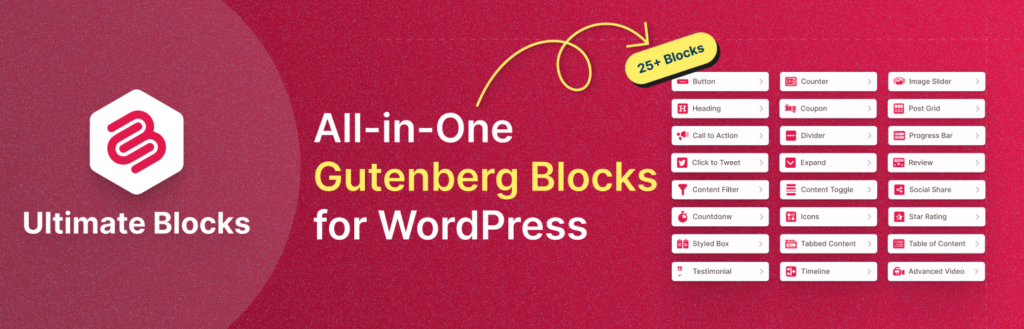
Ultimate Blocks is a block plugin with 28 blocks for the WordPress block editor, and one of them, Image Hotspots, handles interactive images. It works differently from everything else on this list, and the difference is worth understanding before you pick it.
You insert the block, choose an image, then drop markers and drag each one to the exact point you want to label. So far, standard. What is not standard is what goes inside the tooltip. The tooltip is a block container, which means anything in the WordPress inserter can go in it: a heading and a paragraph, a close-up image, a button, a Tableberg table of specifications, a star rating, or several of those stacked together.
That changes what the block is for. Most hotspot tools give you a title field and a description field. This one gives you a small page inside each marker, which makes it genuinely useful for shoppable images, product feature tours, and labelled diagrams where each label needs its own call to action.
Because it is a native block, there is no separate builder app, no shortcode, and no settings screen to visit. You work in the same editor you write your posts in, and the styling controls sit in the sidebar where you would expect them.
Here is the honest limitation, and it matters: Image Hotspots pins points, it does not draw clickable shapes. If you want an entire room on a floor plan to be clickable, this is the wrong tool and Draw Attention or Image Map Pro is the right one. If you want a marker sitting next to the sofa, this works well.
The rest of the plugin is a bonus rather than the point. You also get accordions, tabs, a table of contents, sliders, review schema, and 20-odd other blocks, so it can replace several plugins if you are already running a stack of single-purpose ones. There is a step-by-step guide to adding hotspots if you want to see the full workflow.
Verdict: The best option for block editor users, and the only one here where any block can live inside the hotspot popup. Not a fit if you need clickable regions rather than points.
Key features:
- Image Hotspots block with drag-to-position markers
- Any block can go inside a hotspot tooltip, including buttons, images, and tables
- Native block editor experience, no shortcodes or separate builder
- Tap to open on mobile, hover on desktop
- 28 blocks in total, including accordions, tabs, and table of contents
- Marker styling controls for colour, size, and icon
Pricing: The free plugin is on WordPress.org. Image Hotspots is a Pro block, and Pro starts at $39 per year for a single site. Pro runs as an add-on on top of the free plugin, so both stay installed.
Best for: Shoppable images, labelled diagrams, and product feature tours built inside the block editor.
Disclosure: Ultimate Blocks is our plugin.
MapSVG

MapSVG is another premium solution for creating interactive image maps or MapSVG is the heaviest plugin on this list, and that is both the recommendation and the warning. It was the first plugin ever uploaded to CodeCanyon back in 2011 and now has more than 16,000 customers, so it has had a long time to accumulate features.
It handles image maps, but that is one mode among several. You can upload any image and draw clickable areas on it, use one of the 100+ included vector maps of countries and US states, draw your own vector map in Illustrator or Inkscape and upload the SVG, or overlay vector shapes on top of a Google Map.
The part that separates it from everything else here is the built-in database. MapSVG stores your locations as records, which means it can drive a store locator with address search, distance sorting, filters, and a scrollable directory listing beside the map. Higher tiers add Google Sheets as a data source, ACF integration, marker clustering, and multiple floors on a single floor plan.
All of that comes at a cost in complexity. If you only want to label six points on a product photo, MapSVG is far more plugin than you need, and the setup will feel like work. If you need a locator that pulls from real data, nothing else here comes close.
Pricing is tiered rather than a single price. A free MapSVG Lite version is on WordPress.org, and the CodeCanyon regular licence is $49, while the tiered yearly and lifetime plans on mapsvg.com unlock the directory, filters, Gutenberg integration, and the higher domain counts.
Verdict: Less an image map plugin than a mapping platform, and the clear winner when your map needs to be connected to actual data.
Key features:
- 100+ vector maps of countries and US states included
- Image maps and floor plans with clickable areas
- Vector overlays on Google Maps
- Built-in database for locations and custom objects
- Store locator with address search, filters, and distance sorting
- Google Sheets and ACF integration on higher tiers
- Multiple floors on one floor plan
Pricing: Free MapSVG Lite on WordPress.org. The CodeCanyon regular licence is $49. Yearly and lifetime plans on mapsvg.com are tiered by features and domain count, with a 15-day money-back guarantee.
Best for: Store locators, directories, real estate maps, and any map that has to stay in sync with a data source.
Vision Interactive

Vision is the budget pick, and it is a better one than the price suggests. It was last updated in July 2026 and holds a 4.9-star average on CodeCanyon, which is the highest rating of any paid plugin on this list.
It works on a layer model. You add layers on top of your image, and each layer can be a marker, a text label, a shape, or an icon. Every layer can carry a link, a tooltip for short information, or a popover for longer content. Tooltips position themselves intelligently so they do not fall off the edge of the image, and there are over 100 show and hide animations if you want the reveal to have some personality.
The editor is straightforward: drag layers into place, adjust them in a side panel, and preview before you publish. Configurations export to a file, so you can move an interactive image to another site or keep a backup. For anyone comfortable with code, there are built-in CSS and JavaScript editors with syntax highlighting.
Content settings are stored as JSON on the filesystem rather than in the database, which keeps the front end light. Multiple interactive images can sit on the same page without conflicting.
The trade-off compared with Draw Attention is that Vision is oriented around markers, shapes, and annotations rather than precise polygon regions drawn to match objects in the photo. For labelling and storytelling that is fine. For a floor plan where each room must be its own clickable area, Draw Attention is a better fit.
Verdict: The best value on this list. A one-time $39 buys a well-maintained, well-reviewed annotation and image map tool, with a free version to try first.
Key features:
- Layer-based editor with markers, text, shapes, and icons
- Tooltips for short content and popovers for longer content
- Smart positioning so popups stay inside the frame
- 100+ tooltip animation effects
- Export and import configurations between sites
- Custom CSS and JavaScript editors
- Multiple interactive images per page
Pricing: A free version is available on WordPress.org. The Pro version is $39 as a one-time payment on CodeCanyon, licensed for one website, with six months of support included.
Best for: Annotated images, family trees, infographics, and simple floor plans where the budget is tight.
Flat 360° Panoramic Image Viewer

This one is a specialist, and it earns its place only if your image is a panorama. It takes a flat rectilinear panoramic photo, wraps it in a viewer that scrolls left and right through the full 360 degrees, and lets you pin hotspots at points along the way.
Setup is shortcode based, with a real-time preview so you can see the result before saving. You can set the container height and width, turn on auto-rotation and control its speed, and add scroll controls for visitors who prefer to drag manually. Mobile and touchpad support are included, and it integrates with lightbox plugins so hotspots can open zoomed content.
It works out of the box without coding, though the documentation notes that the more advanced customisation options expect some HTML, CSS, and JavaScript knowledge.
One caveat worth taking seriously: the plugin has not shipped an update this year. It is still listed and sold on CodeCanyon, and it still works, but a plugin that has gone quiet is a plugin whose compatibility with the next WordPress release is not guaranteed. Check the last update date on the listing before you buy, and treat this as a purchase for a specific job rather than a long-term dependency.
Verdict: A narrow tool that does one thing well. Only worth buying if you specifically have panoramic images to display, and only after checking its update status.
Key features:
- Flat panoramic image viewer with 360 degree left and right rotation
- Hotspots pinned to points in the panorama
- Auto-scroll with adjustable speed and sliding controls
- Mobile and touchpad support
- Lightbox plugin integration
- Shortcode placement with Gutenberg support
- Localization ready
Pricing: Premium only. $35 for a single-site licence on CodeCanyon.
Best for: Room interiors, venue interiors, and property photos shot as flat panoramas.
Image Map Widgets for Elementor
If you build your pages in Elementor, you probably do not need a standalone image map plugin. Two of the big Elementor addon libraries include a hotspot widget, so you can get interactive images without adding another plugin to your site. Both are point-and-tooltip tools rather than region-drawing tools, so the same limitation applies as with Ultimate Blocks: great for labelling, wrong for floor plans where whole rooms need to be clickable.
7. Qi Addons for Elementor

Qi Addons is the largest free Elementor widget library, with over 200,000 active installations, a 4.8-star rating, and more than 100 widgets. Its Image Hotspots widget lets you enrich an image with markers that reveal content on hover.
You can add a main hotspot plus individual hotspots, choose and style the pin icons, and set a title and subtitle for each one. Typography, colours, and hover effects all have their own controls, in line with the rest of the library.
The widget is one small part of a very large collection, which is the real argument for it. If you are already using Qi Addons for sliders, counters, and pricing tables, the hotspot widget is simply there. If you are not, installing a 100-widget library to get one hotspot feature is a lot of overhead.
Verdict: A sensible choice if Qi Addons is already installed. Not a reason to install it on its own.
Key features:
- Image Hotspots widget with main and individual hotspots
- Customisable pin icons
- Title and subtitle per hotspot
- Full typography and colour controls
- Hover effects
- 100+ other widgets in the same library
- WooCommerce compatible
Pricing: Free version on WordPress.org. Premium plans are available from Qode Interactive and add a further set of widgets.
Best for: Elementor users already running Qi Addons who want hotspots without another plugin.
8. ElementsKit

ElementsKit is the other major Elementor addon library, with 90+ widgets plus a mega menu builder, a header and footer builder, and a set of design effects. Its Hotspot widget is the most visually elaborate option in this roundup.
You get several hotspot presets, including logo showcases, click-to-reveal content, and hover-style product showcases. Each hotspot pointer can carry a tooltip, and you can put buttons inside the tooltip and style them with colours and animations. Hover animations and loading effects are both available, which is more motion control than any other plugin here offers.
The important detail is that the Hotspot widget is not in the free version. The base ElementsKit plugin is free, but hotspots require Pro, so this is effectively a paid option.
Verdict: The most animated hotspot widget of the lot, and reasonable value if you want the rest of the ElementsKit library too. Pointless if hotspots are all you need, since you cannot get them for free.
Key features:
- Multiple hotspot styles and presets
- Tooltips with buttons inside them
- Hover animations and loading effects
- Full colour and pointer customisation
- Show or hide hotspot content on click
- 90+ widgets, mega menu builder, and header/footer builder in the same plugin
Pricing: The base plugin is free, but the Hotspot widget is Pro only. Pro starts at $39 per year for a single site, with lifetime plans available.
Best for: Elementor users who want animated hotspots and will use the wider widget library too.
FAQs
What is a WordPress image map plugin?
An image map plugin lets you make specific parts of an image clickable. You mark an area or a point on the image, attach content or a link to it, and visitors get that content when they click or tap that spot. WordPress cannot do this on its own, because the core Image block only supports a picture and a caption.
What is the best image map plugin for WordPress?
Draw Attention is the best image map plugin for most WordPress sites, because it lets you draw irregular clickable regions rather than only pinning points, and it has a free version. Image Map Pro is the better choice if you also need ready-made country maps, and Ultimate Blocks is the best option if you work inside the block editor.
Is there a free WordPress image map plugin?
Yes. Draw Attention, Vision, MapSVG Lite, and Qi Addons all have free versions on WordPress.org, and Ultimate Blocks is free with hotspots as a Pro block. Draw Attention’s free version is the most capable for true image maps, though it limits you to one interactive image.
What is the difference between an image map and an image hotspot?
An image map makes a shaped area clickable, so an entire room, country, or product outline responds to a click. An image hotspot places a small marker at a single point, and the marker opens a tooltip. Use image maps for floor plans and geographic maps, and hotspots for labelling objects in photos and diagrams.
Can I create an image map in WordPress without a plugin?
Technically yes, using the old HTML usemap and area tags, but it is a poor idea in practice. Hand-coded image maps use fixed pixel coordinates, so they break the moment the image scales on a smaller screen, and they cannot show tooltips or rich content. Every plugin in this list solves the responsiveness problem for you.
Do image maps work on mobile?
Yes, but the details matter. Hovering does not exist on a touchscreen, so visitors tap a region or a marker instead. Keep markers far enough apart to tap accurately, and check that tooltips near the edge of the image are not being cut off. Every plugin here is responsive, but crowded markers will still be a problem on a small screen.
Are image maps good for SEO?
They are fine as long as you do not hide essential content inside them. Text sitting inside a tooltip is less useful to search engines and AI tools than text in your post body, so treat hotspot content as supporting detail and keep your main points in normal paragraphs. Descriptive alt text on the underlying image matters too.
Which image map plugin is best for a floor plan?
Draw Attention, because a floor plan is the clearest case for drawing shapes: each room should be clickable as a whole, not just a dot in the middle of it. Image Map Pro is a good alternative and adds multiple floor support, and MapSVG is worth considering if the floor plan needs to connect to real data such as unit availability.
Conclusion
The right image map plugin depends on one question: does the clickable part of your image have a shape, or is it a point?
If it has a shape, such as a room, a country, or a product outline, you want Draw Attention or Image Map Pro. If it is a point, such as a feature on a product photo or a label on a diagram, a hotspot tool is simpler and cheaper, and Ultimate Blocks or Vision will do the job.
If your map needs to be connected to real data, MapSVG is the only plugin here built for that. And if you already work in Elementor, check whether Qi Addons or ElementsKit is on your site before installing anything new.
If this post helped, consider sharing it. And if you are using an image map plugin that is not on this list, tell us about it in the comments.
Related Posts:
- 5 Best Tooltip WordPress Plugins
- 4 Best Image Popup WordPress Plugins
- Best WordPress Gutenberg Blocks Plugins
- 7+ Best WordPress Glossary Plugins
Disclosure: This post contains affiliate links. That means if you make a purchase using any of these links, we will get a small commission without any extra cost to you.
Leave a Reply
You must be logged in to post a comment.