

Quick Answer
In Elementor, search for the Shortcode widget (available in the free version), drag it onto your page, and paste your WP Table Builder shortcode (e.g., [wptb id="123" not found ]) into the Content field. Click Preview to see the fully rendered table.
Requirements #
| Item | Details |
|---|---|
| Plan | Free or Pro |
| Plugin | WP Table Builder installed and activated (install guide) |
| Page Builder | Elementor Free or Elementor Pro |
| Time needed | About 2 minutes |
Before you start: get your table shortcode #
You’ll need the shortcode for the table you want to embed. The quickest way to get it:
- Go to WP Table Builder in your WordPress dashboard.
- Open the table in the editor.
- Click the Embed button at the top — this copies the shortcode to your clipboard automatically.
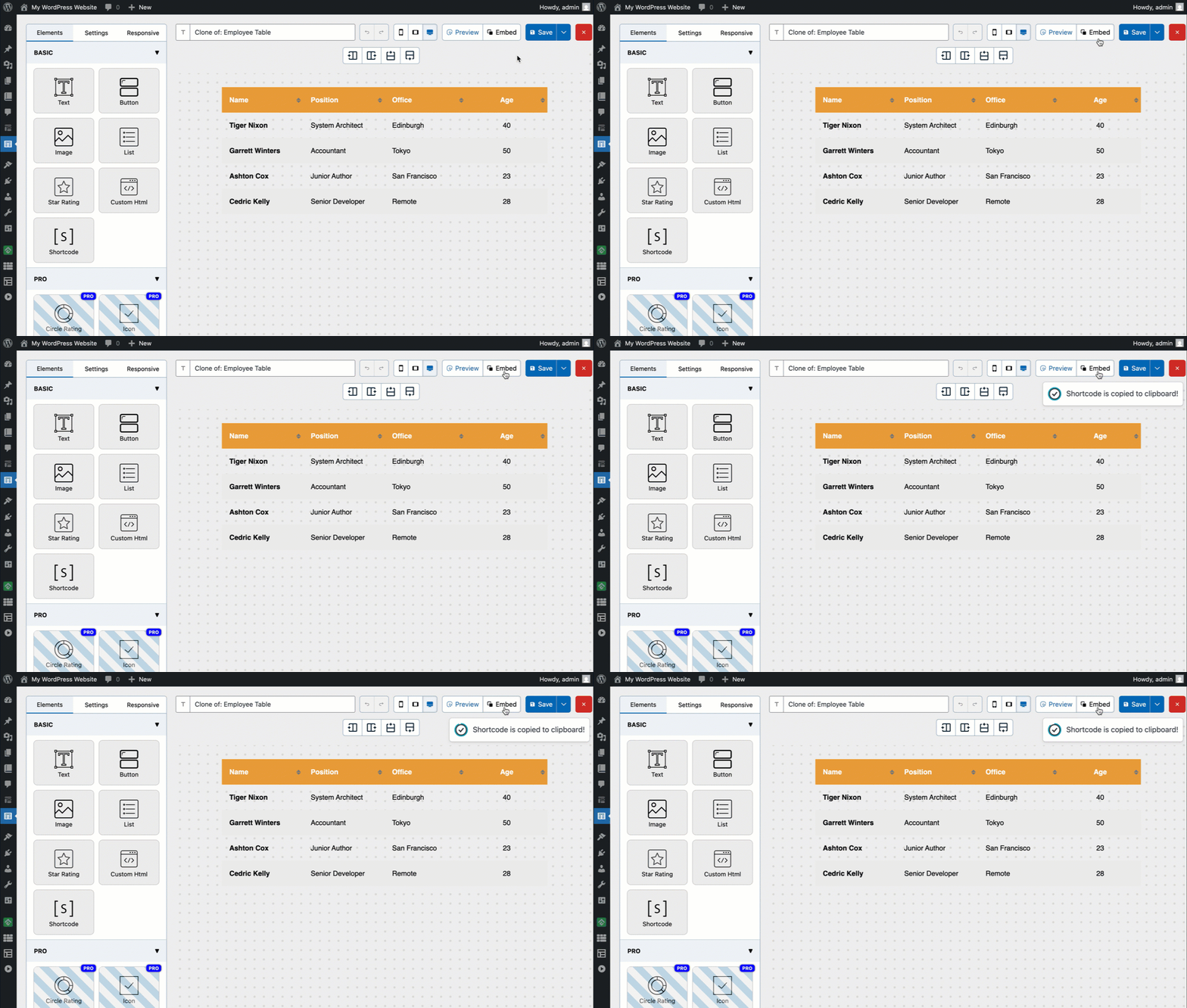
The shortcode will look like [wptb id="123" not found ]. Keep it copied — you’ll paste it in the next step.
If you haven’t built a table yet, see How to Create Your First Table in WP Table Builder first.
Method 1: Using the Shortcode widget (recommended) #
This is the standard way to add any shortcode-based content in Elementor.
Step 1: Open your page in Elementor #
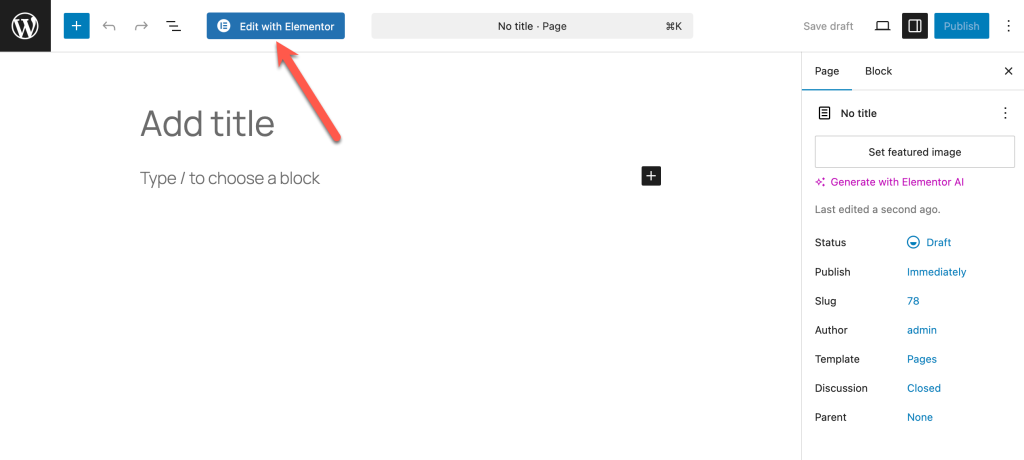
Go to the page or post where you want to add the table and click Edit with Elementor.
Step 2: Add the Shortcode widget #
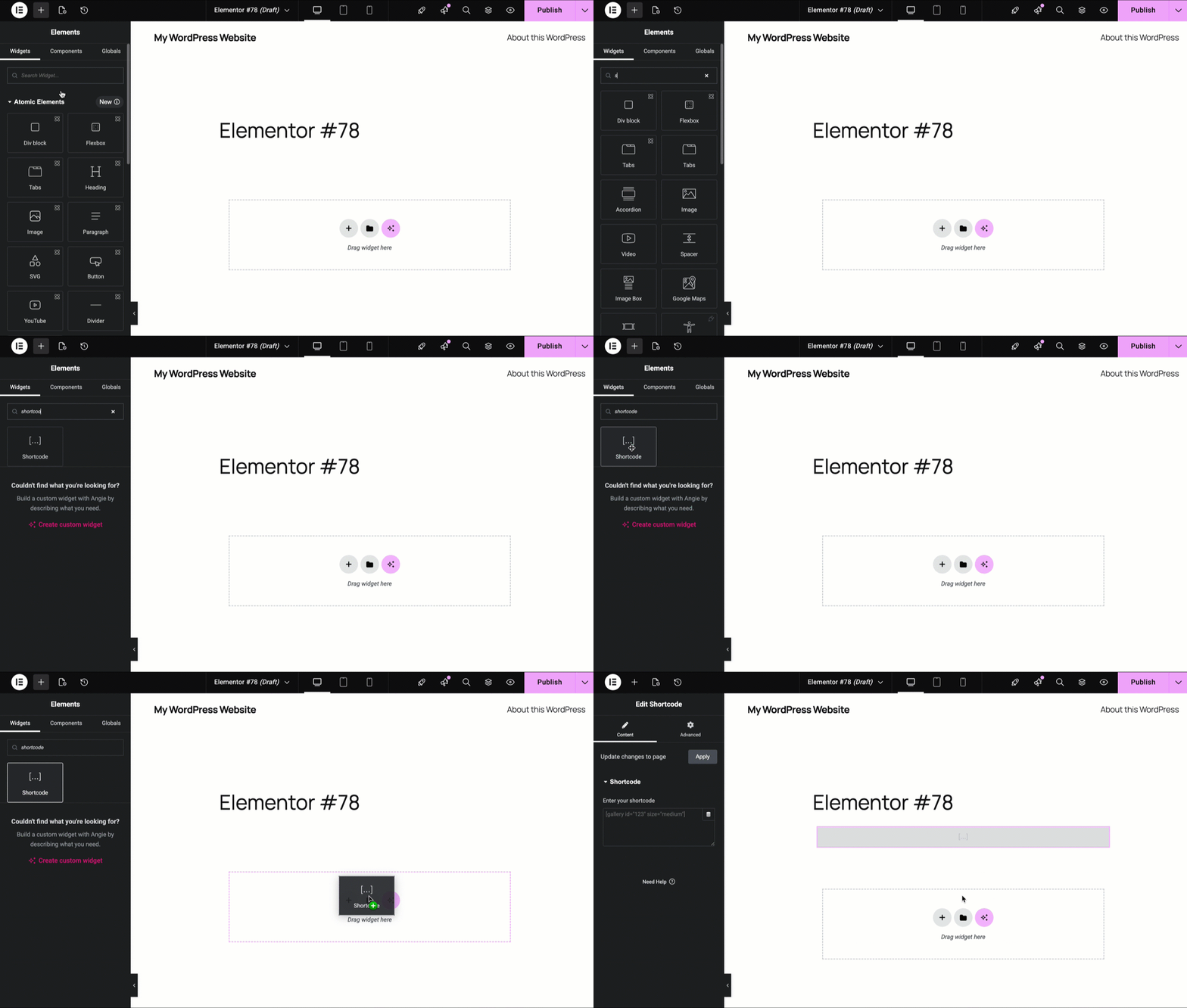
In the Elementor panel on the left, search for “Shortcode” in the widget search box. Drag the Shortcode widget and drop it into the section where you want the table to appear.
Step 3: Paste the shortcode #
In the left-hand settings panel, paste your WP Table Builder shortcode into the Enter your shortcode field.
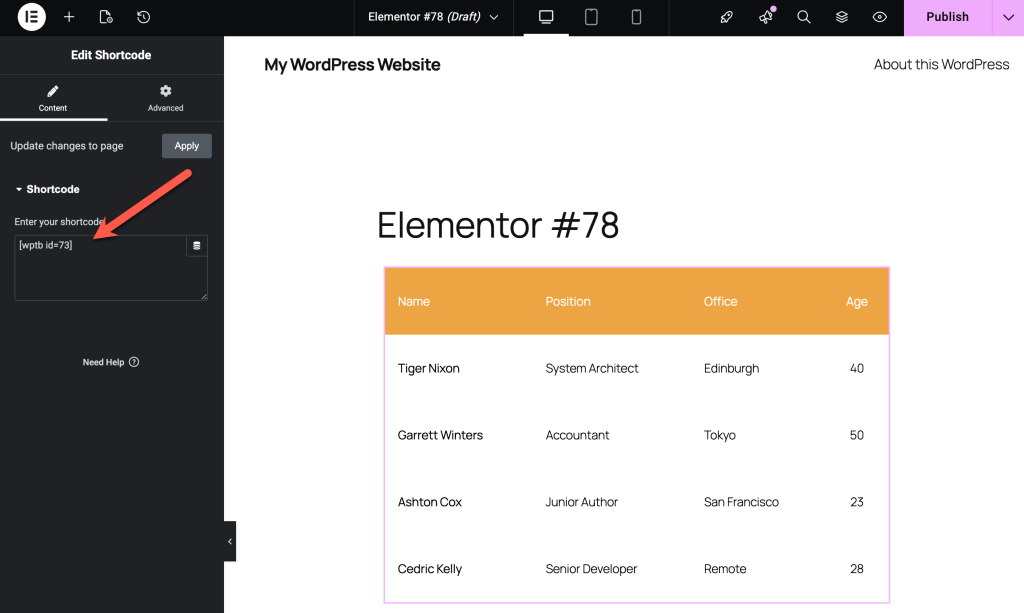
Note: The table may appear in a simplified style inside the Elementor editor — this is normal. Click the drop-down icon beside the ‘Publish’ button and click on View Page to see the fully rendered table exactly as it will look to your visitors.
Step 4: Preview and publish #
The Elementor canvas may show a simplified preview of the table. Click Preview Changes or Publish/Update to see the fully rendered table on the frontend.
Why the Elementor preview looks different from the frontend #
This is expected behavior and not a bug. Elementor’s canvas uses a simplified rendering environment that may not apply all of your theme’s frontend styles. The actual table will render correctly on the published page.
To see the exact frontend result without publishing, click drop-down icon beside the ‘Publish’ button and click on View Page — this opens a live preview in a new tab with full frontend styles applied.
Troubleshooting #
The shortcode is showing as plain text instead of a table. Make sure you pasted the shortcode into the Enter your shortcode field inside the Shortcode widget settings panel — not into a Text or Heading widget. If you typed it manually, double-check the format: [wptb id="123" not found ] where 123 matches your actual table ID.
The table isn’t appearing at all on the frontend. Confirm that WP Table Builder is installed and activated. Then check that the table ID in the shortcode matches an existing table in WP Table Builder → All Tables.
The table looks broken or unstyled in Elementor. Check the preview of the page first. If the table looks broken in the preview, your Elementor theme or a custom CSS rule may be overriding WP Table Builder’s table styles. Try adding custom CSS to correct the conflict. See How to Add Custom CSS in WP Table Builder.
The table overflows its container in Elementor. This is usually a responsive issue. Check your table’s responsive settings in WP Table Builder. See How to Make a Table Responsive.
I’m using Elementor Pro — is there a better way to embed tables? No native Elementor Pro widget exists for WP Table Builder, so the Shortcode is the correct method for all versions of Elementor.
Frequently asked questions #
Does WP Table Builder work with Elementor Free and Elementor Pro?
Yes. The Shortcode widget is available in both Elementor Free and Elementor Pro, so the method is the same regardless of which version you’re using.
Can I add multiple tables on the same Elementor page?
Yes. Add a separate Shortcode widget for each table, each with its own shortcode. There’s no limit to how many tables you can embed on a single page.
Will my table update automatically if I edit it in WP Table Builder?
Yes. The shortcode always pulls the latest saved version of the table. You don’t need to update your Elementor page after editing a table — just save the table in WP Table Builder and the changes appear on the frontend immediately.
Can I use WP Table Builder inside an Elementor popup?
Yes. Add a Shortcode widget inside your Elementor popup template and paste the shortcode. The table will render correctly when the popup opens.
Does the table work inside Elementor’s Loop Grid or dynamic templates?
The Shortcode widget can be added to Loop Grid templates, but the table ID in the shortcode will be static — it won’t change dynamically per post. For dynamic table content, you’d need custom development.
Related docs #
- How to Create Your First Table in WP Table Builder — build your first table step by step
- How to Add a WP Table Builder Table in the Gutenberg Block Editor — Gutenberg integration guide
- How to Use WP Table Builder with Divi — Divi integration guide
- How to Make a Table Responsive — responsive settings
- How to Add Custom CSS in WP Table Builder — customize table styles


