

Call-to-Action buttons on your table are crucial to increase your conversion rates.
WP Table Builder has a dedicated ‘Button’ element for creating beautiful and conversion-optimized buttons for your table.
Let’s see how to add a button to the table.
Just drag the ‘Button’ element and drop where you want to add the button.

Button Options #
The ‘Button’ element has many options to make buttons look great and optimize for better conversions.
You’ll see 4 tabs (General, Link, Icon, Label) under Button options.

Let’s see each option one by one.
General #
You’ll find all the basic options in the General tab below.
Button Size #
You can have buttons in different sizes (S, M, L, XL).
Just select the button size from the left-hand side option.
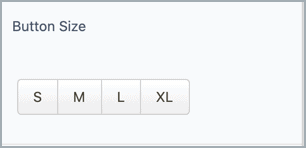
Here’s an example of different sizes.

Full Width #
If you enable the full-width option for the button, its width will increase.

Border Radius #
The border radius determines the overall roundness of the button.

Button Color #
You can change the button’s background color by inserting the color code or selecting the color from the color palette.

Button Hover Color #
Button hover color lets you add color to your button when you hover over the button.

Text Color #
Using the option, you can change the text color of the button.

Text Hover Color #
Text hover color is used so your button changes text when the cursor hovers over the button.

Font Size #
You can increase or decrease the button text size. It will also change the overall size of the button.

Scale on Hover #
Scale on hover lets you set how much your button will scale out.

Button Alignment #
You can change the button’s alignment.
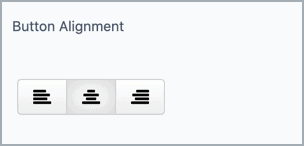
Content Alignment #
You can also choose the content alignment of the button.

Button ID #
This option allows you to set the Button ID for your buttons.

Link #
You can add a URL to your button and tag the link to open in a new tab and as a nofollow link.

Link Target #
Link Target lets you set two options: Self & Blank. If you set the link target to Self, it will open the link on the existing page.

But, if you set it to Blank, the link will open in a new tab.
Icon #
You can add an icon to the button to make the button more attractive. You can change the position and size of the button.

Label #
Lable allows you to set a label for your button. You can also modify the label color and label text color.

Hope this doc helped you to understand the usage of buttons in WP Table Builder.
If you have any questions, feel free to ask us via comment.


