
Quick Answer
Go to WP Table Builder > Add New, set the number of Columns and Rows under Start blank and click Create table. Name the table at the top, click any cell to type, drag elements such as Image, Star Rating or Button from the Elements tab into cells, and adjust colors and borders in the Settings tab. Click Save, then click Embed and copy the shortcode (for example [wptb id=123]) into a post or page, or use the WP Table Builder block.
This tutorial walks you through building a simple product table from scratch with the free version of WP Table Builder. It takes about 5 minutes. If you prefer to start from a finished design, see How to Create a Table From a Template in WP Table Builder.
Requirements #
| Item | Details |
|---|---|
| Plan | Free (this tutorial uses only free features) |
| Plugin | WP Table Builder 2.3 or later, installed and active. See How to Install and Activate the WP Table Builder Plugin. |
| User role | Administrator, or a role allowed in WP Table Builder user roles |
| Time needed | About 5 minutes |
Step 1: Create a blank table #
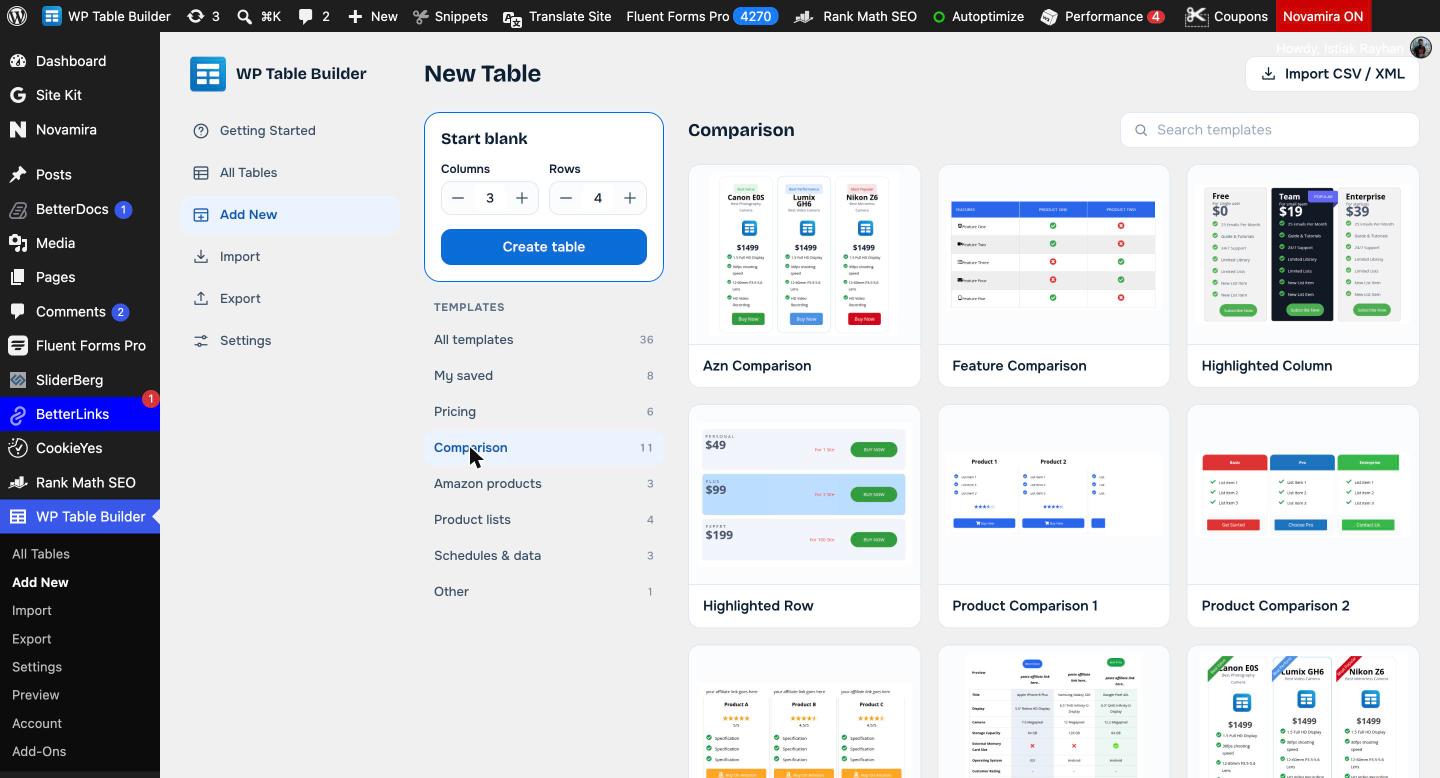
- In your WordPress dashboard, go to WP Table Builder > Add New.
- Under Start blank, use the – and + buttons to set Columns and Rows. You can add or remove rows and columns later.
- Click Create table. The builder opens.
Step 2: Name the table #
Click Untitled table at the top of the builder and type a name, for example “Best Laptops 2026”. Clear names make tables easy to find in All Tables and in the WP Table Builder block.
Step 3: Add text #
Every new cell already contains a Text element that shows Content here…. Click it and start typing. Select words to see the formatting bar with bold, italic, underline, strikethrough, link and alignment.
For a heading cell, select the text element and change Tag from Paragraph to a heading level in the left panel. See Text.
Step 4: Drag in elements #
- Open the Elements tab in the left panel.
- Drag an element (for example Button, Image or Star Rating) into a cell. A blue line shows where it will land.
- Drop it. A cell can hold several elements stacked on top of each other.
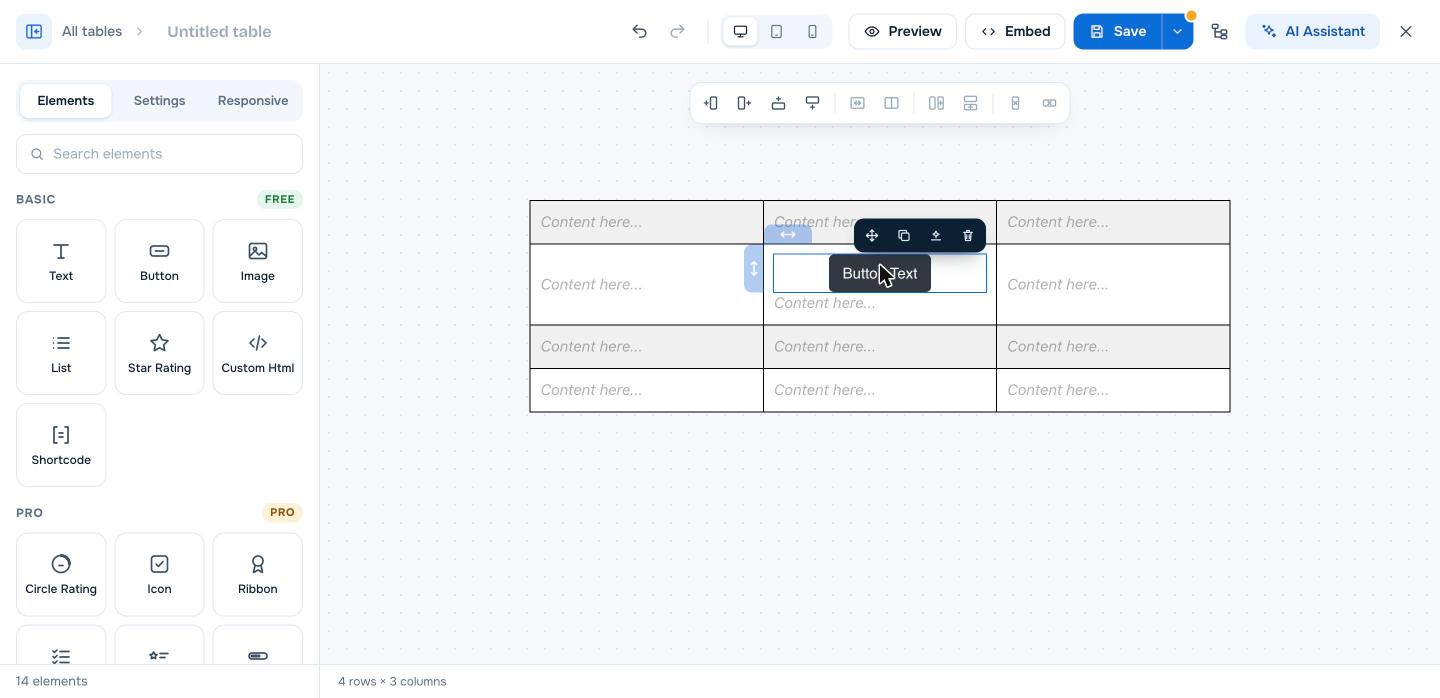
Free elements are Text, Button, Image, List, Star Rating, Custom HTML and Shortcode. Pro adds seven more. See WP Table Builder Elements: Overview of All 14 Elements.
Step 5: Change element settings #
Click an element to select it. The left panel shows its settings, often split into tabs. For a button you get General (size, colors, radius), Link, Icon and Label.
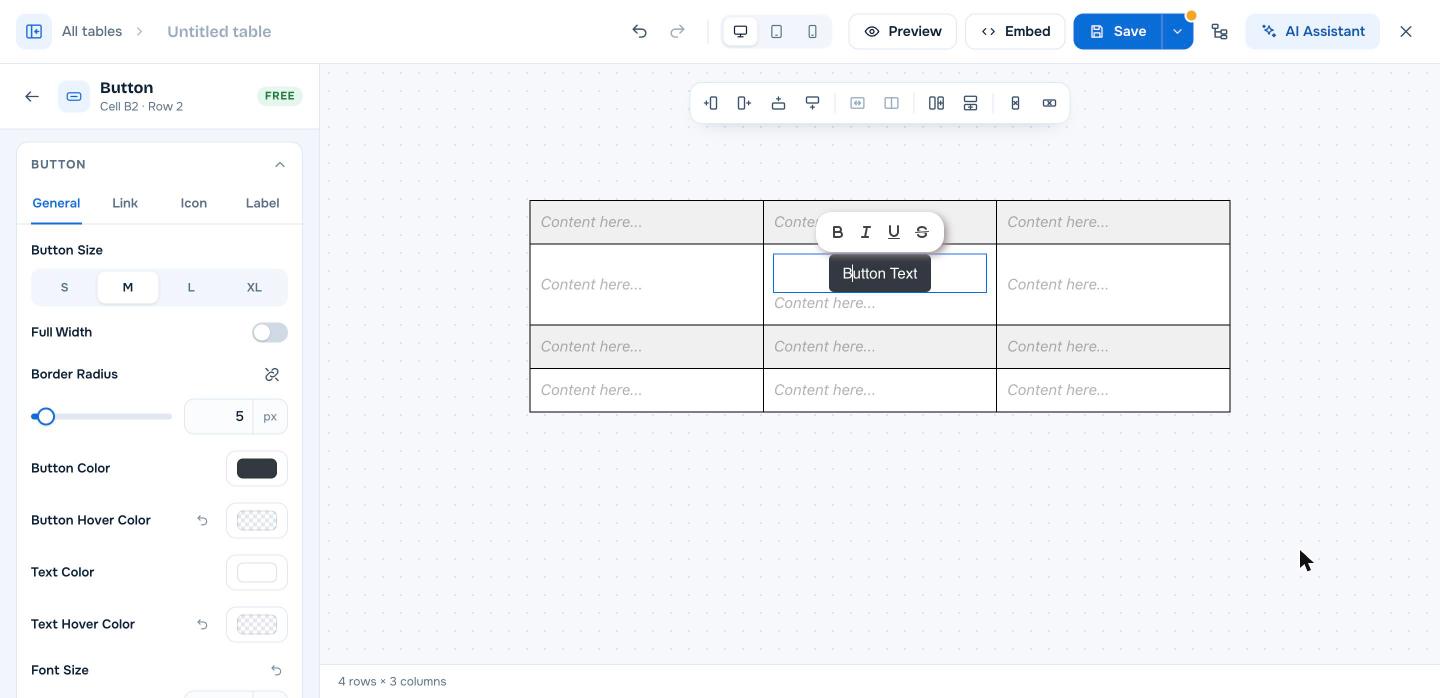
Click the back arrow at the top of the panel to return to the element list.
Step 6: Add or remove rows and columns #
Click the empty space in a cell to select it, then use the toolbar above the table: Add column to the left or right, Add row above or below, Merge cells, Split cell, Delete column and Delete row. See How To Add Rows or Columns To An Existing Table.
Step 7: Style the table #
Open the Settings tab to change the whole table: Cell Padding, Alignment, Border, Background (header, odd and even rows, hover), Font Style, sorting and more. Type in Search settings to find an option quickly.
Before publishing, check the Tablet and Mobile previews in the top bar. If the table is too wide, turn on horizontal scrolling or responsive mode.
Step 8: Save and embed the table #
- Click Save. The orange dot on the button disappears when everything is saved.
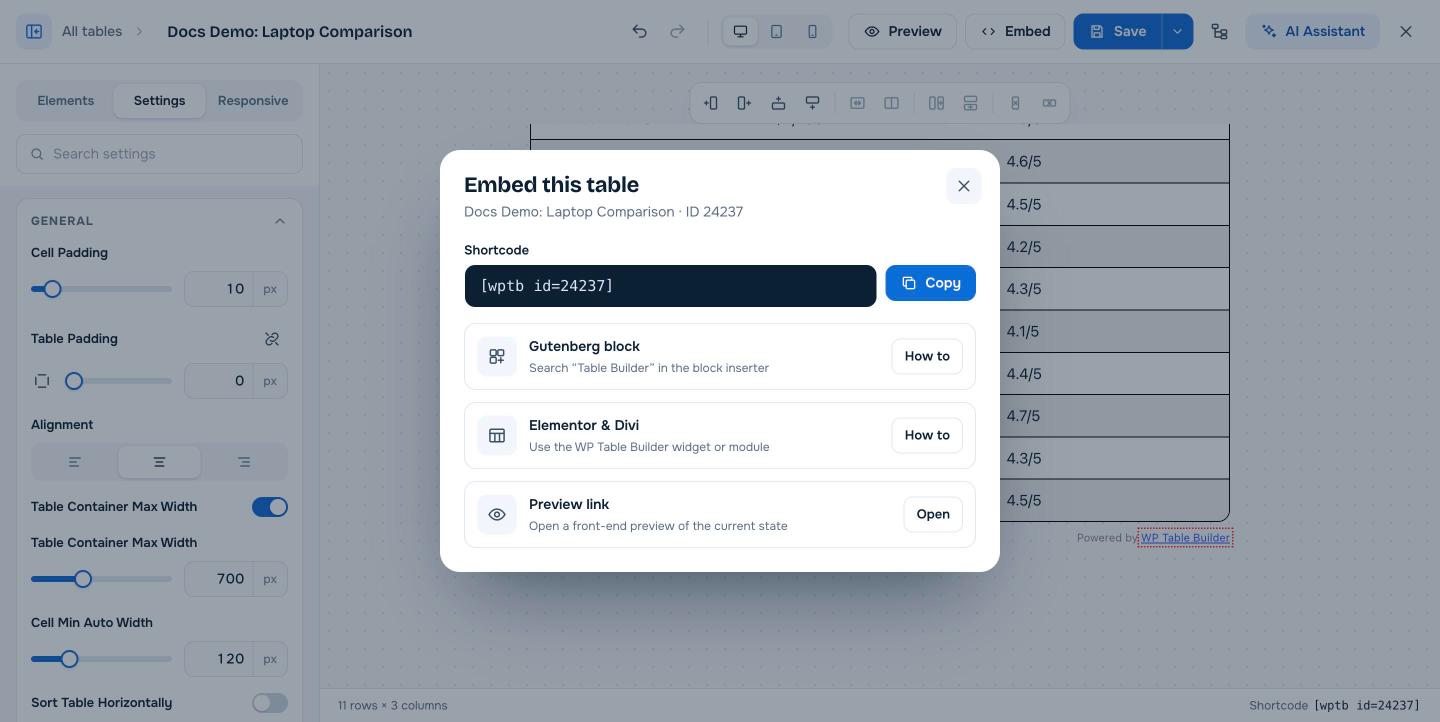
- Click Embed and click Copy next to the shortcode.
- Paste the shortcode into a post or page, or add the WP Table Builder block and pick your table. See How to Add a WP Table Builder Table in the Gutenberg Block Editor and How to Embed a WP Table Builder Table With a Shortcode.
When you edit and save the table later, every page that shows it updates automatically.
Frequently asked questions #
Can I create tables without coding?
Yes. WP Table Builder is fully drag and drop. You do not need HTML or CSS to build, style or embed a table.
Is there a limit on how many tables I can create?
No. Both the free and Pro versions allow unlimited tables.
Can I edit a table after embedding it?
Yes. Edit and save the table in WP Table Builder and every page that uses it updates.
Does this work with the Gutenberg block editor?
Yes. Use the WP Table Builder block, or a Shortcode block with the table shortcode.
Can AI build the table for me?
With WP Table Builder Pro, the AI Assistant can fill and style a table from a plain-language description. See the AI Assistant guide.


