
Quick Answer
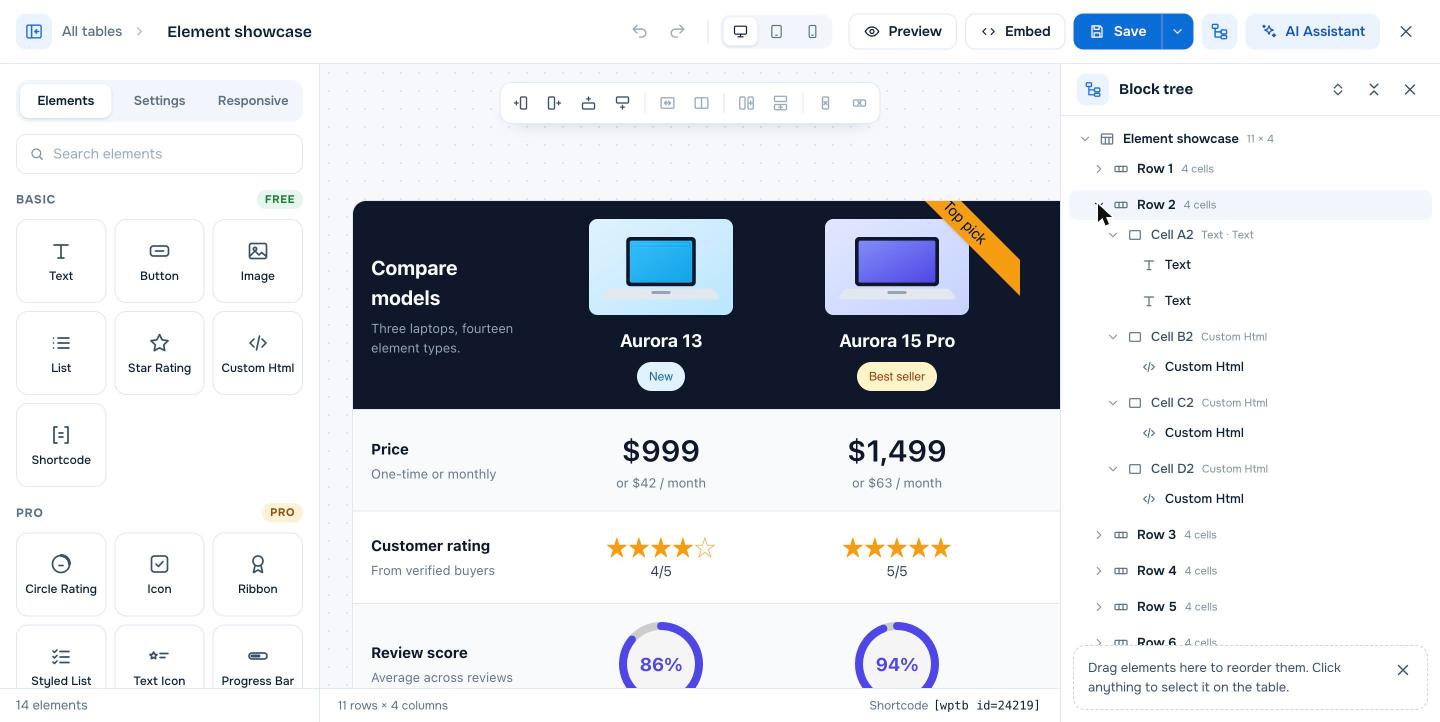
Click Open block tree in the top bar of the WP Table Builder builder (the icon to the left of AI Assistant). A panel opens on the right listing every row, cell and element in the table. Click any item to select it on the table, expand rows to see their cells, and drag elements in the list to reorder them.
The block tree is an outline of your table. It shows the structure (table, rows, cells and the elements inside each cell) as a nested list, which makes large tables much easier to navigate and edit.
Requirements #
| Item | Details |
|---|---|
| Plan | Free and Pro |
| Plugin version | WP Table Builder 2.2.3 or later |
| Time needed | None, it is a navigation tool |
Open the block tree #
- Open a table in the builder.
- Click Open block tree in the top bar. The icon sits between Save and AI Assistant.
- Click it again, or click the X in the panel, to close it.
What the block tree shows #
- The table at the top, with its size, for example Element showcase 11 × 4.
- Each row, with the number of cells, for example Row 2 4 cells.
- Each cell, named by column letter and row number (for example Cell A2), with the types of elements it holds.
- Each element inside a cell, such as Text, Button or Custom Html.
What you can do in the block tree #
| Action | How |
|---|---|
| Select an item on the table | Click it in the list. The builder selects it and shows its settings in the left panel. |
| Expand or collapse a row or cell | Click the arrow next to it |
| Expand or collapse everything | Use the two icons at the top of the panel |
| Reorder elements | Drag an element up or down in the list |
When the block tree helps most #
- Selecting small or hidden elements, such as an empty text element or an element under a ribbon.
- Large tables, where scrolling the canvas to find one cell is slow.
- Cells with several elements, where you need to change their order.
- Finding the cell name (like Cell C4) to use in an AI Assistant mention such as
@Cell:4,3.
Frequently asked questions #
What is the block tree in WP Table Builder?
The block tree is a panel that lists the table’s rows, cells and elements as a nested outline. You use it to select and reorder elements without hunting for them on the canvas.
Can I move elements between cells with the block tree?
You can drag elements to reorder them in the list. To move an element on the table itself, you can also use the Move block button in the element’s floating toolbar.
Is the block tree a Pro feature?
No. The block tree is available in the free version of WP Table Builder.


