
Quick Answer
WP Table Builder has 14 elements you drag into table cells. Seven are free: Text, Button, Image, List, Star Rating, Custom HTML and Shortcode. Seven need WP Table Builder Pro: Circle Rating, Icon, Ribbon, Styled List, Text Icon, Progress Bar and Badge. Drag an element from the Elements tab into a cell, then select it to change its settings.
Elements are the building blocks inside table cells. A cell can hold one element or several stacked on top of each other, for example an image, a product name, a star rating and a button.
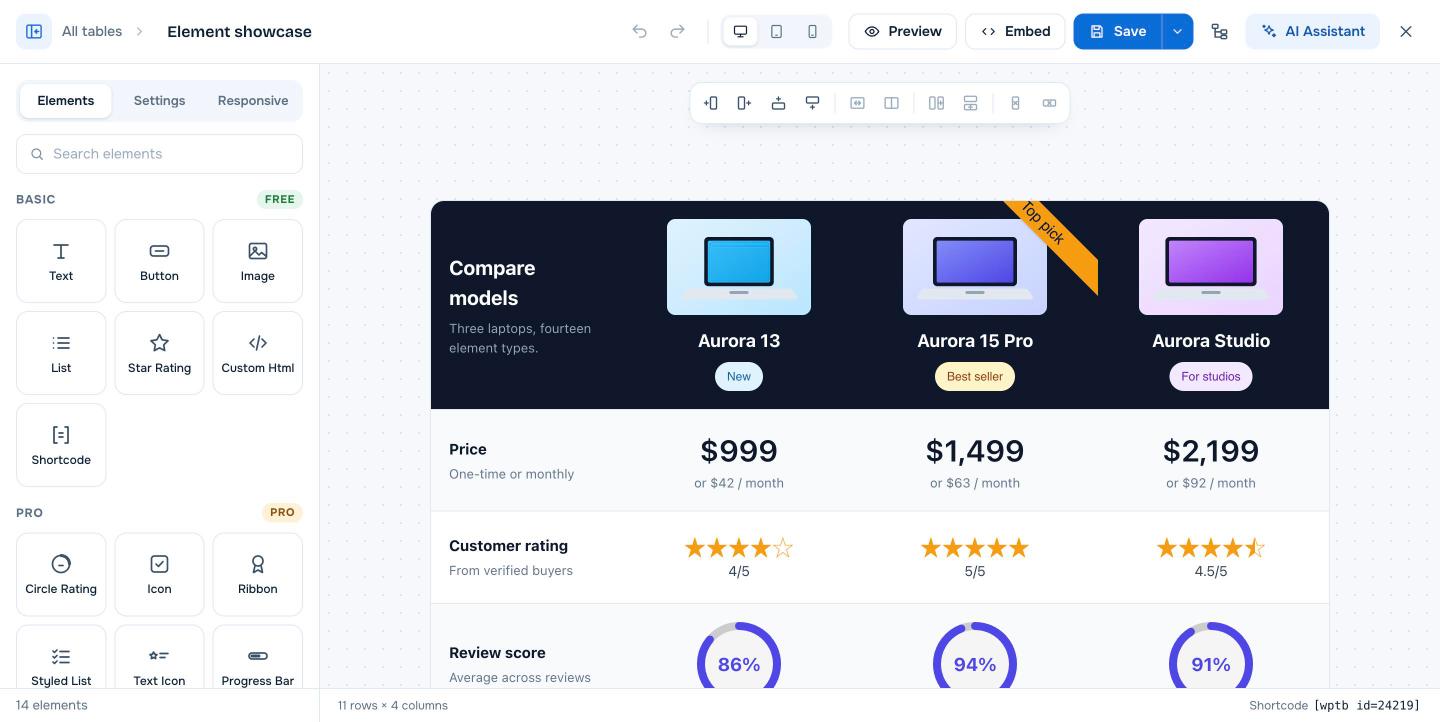
How to add an element #
- Open the table in the builder and click the Elements tab.
- Find the element, or type its name in Search elements.
- Drag it into a cell. A cell can hold several elements.
- Click the element to see its settings in the left panel.
Empty cells contain a Text element by default, so you can click any cell and start typing.
Free elements #
| Element | What it does | Typical use |
|---|---|---|
| Text | Rich text with bold, italic, links, alignment, font family and paragraph or H1 to H6 tags | Labels, descriptions, prices |
| Button | A link button with size, colors, hover effects, icon and optional label (Pro) | Buy now, Learn more, Sign up |
| Image | An image from the media library or a URL, with size, alignment, alt text and link | Product photos, logos |
| List | Ordered or unordered list with bullet choice, colors, spacing and item tooltips (Pro) | Feature lists |
| Star Rating | Stars from 0 to a maximum rating, with optional number | Review scores |
| Custom HTML | Your own HTML, including embeds and iframes | Videos, forms, custom markup |
| Shortcode | Runs any WordPress shortcode inside a cell | Output from other plugins |
Pro elements #
| Element | What it does | Typical use |
|---|---|---|
| Circle Rating | A circular score shown as a number or percentage | Review scores, test results |
| Icon | One or more icons, each with its own link | Checkmarks, platform logos |
| Ribbon | A rectangle, side, icon, bookmark or corner ribbon | Top pick, Best value labels |
| Styled List | A list with a custom icon per item and tooltips | Pros and cons, feature checklists |
| Text Icon | Text with an icon on the left or right | Shipping info, short highlights |
| Progress Bar | A horizontal bar showing a value | Scores, capacity, comparisons |
| Badge | A small colored label | New, Sale, Best seller |
Element settings you will see often #
- Padding and Margin (Pro for most elements) control the space inside and around an element.
- Alignment controls whether the element sits left, center or right in the cell.
- Link settings on buttons, images and icons include new tab, nofollow and sponsored options. See How to Add Links to Table Text in WP Table Builder (Nofollow, Sponsored, New Tab).
Frequently asked questions #
How many elements does WP Table Builder have?
14 elements: 7 free (Text, Button, Image, List, Star Rating, Custom HTML, Shortcode) and 7 Pro (Circle Rating, Icon, Ribbon, Styled List, Text Icon, Progress Bar, Badge).
Can I put more than one element in a cell?
Yes. Drag several elements into the same cell. Use the block tree or the Move block button to change their order.
Can I embed videos or forms in a table?
Yes. Use the Custom HTML element for embed codes or the Shortcode element for shortcodes from form and video plugins.
Which elements are best for affiliate comparison tables?
Image, Text, Star Rating and Button cover the basics. With Pro, add Badge or Ribbon for the top pick, Styled List for pros and cons, and Circle Rating for scores.


