
Quick Answer
Open a table in the WP Table Builder builder, click AI Assistant in the top bar, mention the part of the table you want to change (@Table, @Row:1, @Col:2 or @Cell:1,2) and describe the change in plain language. The AI applies the edits directly to the table. Review the result, use Undo if needed, and click Save. The AI Assistant requires WP Table Builder Pro and a connected Anthropic or OpenAI API key.
The WP Table Builder AI Assistant lets you build and edit tables by typing instructions instead of clicking through settings. You can ask it to fill a table with content, restyle a row, add columns or change colors, and it applies the changes in the builder for you to review.
Requirements #
| Item | Details |
|---|---|
| Plan | WP Table Builder Pro |
| AI provider | An Anthropic or OpenAI API key connected in Settings. See How to Set Up the AI Assistant in WP Table Builder (Anthropic and OpenAI). |
| Plugin version | WP Table Builder and WP Table Builder Pro 2.3.0 or later |
| Time needed | Seconds per instruction |
Step 1: Open the AI Assistant #
- Go to WP Table Builder > All Tables and open a table, or create a new one.
- Click AI Assistant in the top bar. The chat panel opens on the right side of the builder.
- Check the header: it should say Connected with your provider name.
Step 2: Mention the part of the table to change #
The AI Assistant only sees the parts of the table you mention. This keeps answers focused and keeps API usage low. Use these mentions in your message:
| Mention | What the AI sees | Example |
|---|---|---|
@Table | The whole table | @Table Turn this into a laptop comparison with Model, Price and Rating columns |
@Row:1 | One row (rows start at 1) | @Row:1 Make this header row dark blue with white text |
@Col:2 | One column (columns start at 1) | @Col:2 Center the text in this column |
@Cell:1,2 | One cell, written as row,column | @Cell:1,2 Change this text to "Price per month" |
You can also select an element in the table and click Send to AI chat in its floating toolbar to add that element to the conversation.
Step 3: Describe the change and send it #
- Type your instruction in the Ask AI to help with your table box.
- Press Enter or click Send message.
- The AI applies the edits to the table and replies with a short summary, for example Applied 4 changes, marked Applied.
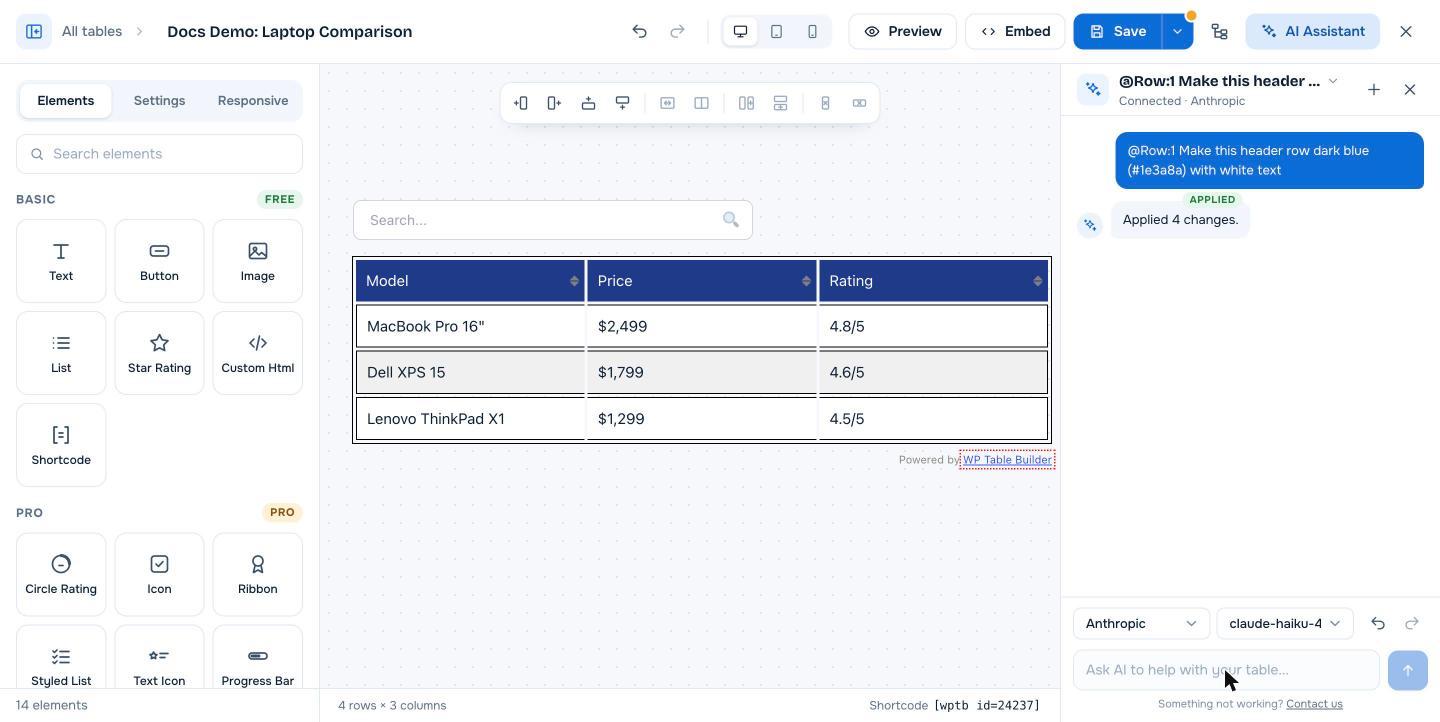
Step 4: Review, undo or save #
- Use the Undo and Redo arrows next to the model menu to step through AI changes.
- AI edits are normal builder changes. You can still adjust anything by hand afterwards.
- Changes are not published until you click Save in the top bar.
Managing conversations #
- Click + (New chat) to start a fresh conversation.
- Click the conversation title at the top of the panel to switch to an earlier chat.
- Use the provider and model menus at the bottom of the panel to change which AI answers the next message.
Example instructions #
@Table Fill this table with 5 popular project management tools and their starting prices@Table Add a fourth column called Free plan with Yes or No for each row@Row:1 Make the text bold and increase the font size to 18px@Col:3 Replace the ratings with a star rating element@Cell:2,3 Add a Buy now button that links to https://example.com
Tips for better results #
- Mention the smallest part that needs to change.
@Row:1is faster and cheaper than@Tablefor a header style change. - Give exact values when you care about them: colors as hex codes, sizes in px, exact text in quotes.
- Make one kind of change per message, then check the result before the next one.
- Check facts the AI writes into your table, such as prices and specs, before you publish.
Frequently asked questions #
What can the WP Table Builder AI Assistant do?
It edits tables from plain-language instructions. It can write and replace content, add or remove rows and columns, change colors, fonts and alignment, and add elements such as buttons or star ratings to the parts of the table you mention.
Does the AI Assistant see my whole table?
Only if you mention @Table. When you mention a row, column or cell, the AI only receives that part of the table.
Are AI changes saved automatically?
No. AI changes appear in the builder right away, but they are saved only when you click Save. You can undo them before saving.
Is the AI Assistant available in the free version?
No. The AI Assistant is a WP Table Builder Pro feature. It also needs your own Anthropic or OpenAI API key.
Can the AI Assistant create a table from scratch?
Yes. Create a blank table, open the AI Assistant and describe the table you want with @Table, for example the columns, number of rows and type of content.


