
Quick Answer
Go to WP Table Builder > Add New, pick a category in the Templates list, hover over a template and click Use template. WP Table Builder opens an editable copy named “Clone of: [template name]” in the builder. Edit the content, click Save, then copy the shortcode from Embed.
A table template in WP Table Builder is a ready-made table layout (for example a pricing table or a product comparison) that you copy and then edit. Using a template is the fastest way to build a styled table because the colors, borders, elements and layout are already set up.
Requirements #
| Item | Details |
|---|---|
| Plan | Free includes 1 template (Employee Table). WP Table Builder Pro unlocks all 28 built-in templates and saving your own templates. |
| Plugin version | WP Table Builder 2.3.0 or later (the Add New page with template categories) |
| User role | Administrator, or a role allowed in WP Table Builder user roles |
| Time needed | About 2 minutes |
Template categories #
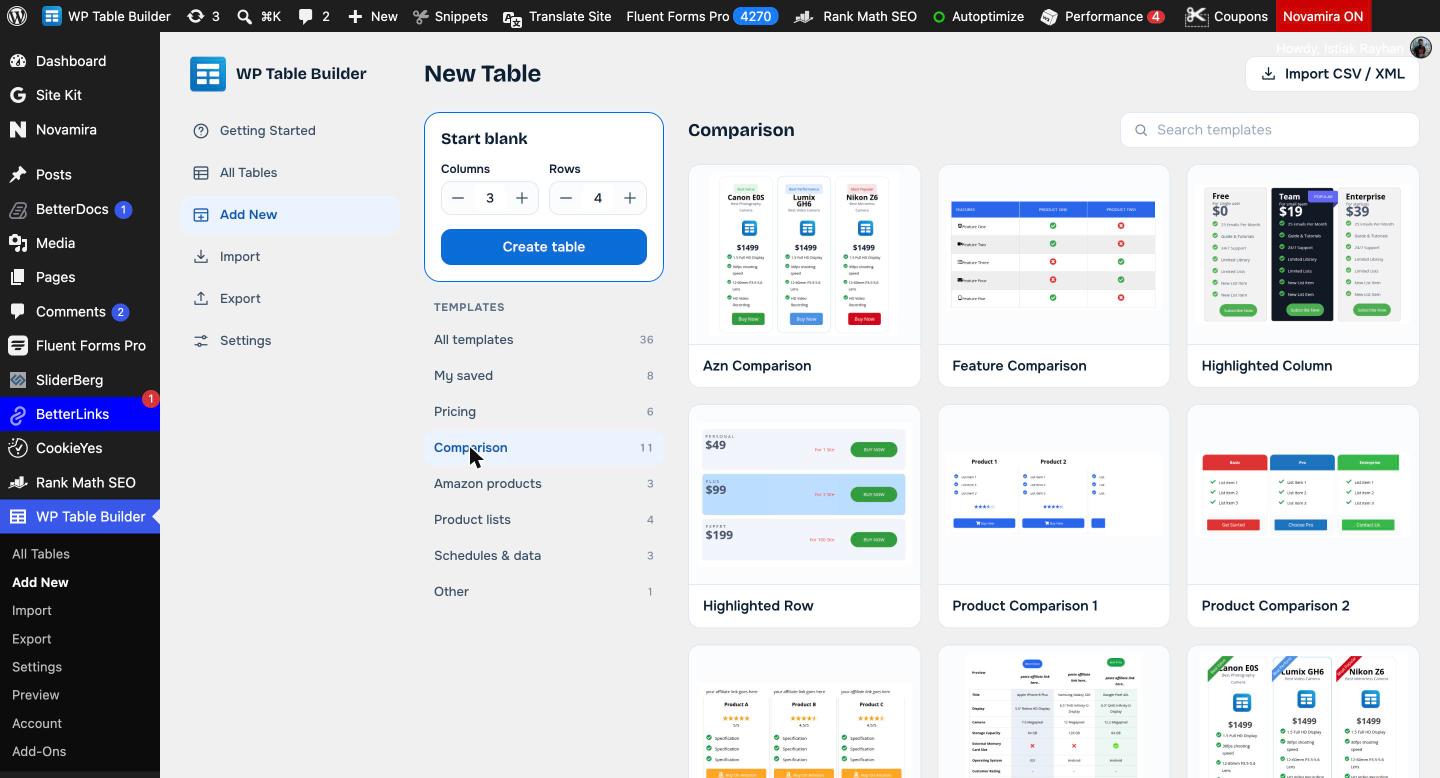
The Templates list on the Add New page groups templates by use case:
| Category | What it contains |
|---|---|
| All templates | Every built-in template plus your own saved templates |
| My saved | Tables you saved with Save as Template (Pro) |
| Pricing | Pricing tables with plans, prices and buttons |
| Comparison | Product and feature comparison tables, including highlighted row and column layouts |
| Amazon products | Product boxes and tables built for Amazon affiliate content |
| Product lists | Ranked product lists with images, ratings and buttons |
| Schedules & data | Class schedules, timetables, league tables and data tables |
| Other | Templates that do not fit the other groups |
You can also type in the Search templates box to find a template by name.
Step 1: Open the Add New page #
- In your WordPress dashboard, go to WP Table Builder > Add New.
- The page shows Start blank on the left and the template library on the right.
Step 2: Choose a template #
- Click a category in the Templates list, for example Comparison.
- Hover over the template you want to use.
- Click Use template.
Step 3: Edit the copy in the builder #
WP Table Builder opens a copy of the template in the builder, named Clone of: [template name]. The original template is never changed, so you can use the same template as many times as you like.
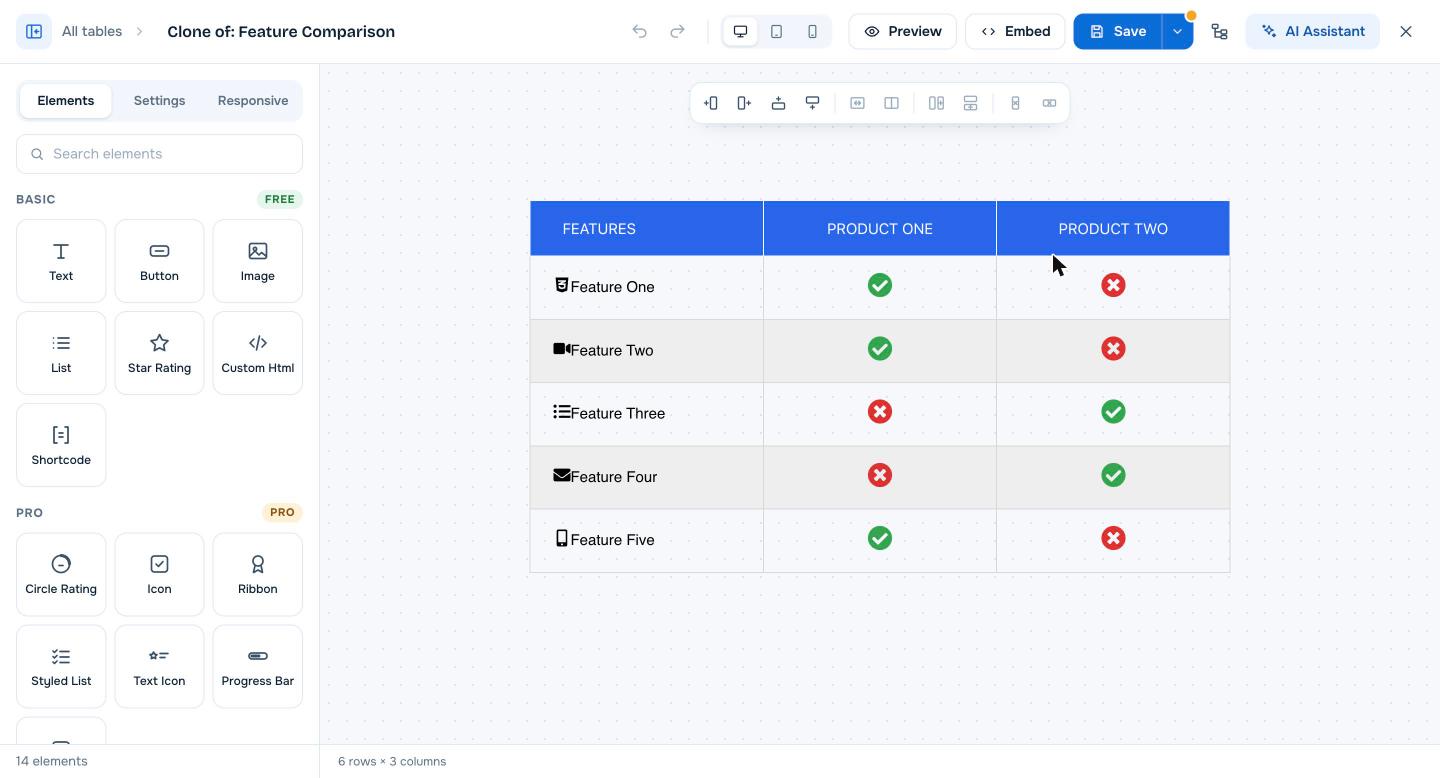
- Click the title at the top and give the table a clear name.
- Click any text to edit it, or select an element to change its settings in the left panel.
- Use the toolbar above the table to add or remove rows and columns.
The copy is not saved yet. The orange dot on the Save button means you have unsaved changes.
Step 4: Save and embed the table #
- Click Save. WP Table Builder creates the table and assigns it an ID.
- Click Embed and copy the shortcode, for example
[wptb id=123]. - Paste the shortcode into any post or page, or use the WP Table Builder Gutenberg block.
Save your own table as a template (Pro) #
With WP Table Builder Pro you can turn any table into a reusable template. Open the table, click the arrow next to Save and choose Save as Template. The template then appears under My saved on the Add New page. See How To Use Your Own Table As a Table Template (PRO) for details.
Frequently asked questions #
How many table templates does WP Table Builder have?
WP Table Builder 2.3 includes 28 built-in templates. The free version includes the Employee Table template. WP Table Builder Pro unlocks all 28 and lets you save unlimited templates of your own.
Does editing a table change the original template?
No. Clicking Use template always creates a separate copy named “Clone of: [template name]”. Your edits only affect that copy.
Can I start from a template and still add rows, columns and elements?
Yes. A table created from a template is a normal table. You can add or delete rows and columns, drag in new elements and change every setting.
Where do my saved templates appear?
Templates you save with Save as Template appear in the My saved category and in All templates on the WP Table Builder > Add New page.
Can I import a table instead of using a template?
Yes. Click Import CSV / XML in the top right corner of the Add New page, or see the import guide.


