
Quick Answer
WP Table Builder’s global settings are under WP Table Builder > Settings, in five tabs: General (user roles, table display options and builder layout), Table Styles (custom CSS for all tables), Lazy Load (image lazy loading, Pro), Version Control (roll back to an earlier version) and AI & API (AI Assistant API keys, Pro). Click Save after changing anything, or Revert to undo unsaved changes.
These settings apply to the whole plugin and every table. Settings for a single table (colors, borders, sorting and so on) are in the Settings tab inside the table builder instead.
Requirements #
| Item | Details |
|---|---|
| Plan | Free and Pro (Lazy Load and AI & API need Pro) |
| Plugin version | WP Table Builder 2.3.0 or later |
| User role | Administrator (the page needs the manage_options capability) |
General tab #
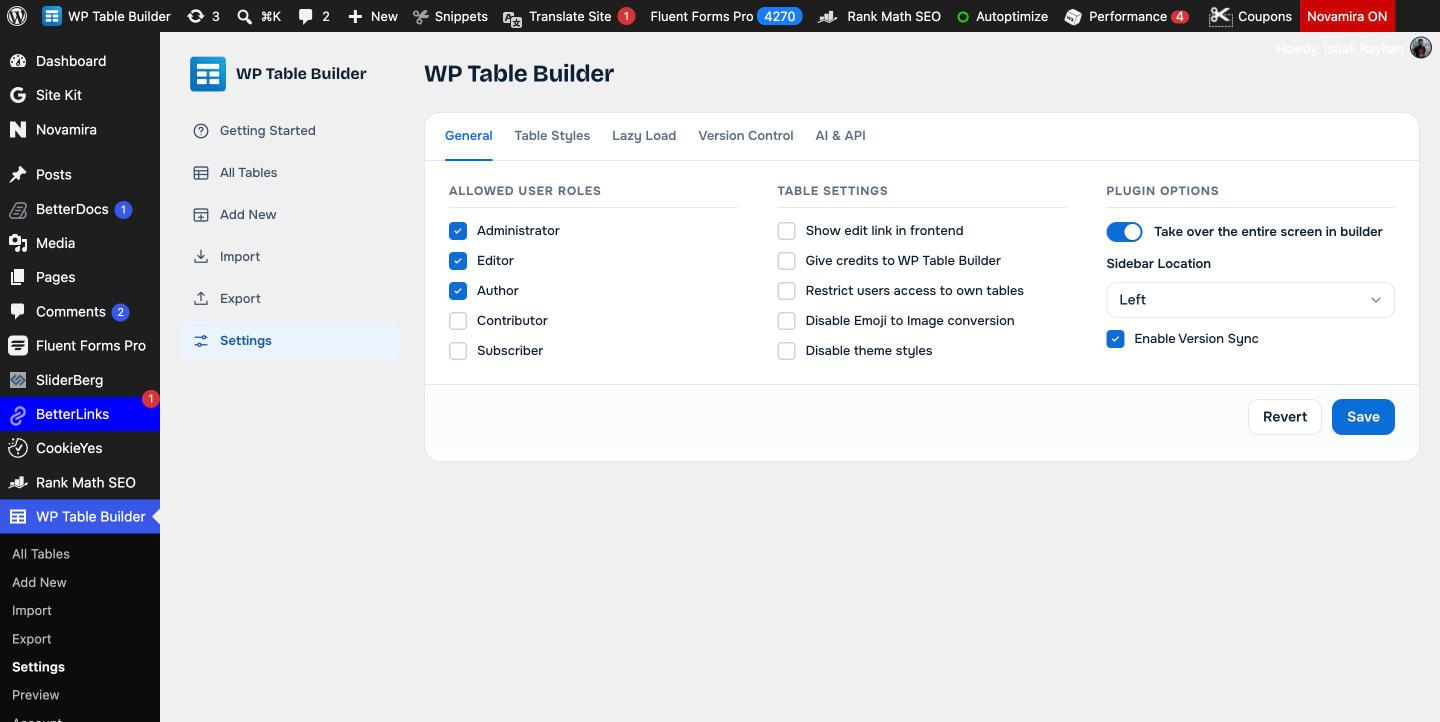
Allowed user roles #
Check the WordPress roles that can create and edit tables: Administrator, Editor, Author, Contributor and Subscriber. Administrators always have access. See How to Manage User Roles.
Table settings #
| Setting | What it does |
|---|---|
| Show edit link in frontend | Shows an edit link with each table on your site to logged-in users who can edit tables |
| Give credits to WP Table Builder | Shows a small “Powered by WP Table Builder” credit with your tables. You can also turn this on per table. See The Powered by badge. |
| Restrict users access to own tables | Users who are not administrators only see and edit the tables they created |
| Disable Emoji to Image conversion | Stops WordPress from replacing emoji in tables with emoji images |
| Disable theme styles | Stops your theme’s CSS from changing how tables look. See How to Disable ‘Theme Styles’ For Table. |
Plugin options #
| Setting | What it does |
|---|---|
| Take over the entire screen in builder | Opens the builder full screen, hiding the WordPress admin menu |
| Sidebar Location | Puts the builder’s left panel on the Left or Right |
| Enable Version Sync | An advanced option that is on by default. Leave it on unless DotCamp support asks you to change it. |
Table Styles tab #
Add CSS in Custom CSS to style every WP Table Builder table on your site at once. For CSS that should affect only one table, use Extra Styles in that table’s Settings tab. See How to Add Custom CSS in WP Table Builder.
Lazy Load tab (Pro) #
Delays loading table images until they scroll into view, with optional placeholder icons and load animations. See Lazy loading table images.
Version Control tab #
Shows your current and latest version and lets you install an earlier version if an update causes a problem. See Roll back to a previous version.
AI & API tab (Pro) #
Connect Anthropic or OpenAI API keys for the AI Assistant and choose which models appear in the chat. See How to Set Up the AI Assistant in WP Table Builder (Anthropic and OpenAI).
Frequently asked questions #
Where are WP Table Builder settings?
Go to WP Table Builder > Settings in your WordPress dashboard. Settings for one table are in the Settings tab inside the table builder.
How do I stop my theme from changing my tables?
Check Disable theme styles under WP Table Builder > Settings > General and click Save.
How do I let editors create tables?
Check Editor under Allowed User Roles in WP Table Builder > Settings > General and click Save.
Can I stop authors from editing each other’s tables?
Yes. Check Restrict users access to own tables. Users who are not administrators then only see and edit tables they created.


