
Quick Answer
Every WP Table Builder table has a shortcode in the format [wptb id=123], where 123 is the table ID. Save the table, click Embed in the builder, click Copy, then paste the shortcode into any post, page, widget or page builder that accepts shortcodes. You can also copy the shortcode from WP Table Builder > All Tables.
A shortcode is a short piece of text in square brackets that WordPress replaces with content when the page loads. The WP Table Builder shortcode is the universal way to show a table anywhere on your site, including places that have no dedicated block or widget.
Requirements #
| Item | Details |
|---|---|
| Plan | Free and Pro |
| A saved table | The shortcode appears after the first save |
| Time needed | Under 1 minute |
Step 1: Copy the shortcode #
From the builder:
- Click Save if the table is new or has unsaved changes.
- Click Embed in the top bar.
- Click Copy next to the shortcode.
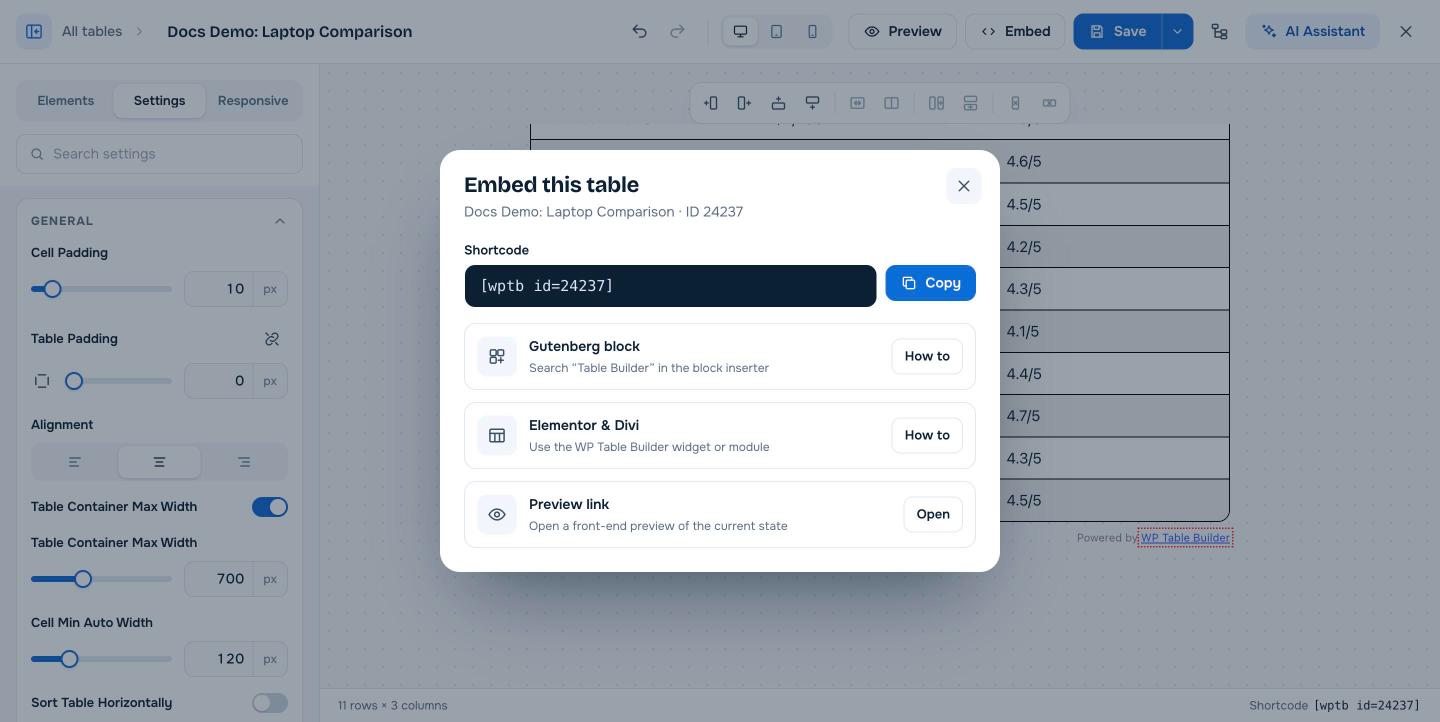
From the table list: go to WP Table Builder > All Tables and click the copy icon next to the table’s shortcode. The shortcode is also shown at the bottom right of the builder.
Step 2: Paste the shortcode #
| Where | How |
|---|---|
| Block editor (Gutenberg) | Add a Shortcode block and paste the shortcode, or use the WP Table Builder block instead. See How to Add a WP Table Builder Table in the Gutenberg Block Editor. |
| Classic Editor | Paste the shortcode on its own line in the Visual or Text tab |
| Widgets | Add a Shortcode widget (or a Text widget) to a sidebar or footer and paste the shortcode |
| Elementor | Use the WP Table Builder widget, or the Shortcode widget. See How to Add a WP Table Builder Table in Elementor. |
| Divi | Use the WP Table Builder module, or a Code or Text module. See How to Use ‘WP Table Builder’ with Divi. |
| Other page builders | Any shortcode or text element that runs shortcodes, for example in Beaver Builder, Bricks, Oxygen or Kadence |
| Inside another WP Table Builder table | Add a Shortcode element to a cell |
| Theme templates (PHP) | <?php echo do_shortcode('[wptb id=123]'); ?> |
Step 3: Check the table on your site #
Preview or publish the page. One table can appear on as many pages as you like. When you edit and save the table in WP Table Builder, every page that uses the shortcode updates automatically.
Preview a table without adding it to a page #
Click Preview in the builder top bar, or Open next to Preview link in the Embed dialog, to see the table on a front-end preview page with your theme styles.
Frequently asked questions #
What is the WP Table Builder shortcode?
It is [wptb id=123], where 123 is the table ID. Paste it into any post, page or widget to display the table.
Where do I find a table’s shortcode?
Click Embed in the builder, look at the bottom right of the builder, or check the Shortcode column on WP Table Builder > All Tables.
Can I use the same table on several pages?
Yes. Paste the same shortcode on every page. Edits to the table update everywhere.
My shortcode shows as plain text. What is wrong?
The field you pasted into does not run shortcodes. Use a Shortcode block or widget, check the table ID exists and is not in the Trash, and make sure WP Table Builder is active.
Does the shortcode work with page caching?
Yes. WP Table Builder clears the cached version of a table when you update it, but you may need to clear your page cache plugin or CDN to see changes immediately.


