
Quick Answer
The Ribbon element adds a label such as “Top pick” or “Best value” to a cell. Drag Ribbon into a cell, click the text to edit it, choose Ribbon Type (Rectangle, Side, Icon, Bookmark or Corner) and Ribbon Side (Left or Right), then set colors under Ribbon Style. This is a WP Table Builder Pro element.
Ribbons highlight the recommended product or plan and are among the most effective conversion elements in affiliate tables.
Requirements #
| Item | Details |
|---|---|
| Plan | WP Table Builder Pro |
| Where | Elements tab in the builder, Pro group |
| Time needed | About 1 minute |
How to add the Ribbon element #
- Open the table in the builder and click the Elements tab.
- Drag Ribbon into a cell, or type
ribbonin Search elements first. - Click the element to open its settings in the left panel.
- Click Save when you are done.
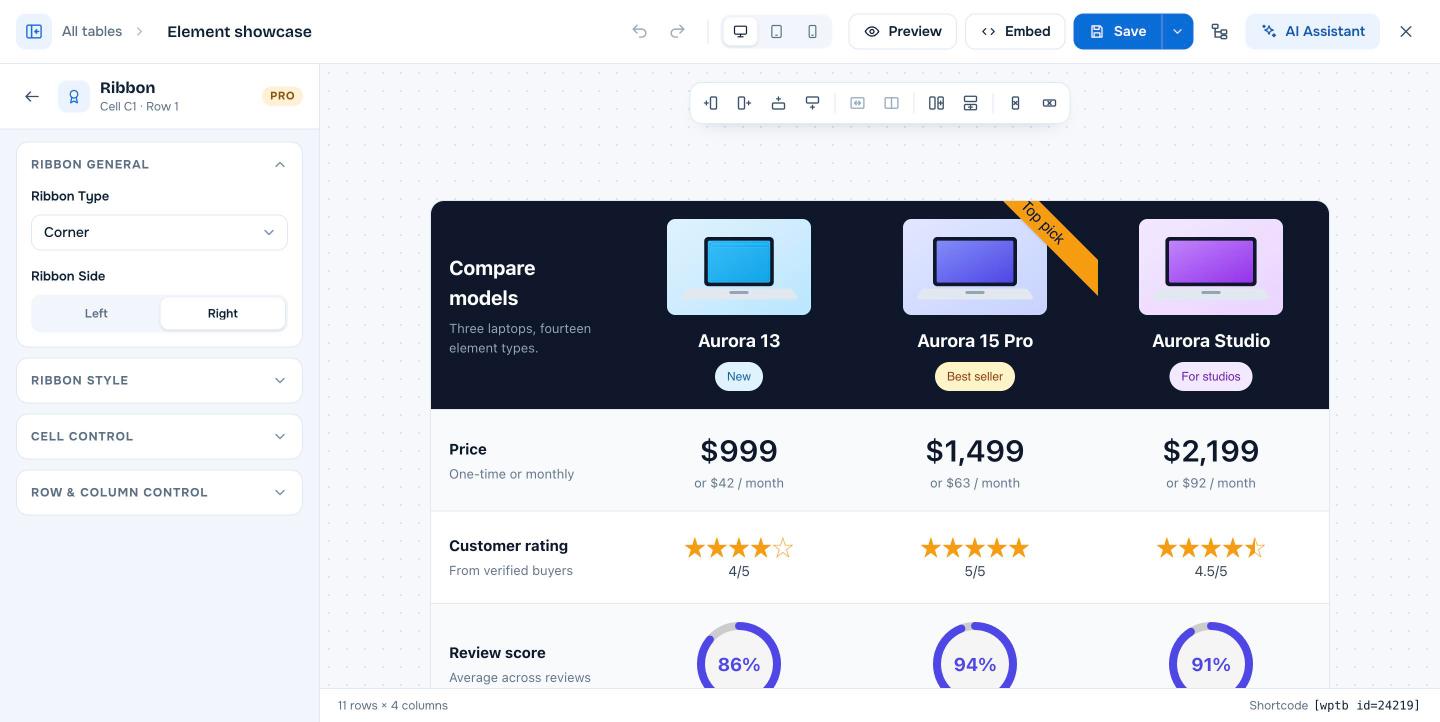
Ribbon settings #
| Setting | What it does |
|---|---|
| Ribbon Type | Rectangle, Side, Icon, Bookmark or Corner |
| Ribbon Side | Left or Right |
| Ribbon Style: Font Size, Text Color | Label text style |
| Ribbon Style: Background Color, Border Color | Ribbon colors |
Combine a ribbon with a highlighted column for the strongest effect.
Frequently asked questions #
How do I add a Best value ribbon to a pricing table?
Add the Ribbon element (Pro) to the plan’s top cell, type the label and choose Corner or Bookmark as Ribbon Type.
Can the ribbon sit on the left side?
Yes. Set Ribbon Side to Left.


