
Quick Answer
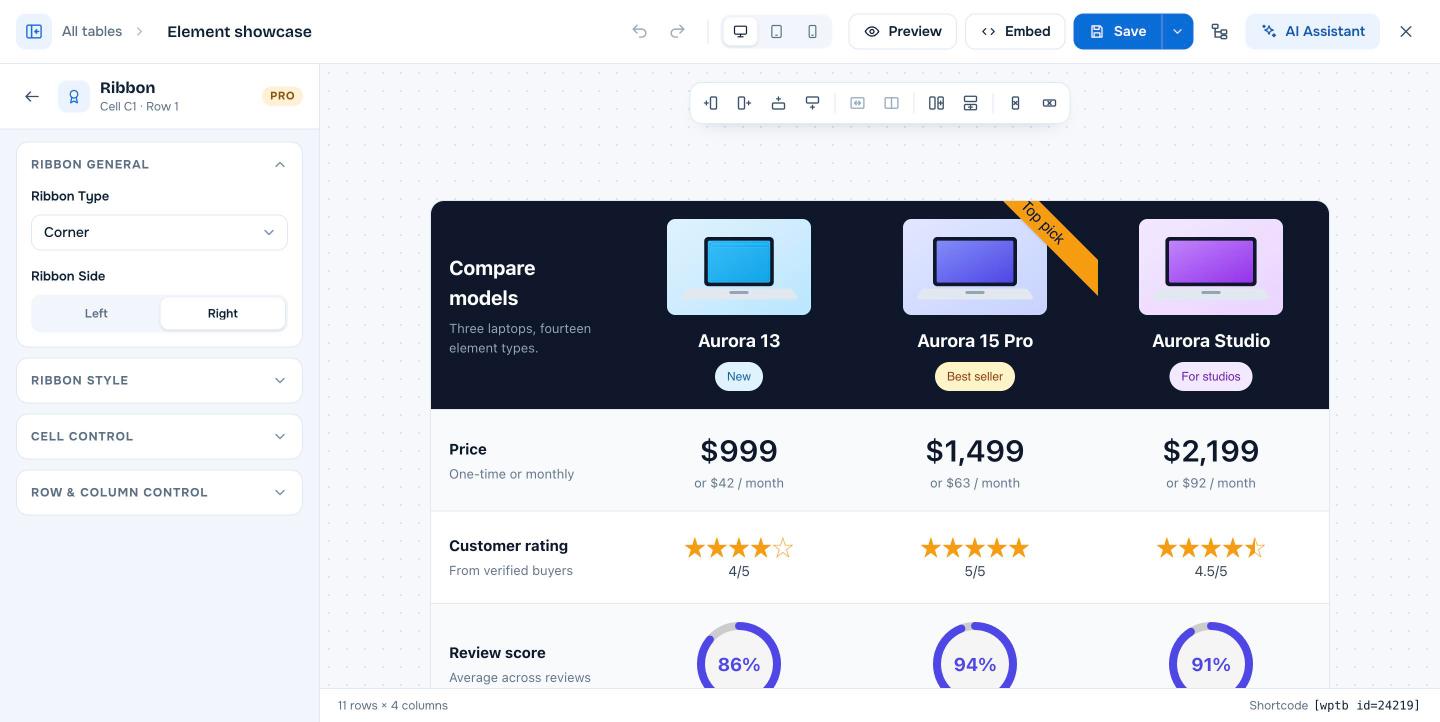
The Badge element adds a small colored label to a cell, such as “New”, “Sale” or “Best seller”. Drag Badge into a cell, click the text to edit it, and set Font Size, Color, Background Color, Alignment and Border Radius in the left panel. This is a WP Table Builder Pro element.
Badges add context to products and plans without taking much space.
Requirements #
| Item | Details |
|---|---|
| Plan | WP Table Builder Pro |
| Where | Elements tab in the builder, Pro group |
| Time needed | About 1 minute |
How to add the Badge element #
- Open the table in the builder and click the Elements tab.
- Drag Badge into a cell, or type
badgein Search elements first. - Click the element to open its settings in the left panel.
- Click Save when you are done.
Badge settings #
| Setting | What it does |
|---|---|
| Font Size | Text size in px |
| Color | Text color |
| Background Color | Badge color |
| Alignment | Left, center or right |
| Border Radius | Rounds the corners; a high value makes a pill shape |
| Padding / Margin | Spacing |
For a larger corner label, use the Ribbon element.
Frequently asked questions #
How do I add a Best seller label?
Add the Badge element (Pro) under the product name and type “Best seller”.
Badge or Ribbon?
Badges sit inline in the cell. Ribbons attach to the cell edge or corner for more emphasis.


