
Quick Answer
In the builder, click a cell in the column or row you want to feature, open Row & Column Control in the left panel and turn on Highlight this column or Highlight this row. Set Scale (100 to 105) to make it stand out, then click Save. Highlighting is a WP Table Builder Pro feature.
Highlighting makes one row or column slightly larger than the rest of the table, so it stands out. It is commonly used to feature a recommended product in a comparison table or the most popular plan in a pricing table.
Requirements #
| Item | Details |
|---|---|
| Plan | WP Table Builder Pro |
| Plugin version | WP Table Builder and WP Table Builder Pro 2.0 or later |
| Time needed | About 1 minute |
Step 1: Select a cell in the row or column #
- Open the table in the builder.
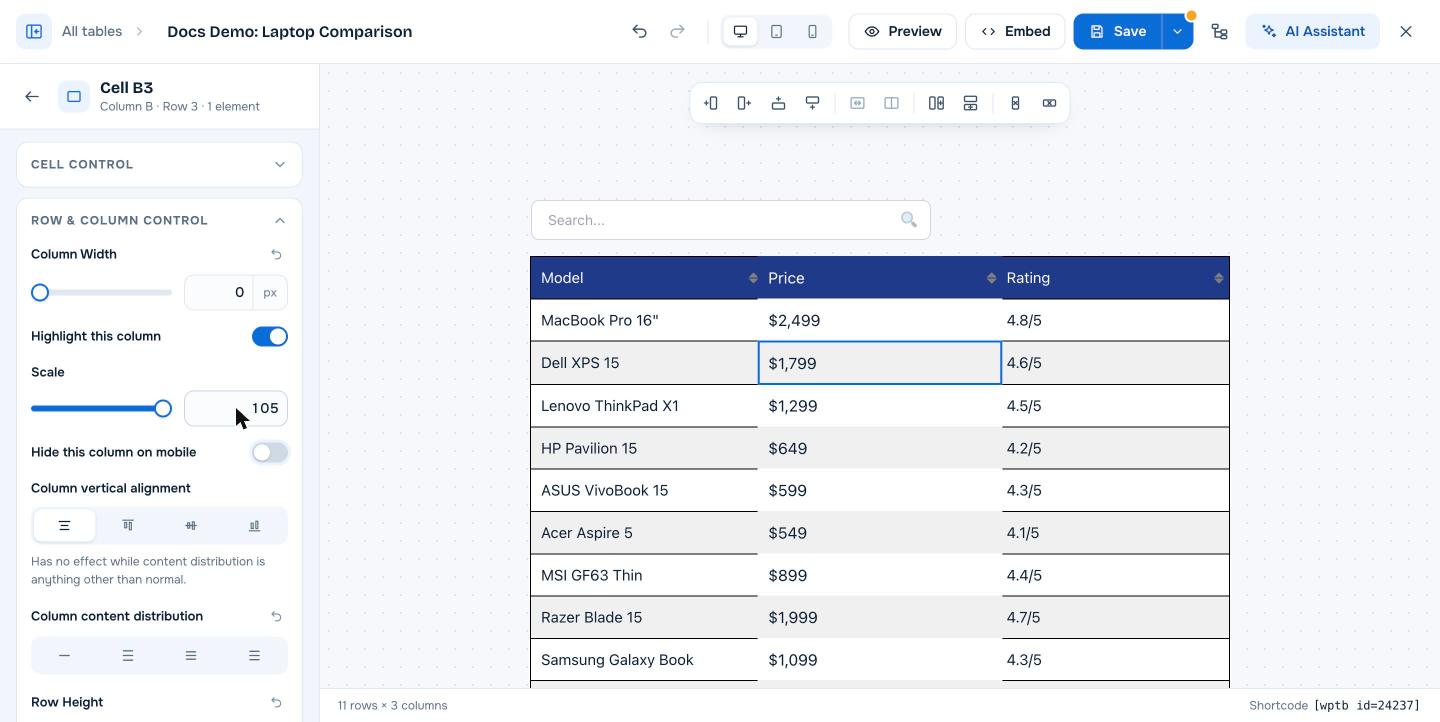
- Click the empty space inside a cell (not the text) in the column or row you want to highlight. The left panel shows the cell name, for example Cell B3.
- Expand Row & Column Control.
Step 2: Turn on highlighting #
- For a column, turn on Highlight this column.
- For a row, turn on Highlight this row.
A Scale setting appears. It controls how much larger the highlighted row or column is, from 100 (no change) to 105 (5 percent larger).
Step 3: Make the highlight clear #
Scaling works best together with a visual change:
- Give the highlighted column a different background color with cell background colors or a row background.
- Add a Badge or a Ribbon such as “Best value” or “Most popular”.
- Make the button in that column a stronger color.
Click Save when you are done. The Highlighted Column and Highlighted Row templates on the Add New page show finished examples. See How to Create a Table From a Template in WP Table Builder.
Frequently asked questions #
How do I highlight the recommended plan in a pricing table?
Select a cell in that plan’s column, open Row & Column Control and turn on Highlight this column. Set Scale to 105, then add a badge or ribbon and a different background color.
What does the Scale setting do?
Scale makes the highlighted row or column larger than the rest of the table. 100 means normal size and 105 means 5 percent larger.
Can I highlight more than one column?
Yes. Turn on highlighting for each column separately, although one highlighted column usually works best for drawing attention.
Is highlighting available in the free version?
No. Highlight Row and Highlight Column are WP Table Builder Pro features.


