
Quick Answer
The Star Rating element shows a rating as stars, for example 4.5 out of 5. Drag Star Rating into a cell, set Max Rating and Rating Value, then style it with Star Size, Star Color and Content Alignment. Turn on Show Rating to display the number (such as 4/5) under the stars. The Star Rating element is free.
Star ratings summarize reviews at a glance and are one of the most common elements in product comparison tables.
Requirements #
| Item | Details |
|---|---|
| Plan | Free and Pro |
| Where | Elements tab in the builder, Basic group |
| Time needed | About 1 minute |
How to add the Star Rating element #
- Open the table in the builder and click the Elements tab.
- Drag Star Rating into a cell, or type
star ratingin Search elements first. - Click the element to open its settings in the left panel.
- Click Save when you are done.
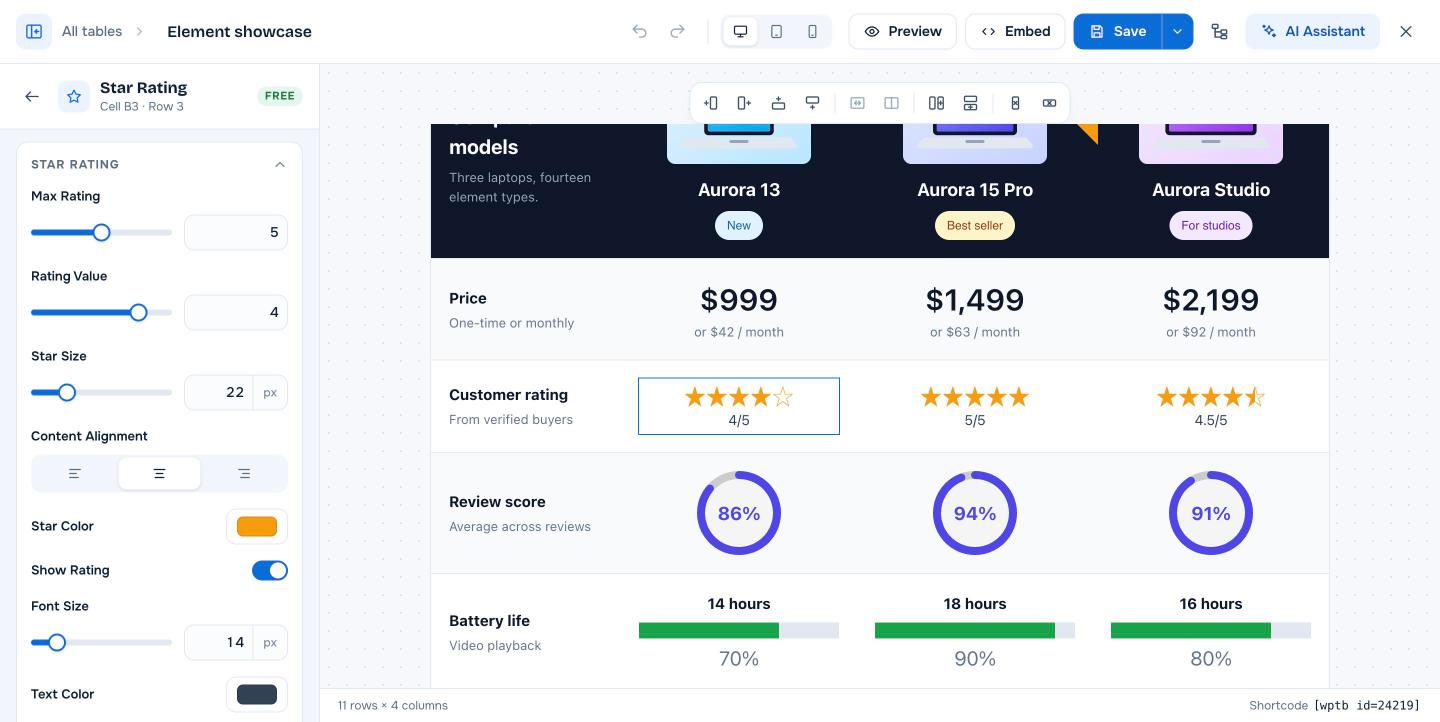
Star Rating settings #
| Setting | What it does |
|---|---|
| Max Rating | The number of stars, usually 5 |
| Rating Value | The score. Half values such as 4.5 show a half star. |
| Star Size | Size in px |
| Content Alignment | Left, center or right |
| Star Color | Color of the filled stars |
| Show Rating | Shows the score as text under the stars |
| Font Size / Text Color | Style of the score text |
| Padding / Margin | Spacing (Pro) |
For a circular score such as 86%, use Circle Rating (Pro).
Frequently asked questions #
How do I add star ratings to a WordPress table?
Drag the Star Rating element into a cell and set Max Rating and Rating Value.
Can I show half stars?
Yes. Enter a value such as 4.5 in Rating Value.
Can I hide the number under the stars?
Yes. Turn off Show Rating.


